Sometimes we need to restart our Android app between the code execution, In that case, we have to use some set of code to perform this action. Now we will learn How do I programmatically restart an Android app?.
Before choosing a restart technique, decide what you want the user to experience. Returning to the launcher activity, clearing a task, recreating one activity, and terminating the process are different operations. Android manages activities and processes itself, so a reliable restart Android app flow should work with the lifecycle instead of treating the app like a desktop program.
A full restart may be appropriate after a session reset or an unrecoverable configuration problem. It is usually unnecessary for refreshing a list, reloading preferences, or changing one screen. Those cases are better handled by updating the relevant state and allowing the visible activity to render again.
What Restarting an Android App Really Means
Relaunching an entry activity
Many developers use the word restart when they mean opening the splash screen or main activity again. This can be implemented as a new task or as a task-clearing navigation operation, without deliberately killing the process.
Recreating a single screen
If only the current screen has stale resources, recreate that activity or rebind its data. This keeps unrelated navigation intact and gives Android an opportunity to restore suitable saved state.
So, simply use the PendingIntent to do this activity with help of AlarmManager.
When a Programmatic Restart Is Useful
Session and account changes
After sign-out, the application may need to remove private screens and show a login screen. Clearing the visual stack is not enough by itself: remove or invalidate the session data as well, and make sure Back cannot reveal an authenticated activity.
Controlled recovery
A relaunch can be a final recovery step when a group of resources cannot be refreshed safely in place. Save important data before starting it, explain unexpected data loss, and make sure the entry activity can rebuild itself when the previous process is unavailable.
When not to restart
- Refresh only the affected list when new records arrive.
- Recreate a screen after a theme, locale, or layout change.
- Reload a repository when preferences have changed.
- Use normal navigation for login and logout transitions.
PendingIntent mPendingIntent = PendingIntent.getActivity(context, mPendingIntentId,    mStartActivity, PendingIntent.FLAG_CANCEL_CURRENT);
AlarmManager mgr = (AlarmManager)context.getSystemService(Context.ALARM_SERVICE);
Managing the Back Stack
Understand duplicate activities
Launching the same activity again can create another instance unless the launch mode or intent flags say otherwise. A restart is successful only when the complete navigation result is correct: the entry screen appears, Back behaves predictably, and Recents does not expose a screen that should have been removed.
Sign-out requires security cleanup
When the reason for restarting is a user change, clear tokens, cached private data, and authenticated repositories according to the application's design. A new login screen without session cleanup is only a visual reset.
Background restrictions
A foreground button press is different from a restart requested by a background service or receiver. Android limits background activity starts, so do not assume that an alarm can always bring an application to the screen without a user-visible trigger.
Use this in your code like this:
Why System.exit(0) Is Not a Complete Restart Strategy
The existing example schedules a launch and then calls System.exit(0). That may appear to work on an older device, but process termination can interrupt lifecycle callbacks, persistence, analytics, and unfinished work. It also does not decide what should happen to the activity back stack.
An Android task is a stack of activities. Starting an activity can add another instance, while Back removes the top entry. If a restart is implemented without defining task behavior, the user may see duplicate home screens or return to an old private screen after pressing Back.
Use process termination only for a tightly controlled test or exceptional environment. For application behavior, prefer task flags, explicit navigation, activity recreation, or a state reset.
How PendingIntent and AlarmManager Work Together
Scheduling a future launch
The older pattern creates a PendingIntent for an entry activity, schedules it through AlarmManager with a short delay, and then exits the current flow. The delay gives the system an opportunity to register the pending launch, but it is not a guarantee that every device will behave identically.
What the pair does not do
AlarmManager does not save user data, clear every activity, or prevent duplicate requests. Those responsibilities belong to the code that prepares the intent and manages the task.
try{
   Intent mStartActivity = new Intent(context, SplashScreenActivity.class);
   int mPendingIntentId = 123456;
   PendingIntent mPendingIntent = PendingIntent.getActivity(context, mPendingIntentId,    mStartActivity, PendingIntent.FLAG_CANCEL_CURRENT);
   AlarmManager mgr = (AlarmManager)context.getSystemService(Context.ALARM_SERVICE);
   mgr.set(AlarmManager.RTC, System.currentTimeMillis() + 100, mPendingIntent);
   System.exit(0);
}catch (Exception e){
   e.printStackTrace();
}
Conclusion
A programmatic restart should be a deliberate task or navigation operation, not a shortcut for every refresh problem. The PendingIntent and AlarmManager pattern explains a historical approach, but activity recreation, explicit task clearing, and state resets are often safer choices.
If you truly need to restart Android app behavior, save important state, define the desired back stack, use current PendingIntent requirements, and test warm starts, cold starts, Back, Recents, and sign-out flows. A predictable user journey is more important than making the process appear to restart.
Common Implementation Mistakes
Assuming the process is always alive
The new entry activity must tolerate missing in-memory objects and optional state. Read durable state from the appropriate repository and handle incomplete data explicitly.
Using a fixed delay as a guarantee
A short delay may be useful in a legacy pattern, but it is not a universal synchronization mechanism. If the launch is essential, design the task transition so it does not depend solely on a particular number of milliseconds.
Ignoring failure paths
Log useful diagnostic information without exposing private data, and provide a recoverable destination if the restart cannot be scheduled. Do not catch every exception and continue as though the task was reset.
FAQ
Can an Android app restart itself?
An app can relaunch an activity or recreate its task, but Android controls process and background behavior. A clean navigation reset is safer than forcing a process restart.
Is System.exit(0) recommended?
It is generally not recommended for normal application navigation because it can interrupt lifecycle work and leaves task behavior undefined.
Can I restart only one activity?
Yes. Recreate that activity or start it with carefully selected flags when a full application reset is unnecessary.
Why does old restart code fail on newer Android versions?
PendingIntent requirements, task rules, and background-start restrictions have changed. Test against the target SDK and device versions that your application supports.
Modern Alternatives to Restarting the Process
Recreate the current activity
Use activity recreation when the problem is confined to a screen or its resources. The normal lifecycle gives the application a chance to release and rebuild views while preserving suitable state.
Reset application state
For a data refresh, expose a repository or state-holder reset operation. Notify the visible screen and render the new state instead of restarting the entire application to force a refresh.
Navigate to a clean destination
For authentication boundaries, use an explicit navigation action that clears private screens and opens the correct public destination. This is easier to test than terminating the process.
Testing the Restart Behavior
- Test while the app is visible and after it has been placed in the background.
- Open several activities, restart, and verify Back and Recents behavior.
- Test a cold start after the operating system has reclaimed the process.
- Interrupt the flow with rotation, screen locking, or a denied permission.
- Check that a splash screen does not create an infinite restart loop.
Building a Safer Relaunch Flow
Prepare state before navigation
Persist settings, session decisions, and user-created content before requesting a reset. Do not depend on an activity field or static variable surviving process death. Temporary form data should be deliberately restored or discarded rather than lost silently.
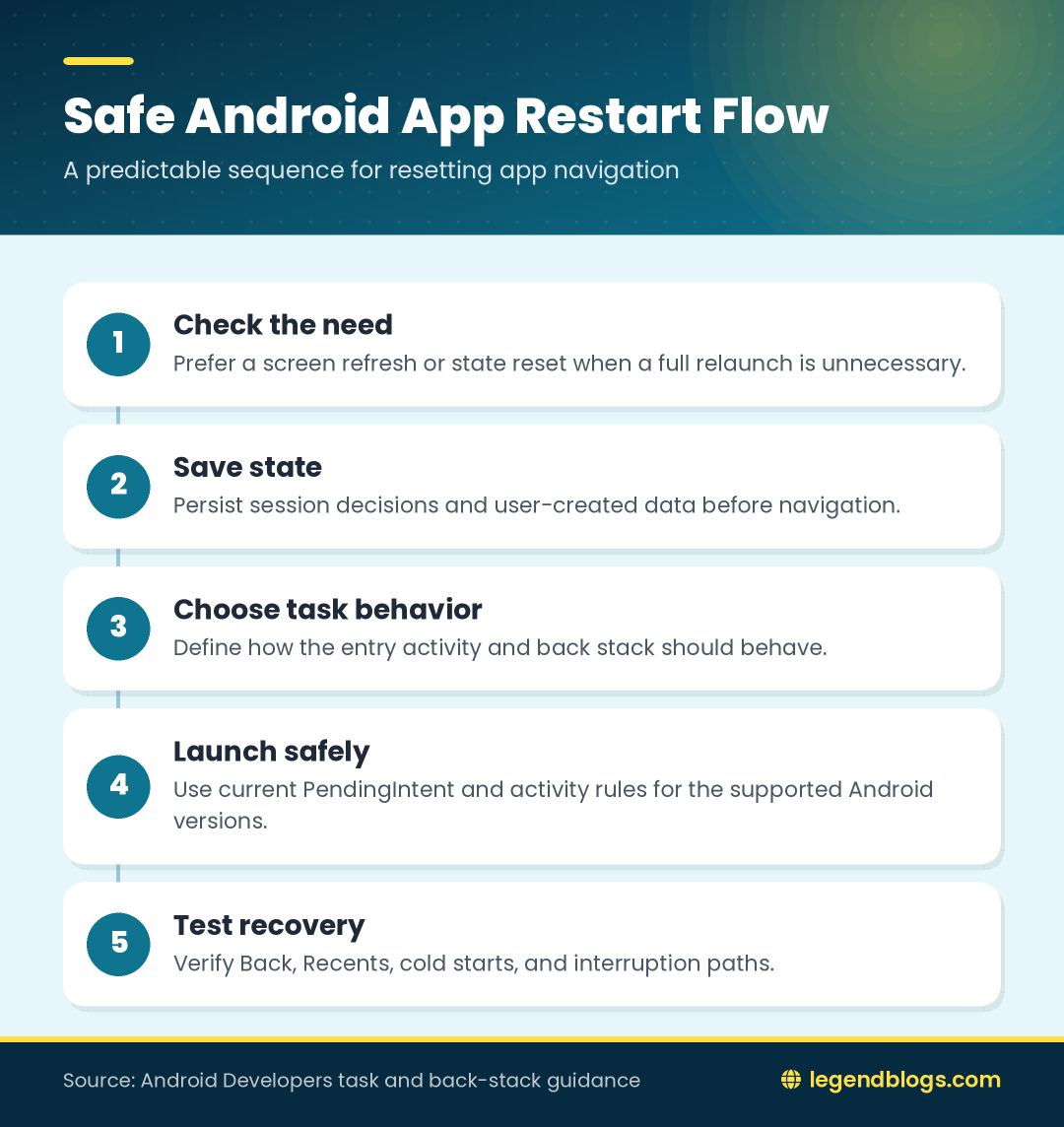
Choose task behavior intentionally
Flags such as clear-top, new-task, and clear-task have different results. A clean entry flow commonly needs to remove unwanted activities, but the exact combination depends on whether the existing task should be reused. Test from several starting screens instead of copying flags blindly.
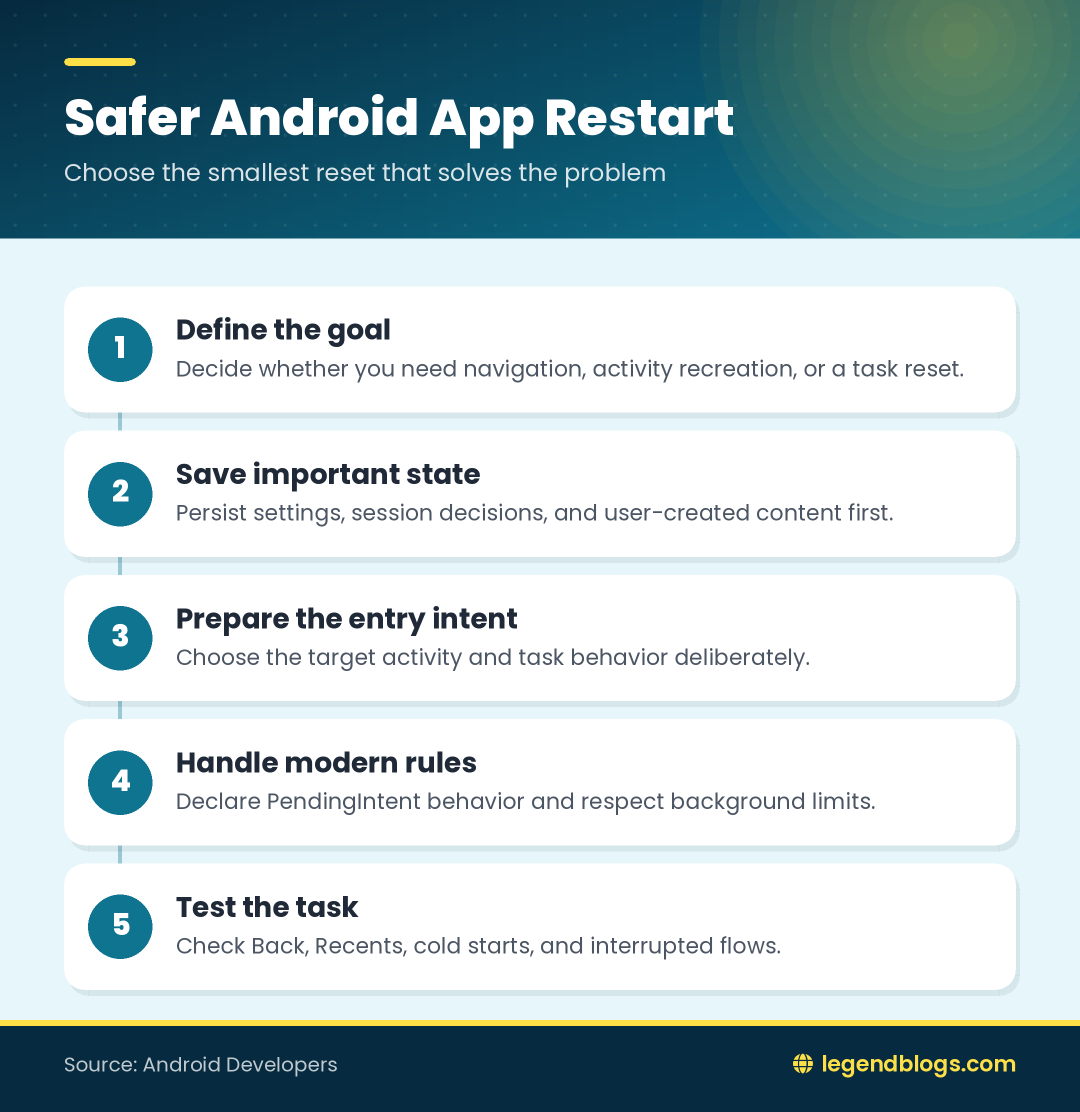
Prevent repeated requests
Disable the restart control after the first tap or record that one restart is already pending. Repeated taps can create multiple alarms or several launches. Clear that pending state if the operation is cancelled or fails.
PendingIntent Details for Current Android Versions
Recent Android versions require the mutability of many PendingIntent objects to be declared. Older code often omits the appropriate immutable or mutable flag. Select the behavior intentionally and do not make a PendingIntent mutable merely to silence a build or runtime warning.
Try to use the above code within the try block.







Write a comment