You can open link of the WebView externally from android webview without leaving the app. For this action you need to set a WebViewClient class in your WebView. No need to create any custom WebView for that. Let's see the example:
In webview client override shouldOverrideUrlLoading() method just like that,
@Override
        public boolean shouldOverrideUrlLoading(WebView view, WebResourceRequest request) {
            Intent i = new Intent(Intent.ACTION_VIEW, request.getUrl());
            startActivity(i);
            return true;
        }
Within the shouldOverrideUrlLoading() method simply get the URL from the request and pass into the Intent. See the full example.
MainActivity:
package com.legendblogs.android;

import android.annotation.SuppressLint;
import android.content.Context;
import android.support.v7.app.AppCompatActivity;
import android.os.Bundle;
import android.util.Log;
import android.webkit.JavascriptInterface;
import android.webkit.WebChromeClient;
import android.webkit.WebView;
import android.widget.Toast;

public class MainActivity extends AppCompatActivity {

    String TAG = "MainActivity";
    Context context;
    WebView mWebView;

    @Override
    protected void onCreate(Bundle savedInstanceState) {
        super.onCreate(savedInstanceState);
        setContentView(R.layout.activity_main);
        context = this;

        mWebView = (WebView) findViewById(R.id.webview);
        mWebview.setWebViewClient(new MyWebViewClient());

        String ENROLLMENT_URL = "file:///android_asset/about_page.html";
        mWebView.loadUrl(ENROLLMENT_URL);

    }

    public final class MyWebViewClient extends WebViewClient {

        @Override
        public boolean shouldOverrideUrlLoading(WebView view, WebResourceRequest request) {
            Intent i = new Intent(Intent.ACTION_VIEW, request.getUrl());
            startActivity(i);
            return true;
        }

    }
}
activity_main.xml
<?xml version="1.0" encoding="utf-8"?>
<RelativeLayout xmlns:android="http://schemas.android.com/apk/res/android"
    xmlns:app="http://schemas.android.com/apk/res-auto"
    xmlns:tools="http://schemas.android.com/tools"
    android:layout_width="match_parent"
    android:layout_height="match_parent"
    tools:context="com.legendblogs.android.MainActivity">

    <WebView
        android:layout_width="match_parent"
        android:layout_height="match_parent"
        android:id="@+id/webview"/>


</RelativeLayout>
References stackoverflow:
https://stackoverflow.com/questions/17994750/open-external-links-in-the-browser-with-android-webview
How to Control Android WebView Navigation
Why the WebViewClient callback is important
A WebViewClient lets the application make a decision whenever a page requests navigation. Without a client, the result can vary between loading inside the WebView and handing the request to another application. Attach the client before the first call to loadUrl.
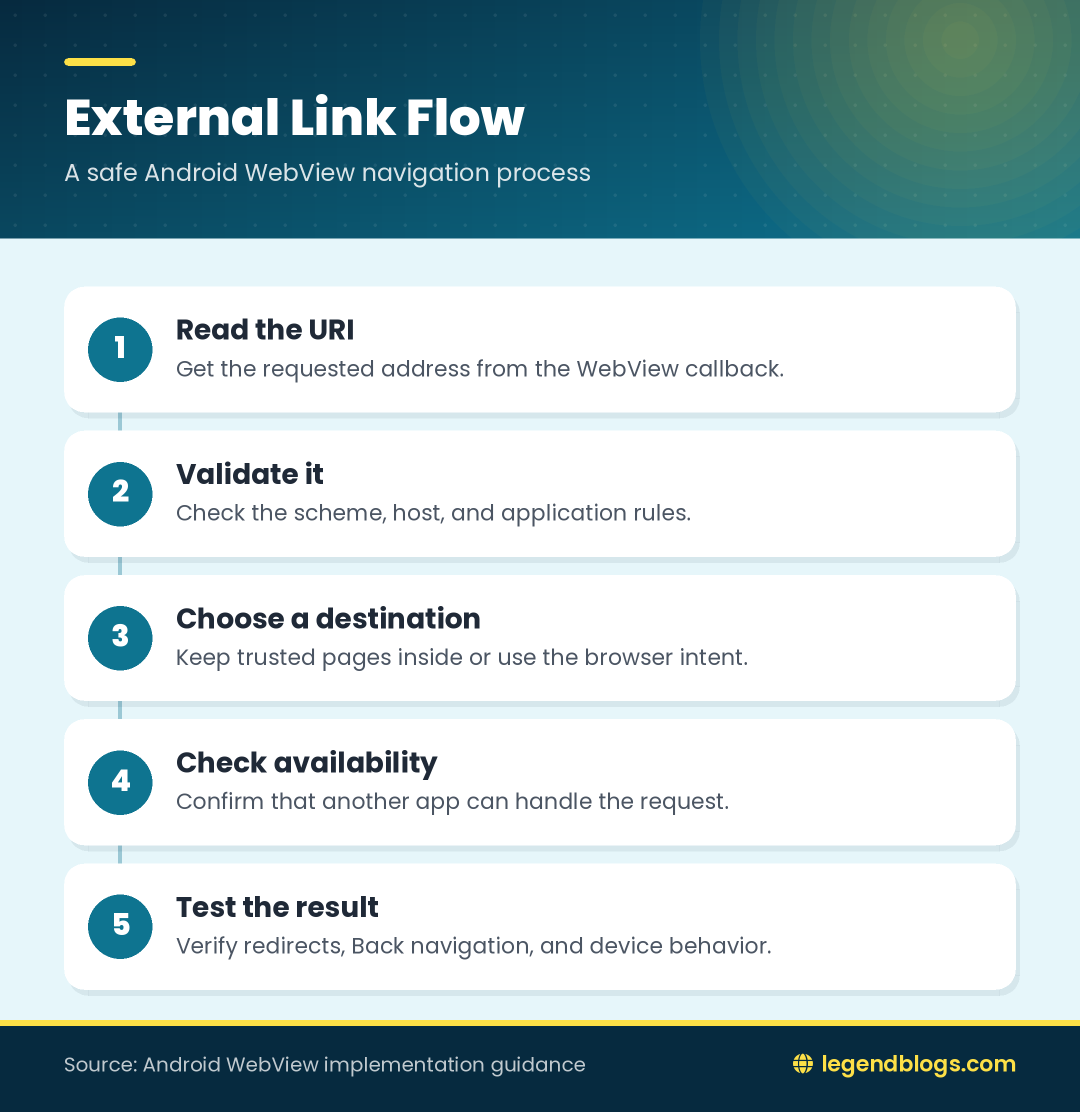
The navigation decision should be deliberate. Keep approved application pages inside the WebView, send selected external pages to the browser, and reject or explain unsupported schemes. This is more reliable than treating every link in the same way.
Modern and legacy callback methods
Current Android projects can inspect a WebResourceRequest and read its URI. Projects that support older Android releases may also need the callback that receives a String URL. Both callbacks should use the same validation helper so that one Android version does not follow a different security policy.
When the application handles a request by starting an external intent, return true. When the WebView should continue loading a trusted page, return false. Returning the wrong value may produce duplicate navigation or make a link appear unresponsive.
Opening External URLs with an Android Intent
How ACTION_VIEW works
Intent.ACTION_VIEW is the normal Android mechanism for asking another application to display a resource. For a web address, Android resolves the URI to an installed browser. The application should not assume that Chrome is installed or force a specific browser unless that is a documented product requirement.
Read the requested URI, check that its scheme is HTTP or HTTPS, and create an ACTION_VIEW intent. Pass the URI to the intent and start it only after confirming that a compatible Activity exists.
Handling missing browsers
Some emulators, managed devices, and restricted devices may not have a browser. Resolving the intent with the package manager prevents an ActivityNotFoundException. If the intent cannot be resolved, the app can keep the address in the WebView or show a short message explaining that no browser is available.
Keeping Trusted Links Inside the App
Use a host allowlist
Many applications need internal pages to stay inside the WebView while unrelated pages open externally. Parse the URI and compare its host with a controlled allowlist. Do not trust a URL just because your domain appears somewhere in the string; a deceptive host can contain a trusted domain as part of a longer name.
Return false for an approved host. For other valid web addresses, start the browser intent and return true. If the page can redirect to other domains, test the redirect path as well as the original link.
Handling non-web schemes
Links may use mailto, tel, market, or a custom application scheme. Each scheme needs an explicit product decision. You can handle supported schemes with their own intents, while rejecting unknown schemes rather than sending them blindly to an arbitrary application.
Security and Android Compatibility
Validate before launching
URL validation is important when the WebView displays content that users can edit or when remote pages are outside the company’s control. Accept only schemes and hosts that the application expects. Prefer HTTPS for web content, and do not enable cleartext traffic simply to make an old link work without understanding the consequences.
Opening a browser does not require a JavaScript interface. Avoid exposing Java methods to untrusted pages unless another feature genuinely needs that integration. A smaller WebView permission and interface surface is easier to review and maintain.
Lifecycle and back navigation
Test what happens after the user returns from the browser. The original WebView should still show the expected page, and activity recreation should not attach multiple clients or reload an unintended URL. Also test rotation, process restoration, and the Back button.
Testing and Troubleshooting
Useful test cases
- An internal HTTPS page that should remain in the WebView.
- An external HTTPS page that should open in the browser.
- An HTTP page if the application intentionally supports it.
- A redirect from a trusted host to an external host.
- An empty, malformed, or unsupported URI.
- A device or emulator without a browser application.
Common errors
If a link stays inside the WebView, confirm that the client is attached before loading the page and that the external branch returns true. If a link opens twice, check that the code does not start an intent and then return false. If the app crashes, check URI parsing and browser availability before calling startActivity.
FAQ
How do I open all WebView links in a browser?
Intercept valid web URLs in WebViewClient and start an ACTION_VIEW intent. Android chooses the user’s default compatible browser rather than guaranteeing a particular browser.
Can internal links remain inside the WebView?
Yes. Compare the parsed host with a trusted allowlist and return false for approved internal pages. Handle other valid addresses with the external intent.
Why does shouldOverrideUrlLoading run more than once?
Use one navigation helper for both callback versions and return true after external handling. Returning false after launching an intent can allow WebView to process the same navigation as well.
Does the solution support newer Android versions?
Use the WebResourceRequest callback on newer platforms and retain the legacy callback for supported older releases. Test the policy on the minimum Android version supported by the app.
What if the device has no browser?
Resolve the ACTION_VIEW intent before starting it. If there is no matching Activity, keep the content in the WebView or show a helpful fallback message.
Conclusion
To open external links in Android WebView, attach a WebViewClient, inspect the requested URI, keep trusted pages inside the app, and use ACTION_VIEW for approved external browser destinations.
Validate schemes and hosts, check that a browser is available, support the Android versions your project targets, and test redirects and lifecycle changes. These details make the navigation flow safer and more predictable.
Practical Implementation Checklist
Review the policy before release
Before shipping the feature, write down which hosts stay inside the WebView and which destinations open externally. A clear policy helps developers, testers, and security reviewers understand the intended behavior and prevents a later change from allowing unexpected navigation.
Also verify that the displayed link text matches the destination, that redirects are handled intentionally, and that error messages are useful to the person using the app. Small navigation details can affect trust just as much as the page design.
Keep the implementation maintainable
Place URL checks and intent creation in a small helper rather than repeating them in every callback. Add focused tests for trusted hosts, external HTTPS addresses, unsupported schemes, and devices without a browser. A compact, shared policy is easier to update when Android behavior or the application’s domain list changes.
Practical Implementation Checklist
Review the navigation policy
Before releasing the feature, document which hosts stay in the WebView and which destinations open externally. A written policy helps developers, testers, and future maintainers make the same decision when new links are added.
Confirm the fallback behavior
Decide what the user sees when a URL is invalid, a browser is unavailable, or a link uses an unsupported scheme. A clear fallback is better than a silent failure and makes the feature easier to diagnose in production.






Write a comment