
Hello, Today I am going to show you one amazing jQuery example for Arrange list items using drag and drop jQuery. Dragonfly JS is a tiny vanilla JavaScript library that enables sorting (dragging and dropping) functionality with zero dependencies.
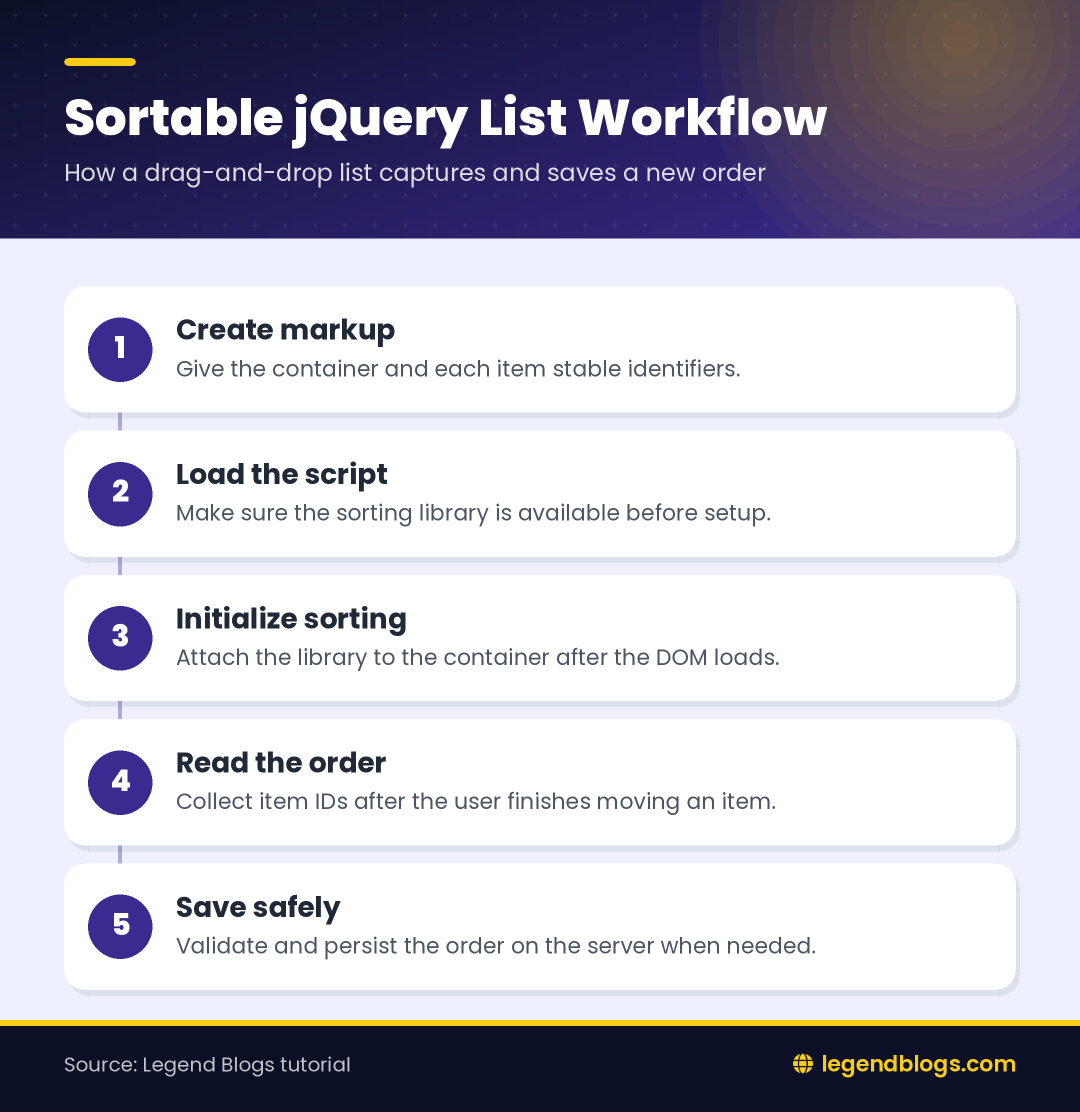
This jQuery drag and drop list tutorial shows how to initialize sortable items, identify the new order, and provide a usable alternative when dragging is not available.
Create a DOM structure, based on your desired elements:
How a jQuery Drag and Drop List Works
A sortable interface has three parts: a container, the items that can move, and code that responds when the order changes. The container gives the library one boundary to manage, while each child item needs a stable identifier so your application can recognize it after the user rearranges the list.
Use Stable Item Identifiers
The example uses IDs such as item1 and item2. Keep those IDs tied to the record rather than to its current position. If the first item moves to the fourth position, its ID should remain the same; only the order of the items has changed.
Use meaningful labels for real content instead of placeholder names. A product, task, playlist entry, or navigation link should remain understandable when JavaScript is disabled or when a user cannot drag it.
Load the Library Before Initialization
Make sure the Dragonfly script is available before the initialization callback runs. Put the script reference in the correct location, check the browser Network panel for a 404 response, and confirm that the global dragonfly function exists before calling it. The current example uses a local dragonfly.js file, so the path must match the file location in your project.
Keep the initialization inside DOMContentLoaded so the container exists when the library searches for it. If the code is loaded at the end of the document, the event is still a clear and safe boundary for setup.
<div class="drag-container">
    <div class="drag-box" id="item1">Item #1</div>
    <div class="drag-box" id="item2">Item #2</div>
    <div class="drag-box" id="item3">Item #3</div>
    <div class="drag-box" id="item4">Item #4</div>
    <div class="drag-box" id="item5">Item #5</div>
    <div class="drag-box" id="item6">Item #6</div>
    <div class="drag-box" id="item7">Item #7</div>
    <div class="drag-box" id="item8">Item #8</div>
    <div class="drag-box" id="item9">Item #9</div>
    <div class="drag-box" id="item10">Item #10</div>
    <div class="drag-box" id="item11">Item #11</div>
    <div class="drag-box" id="item12">Item #12</div>
</div>
Call it using the dragonfly(element) function:
Read and Save the New Item Order
The callback is the right place to react to a completed reorder. Build an array from the container’s children and send the stable IDs to your application. Do not send the visible position as the identity because positions change every time the user moves an item.
function getItemOrder() {
    return Array.from(document.querySelectorAll('.drag-container .drag-box'))
        .map(function (item) {
            return item.id;
        });
}

dragonfly('.drag-container', function () {
    const order = getItemOrder();
    console.log(order);
    // Send order to your server when persistence is required.
});
When saving to a server, validate that every submitted ID belongs to the current user and that no ID appears twice. Treat the submitted order as user input. A server should not trust a hidden field or accept records that the current account is not allowed to move.
Give the User Feedback
Show a small status message after saving, such as “Order saved,” and show an error if the request fails. Avoid making the item jump back without explanation. If the application saves asynchronously, disable only the save control that needs protection and keep the list usable.
Styling the Draggable Items
The sample CSS provides a border, spacing, hover color, and a dragging state. Keep the visual change subtle enough that the text remains readable. A cursor alone is not sufficient communication, so also use a visible focus style and a short instruction near the list.
- Use adequate contrast for text and background colors.
- Keep the clickable or draggable area large enough for touch users.
- Do not rely only on color to identify the active item.
- Preserve the item’s height while it is being moved to reduce layout shift.
- Use a clear focus outline for keyboard navigation.
Mobile and Touch Behavior
Mouse dragging and touch interaction are not identical. Test the example on the actual mobile browsers your audience uses. If the library does not provide a comfortable touch interaction, offer move-up and move-down buttons or another non-drag alternative instead of forcing every user to drag.
Do not make the entire item both a text-selection area and a drag handle without testing. Users may need to select or copy the label. A dedicated handle can make the interaction more predictable when the library supports one.
Accessibility for Reorderable Lists
Drag and drop should not be the only way to change order. Provide buttons or keyboard actions that move an item up and down, and announce the result with a status element for screen-reader users. The visible list should still communicate the current order after every change.
Use semantic list markup where possible, give the list a useful label, and preserve normal focus behavior. The browser’s drag-and-drop model has several events and can interfere with ordinary text selection, so test with keyboard-only navigation and assistive technology rather than checking only with a mouse.
Troubleshooting the Example
The Items Do Not Move
Check that the script path is correct, the container selector matches the markup, and the initialization runs after the DOM exists. Look for JavaScript errors before changing the CSS. A missing library file and a misspelled selector are more common causes than a styling problem.
The Callback Does Not Run
Confirm that the callback is passed in the position expected by the library and that the callback is not throwing an exception. Add a temporary console message, then inspect whether the message appears after a completed move rather than only when the page loads.
The Order Is Not Persisted
Inspect the array of IDs immediately after the move. If the array is correct but the server shows an old order, inspect the request payload, response, authentication, and server-side validation. If the array is wrong, ensure that the selector targets only sortable children and not nested elements.
When to Use a Different Approach
This small library is suitable for a focused list when its behavior matches the project. For complex boards, nested lists, or applications that need robust keyboard and touch behavior, compare a maintained sortable component or implement the required interaction with native browser APIs. The right choice depends on browser support, maintenance expectations, and accessibility requirements.
For related asynchronous interface examples, see uploading an image without a page reload using jQuery and understanding jQuery noConflict.
FAQ
How do I get the new order of a jQuery drag and drop list?
Read the IDs of the container’s child items after the drop callback runs, then send that ordered array to the server if it must be saved.
Why does the list work with a mouse but not on mobile?
Touch browsers and mouse events behave differently. Test the library on target devices and provide move buttons or another keyboard-friendly alternative.
Should item IDs change after sorting?
No. Keep stable IDs attached to records and treat the child position as the current order.
How can I make sorting accessible?
Offer keyboard-operable move controls, visible focus states, clear instructions, and a status announcement after the order changes.
document.addEventListener("DOMContentLoaded", function () {
    'use strict';
    dragonfly('.drag-container', function () {
        console.log('This is a callback');// you can do whatever you want
    });
});
Let's see a full example:
<!doctype html>
<html>
<head>
<meta charset="utf-8">
<meta http-equiv="x-ua-compatible" content="ie=edge">
<title>Drag & Drop list item</title>
<meta name="viewport" content="width=device-width, initial-scale=1, shrink-to-fit=no">
<style>
.drag-container {
    box-sizing: border-box;
    border: 1px solid #cccccc;
    border-radius: 3px;
    width: 400px;
    padding: 8px;
    margin: 0 auto;
}
.drag-box {
    box-sizing: border-box;
    border: 1px solid rgba(0, 0, 0, 0.15);
    border-radius: 3px;
    padding: 4px 8px;
    margin: 4px;
    cursor: pointer;
    background-color: #eeeeee;
}
.drag-box:hover {
    background-color: #ffff99;
}
.drag-helper {
    box-sizing: border-box;
    position: absolute;
    display: none;
    top: auto;
    left: auto;
}
.drag-box-dragging .drag-box {
    background-color: #ff99cc;
    opacity: 0.5;
    transform: scale(1.5);
}
</style>
</head>
<body>
<div class="drag-container">
    <div class="drag-box" id="item1">Item #1</div>
    <div class="drag-box" id="item2">Item #2</div>
    <div class="drag-box" id="item3">Item #3</div>
    <div class="drag-box" id="item4">Item #4</div>
    <div class="drag-box" id="item5">Item #5</div>
    <div class="drag-box" id="item6">Item #6</div>
    <div class="drag-box" id="item7">Item #7</div>
    <div class="drag-box" id="item8">Item #8</div>
    <div class="drag-box" id="item9">Item #9</div>
    <div class="drag-box" id="item10">Item #10</div>
    <div class="drag-box" id="item11">Item #11</div>
    <div class="drag-box" id="item12">Item #12</div>
</div>
<script src="dragonfly.js"></script>
</body>
</html>






Write a comment