Javascript toggle method simply toggles the visibility of elements. The matched elements will be revealed or hidden immediately, with no animation, by changing the CSS display property.
Simply if the element is initially displayed, it will be hidden; if hidden, it will be shown.
$( ".<elementId>" ).toggle();Let's take a example:
<!doctype html>
<html lang="en">
<head>
  <meta charset="utf-8">
  <title>Toggle Demo</title>
  <script src="https://code.jquery.com/jquery-1.10.2.js"></script>
</head>
<body>

<button>Toggle</button>
<p>Hello</p>
<p style="display: none">Legend Blogs User</p>

<script>
$( "button" ).click(function() {
  $( "p" ).toggle();
});
</script>

</body>
</html>Animation Speed:
In the another method animates all paragraphs to be shown if they are hidden and hidden if they are visible, completing the animation within 600 milliseconds.
<script>
$( "button" ).click(function() {
  $( "p" ).toggle( "slow" );
});
</script>
After animation complete:
If supplied, the callback is fired once the animation is complete. This can be useful for stringing different animations together in sequence.
If multiple elements are animated, it is important to note that the callback is executed once per matched element, not once for the animation as a whole element.
$( "#clickme" ).click(function() {
  $( "p" ).toggle( "slow", function() {
    // Animation complete.
  });
});
What Does JavaScript Show Hide Div Mean?
Visibility versus display
JavaScript show hide div behavior means changing whether a block of page content is available to see. A hidden element may be removed from the layout with display:none, made invisible while keeping its space with visibility:hidden, or visually changed through a CSS class.
When a toggle is useful
A toggle is helpful for FAQs, mobile menus, settings panels, filters, help text, and compact dashboards. The user clicks a control, the page changes state, and clicking again restores the previous state. A good toggle should also communicate its current state to keyboard and assistive-technology users.
Understand the Existing jQuery toggle() Example
How the selector works
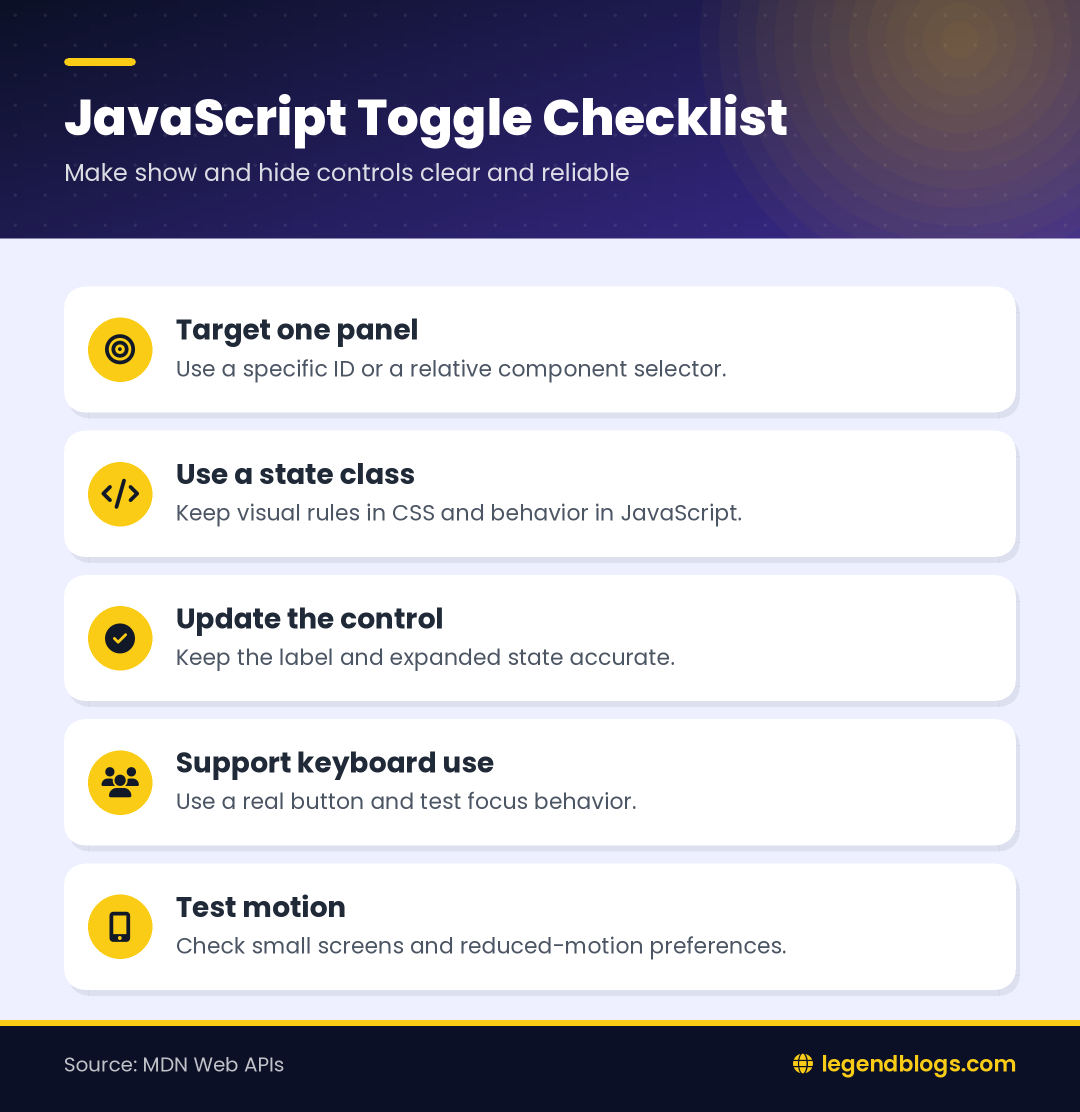
The original example attaches a click handler to a button and calls $("p").toggle(). That selector matches every paragraph on the page, so all matching paragraphs change visibility together. It is useful for demonstrating the method, but a production interface should normally target one specific panel.
Why the initial state matters
The example begins with one visible paragraph and another paragraph using display:none. jQuery checks the current state and switches it. When a page has several controls, make the initial state explicit so a visitor knows which content is available before interacting.
Show and Hide One Specific Div
Use an ID for a single panel
Give the target a unique ID when one button controls one panel. The button can select that ID and call toggle. This prevents unrelated content elsewhere on the page from changing when the user clicks the control.
Use a class for repeated components
Use a class when the page contains repeated cards or accordion items. Find the panel relative to the clicked button instead of selecting every element with the same class. Relative selection keeps each control connected to its own content.
Use Native JavaScript
Change the display property
Native JavaScript can inspect an element’s current display state and assign a new value. This is easy for a small demo, but inline styles can become difficult to manage when several CSS rules and responsive breakpoints control the same element.
Prefer classList for reusable state
The classList API provides add, remove, and toggle operations for an element’s classes. A CSS class such as hidden can hold the visual rule while JavaScript changes only the state. This separation keeps styling in CSS and behavior in JavaScript.
Use a CSS Class for Visibility
Define the hidden state
A common pattern is a class that sets display:none. The script toggles that class on the target panel. You can later change the visual design, add transitions, or introduce responsive rules without rewriting the click handler.
Choose the right hiding method
Use display:none when the hidden content should not occupy layout space. Use visibility:hidden when preserving space is important. For more complex panels, combine a state class with opacity and pointer-events, but ensure that hidden content is not still confusingly reachable by keyboard navigation.
Add a Smooth Animation
Use the existing jQuery speed option
The original post demonstrates $("p").toggle("slow"). jQuery accepts named speeds and duration values, then animates the visibility change. The callback runs after the animation for each matched element, so multiple targets may trigger it more than once.
Use CSS transitions for new interfaces
CSS transitions can animate opacity or a size-related property while JavaScript toggles a class. Test the result on small screens and respect the user’s reduced-motion preference. An animation should support understanding, not delay access to essential content.
Update Button Text and State
Tell users what the button controls
A button labeled only “Toggle” does not explain whether the next click will open or close content. Use labels such as “Show details” and “Hide details,” or update the text after the state changes. The visible label should remain consistent with the panel’s current state.
Use aria-expanded
Set aria-expanded to true when the controlled panel is open and false when it is closed. Connect the button to the panel with aria-controls. These attributes do not replace a visible label, but they provide useful state information to assistive technologies.
Toggle Multiple Sections
Keep each button independent
For an accordion or list of expandable cards, store a reference to the panel controlled by the clicked button. Toggle only that panel rather than every matching element. If the design permits only one open section, close the other panels deliberately and update their button states too.
Use event delegation when needed
Event delegation can handle clicks on a parent container when rows are added dynamically. Check that the clicked target is the intended button before changing a panel. This avoids attaching a new listener every time content is loaded.
Display Content Without Breaking Layout
Consider the surrounding flow
Opening a panel can move content below it. That is usually correct, but sudden movement can be disorienting. Keep headings and labels stable, avoid placing important controls where they jump unexpectedly, and test the page at different text sizes.
Preserve useful content
Do not hide information that a visitor needs to understand the button. A short visible label and a clear control are better than placing the entire explanation behind an unlabeled icon. Progressive disclosure should reduce clutter without creating uncertainty.
Common Toggle Errors
Selecting too many elements
A selector such as $("p") or $(".panel") may affect every matching element. Narrow the selector to the intended target or find it relative to the clicked control.
Mixing inline styles and classes
Inline display values can override stylesheet rules and make the next state unpredictable. Choose a consistent method. If you inherit old code, inspect the computed style and remove conflicting rules gradually.
Registering duplicate handlers
If initialization runs more than once, one click may trigger the toggle multiple times and appear to do nothing. Ensure that the handler is attached once, or remove the previous listener before adding a new one.
Test a Show and Hide Component
Check interaction states
- Load the page with the panel open and closed as intended.
- Click the control repeatedly and confirm that the state alternates once per click.
- Use the keyboard to focus and activate the button.
- Test long content, small screens, and large text settings.
- Confirm that the button label and aria-expanded value stay synchronized.
- Test reduced-motion preferences if an animation is used.
Test multiple instances
Place two or more independent panels on the page and confirm that one control does not change another. Test dynamically inserted content if the page loads sections through AJAX or a template.
FAQ
How do I show and hide a div on click?
Attach a click handler to a button and toggle a CSS class or the element’s display state. Target the specific div controlled by that button instead of selecting every div on the page.
What is the difference between display:none and visibility:hidden?
display:none removes the element from the layout, while visibility:hidden keeps its layout space but hides the content. Choose based on whether surrounding content should move.
Can I toggle a div without jQuery?
Yes. Native JavaScript can use classList.toggle or update a display property. A CSS class is usually easier to maintain than repeatedly writing inline styles.
How do I change button text after toggling?
Read the panel’s new state after the toggle and set the button text to match it. Also update aria-expanded so the visible and accessible states agree.
How do I animate a hidden div?
Use jQuery’s toggle duration or a CSS transition on a suitable property. Keep the animation short, test the final layout, and respect reduced-motion preferences.
Conclusion
JavaScript show hide div interactions are simple to start but deserve careful selectors, clear state management, and accessible controls. jQuery toggle remains useful for existing projects, while native JavaScript with classList and CSS provides a dependency-free approach for new code.
Begin with one specific panel, add a clear button label, test keyboard behavior, and then expand the pattern to accordions or dynamic content only after the basic state change is reliable.




Write a comment