Add and Remove event listener with javascript is very simple. First, you need to create your function with your business logics.
We have taken an example of stop and start scrolling logic.
var previousScrollTop = 0;
function scrollEvents(){
    window.scrollTo(previousScrollTop,0);
    previousScrollTop = window.pageXOffset;
}
This example also covered your problem of Enable and Disable scroll with event listener javascript.
So now create your function to add an event, like this:
function addEvent(){
    previousScrollTop = window.pageXOffset;
    window.addEventListener('scroll', scrollEvents);
}
After this you need to add, remove event function:
function removeEvent(){
    window.removeEventListener('scroll', scrollEvents);
}
Now, you need to call these functions according to your requirement.
//for add event
addEvent()
//for remeve event
removeEvent()What Are JavaScript Event Listeners?
Events, Targets, and Handler Functions
JavaScript event listeners let a page respond to clicks, keyboard input, pointer movement, form submission, and scrolling. An event target may be an element, the document, or the window. The listener is the function that runs when the event reaches that target.
The browser passes an Event object to the callback. It can tell you the event type, the original target, and the current target. Keeping this behavior in JavaScript is easier to maintain than placing separate event attributes throughout the HTML.
Why addEventListener Is Preferred
addEventListener() allows more than one part of an application to respond to the same event. It also supports capture, one-time execution, passive handling, and abort-based cleanup. The related removeEventListener() method lets you stop a listener when a component is hidden or destroyed.
How to Add an Event Listener
Basic addEventListener Syntax
The basic form is target.addEventListener(type, listener). For a button, use a named function so it can later be removed:
const button = document.querySelector('#saveButton');
function showSavedMessage(event) {
console.log('The button was clicked');
}
button.addEventListener('click', showSavedMessage);
The event name is case-sensitive. Confirm that the target exists before registering the listener; otherwise, a script that runs before the markup may try to call a method on null.
Handling the Event Object
The callback receives an event object. Its target is the object that started the event, while currentTarget identifies the object whose listener is running.
const form = document.querySelector('#profileForm');
function validateForm(event) {
event.preventDefault();
console.log('Validate the form here');
}
form.addEventListener('submit', validateForm);
How to Remove an Event Listener
Using the Same Named Function
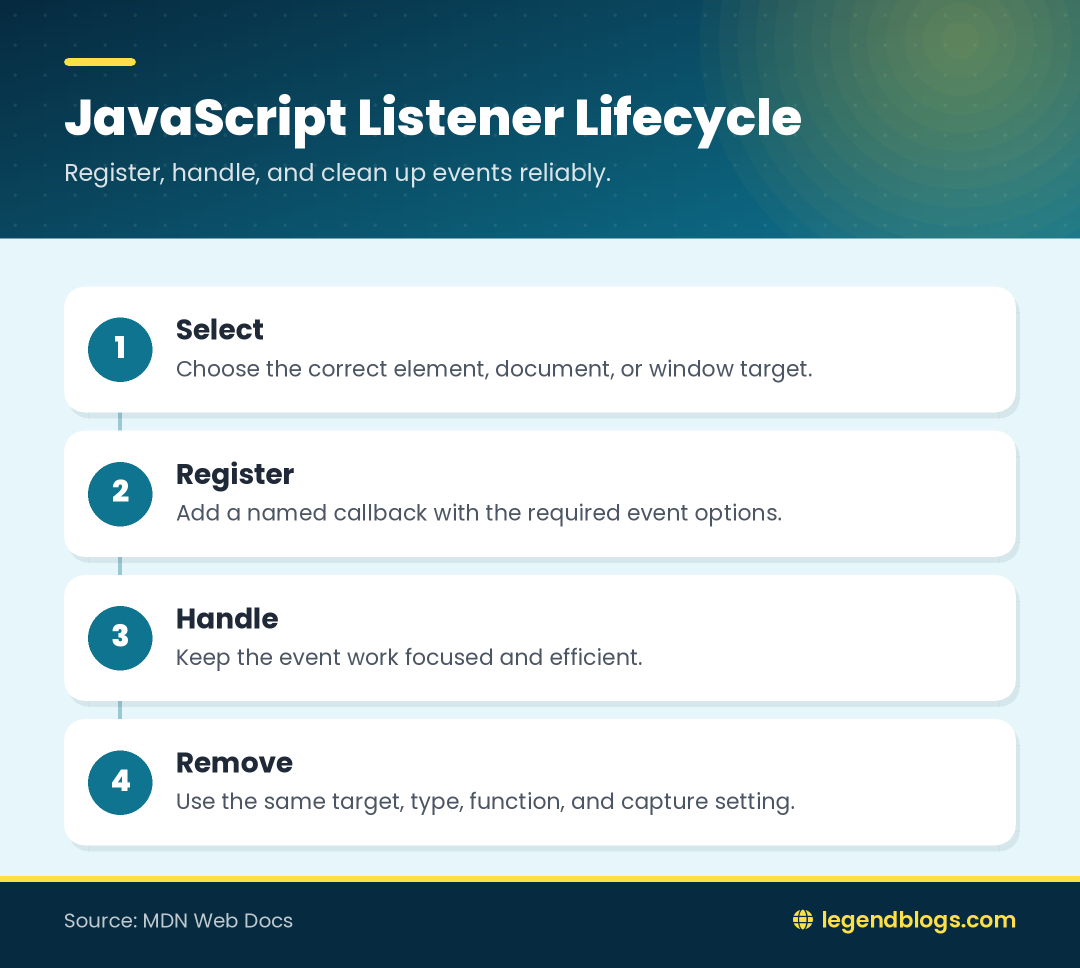
Removal requires the same target, event type, and function reference:
button.addEventListener('click', showSavedMessage);
button.removeEventListener('click', showSavedMessage);
A different function with identical code is not the same reference. Removing a listener that is not registered has no visible effect.
Matching the Capture Option
The capture setting is also part of the match. If capture was enabled during registration, pass the same setting during removal:
function inspectPointer() { console.log('Pointer event'); }
box.addEventListener('pointerdown', inspectPointer, true);
box.removeEventListener('pointerdown', inspectPointer, true);
Button Click Event Example
Adding and Disabling a Click Handler
A second button can disable the first button's behavior:
const toggleButton = document.querySelector('#toggleButton');
const disableButton = document.querySelector('#disableButton');
const message = document.querySelector('#statusMessage');
function updateStatus() {
message.textContent = 'The feature is enabled.';
}
function disableToggle() {
toggleButton.removeEventListener('click', updateStatus);
}
toggleButton.addEventListener('click', updateStatus);
disableButton.addEventListener('click', disableToggle);
To enable the behavior again, call addEventListener with updateStatus. Keep setup and cleanup close together so future changes do not lose the function reference.
Enable and Disable Scroll Events
Reading the Vertical Scroll Position
For vertical movement, use window.scrollY. The older example used a horizontal offset, which can produce incorrect results when the intended behavior concerns vertical scrolling.
function handleScroll() {
console.log('Vertical position:', window.scrollY);
}
window.addEventListener('scroll', handleScroll);
Using Passive Scroll Listeners
A scroll listener that only observes position can use passive: true. This tells the browser that the callback will not call preventDefault. Keep the callback small and consider requestAnimationFrame when it performs visual updates.
window.addEventListener('scroll', handleScroll, { passive: true });
window.removeEventListener('scroll', handleScroll, { passive: true });
Event Listener Options
once, passive, and capture
once: true removes the listener after its first invocation. Passive listeners promise not to cancel the event. Capture makes the listener run while the event travels from an ancestor toward its target rather than during the usual bubbling phase.
function showWelcome() { console.log('Welcome'); }
window.addEventListener('load', showWelcome, { once: true });
Using AbortController for Cleanup
An AbortController can manage several temporary listeners:
const controller = new AbortController();
function handleResize() { console.log(window.innerWidth); }
window.addEventListener('resize', handleResize, { signal: controller.signal });
controller.abort();
This is useful for dialogs, temporary screens, and components that need one cleanup action for multiple listeners.
Anonymous Functions and Removal Problems
Why Identical Anonymous Functions Are Different
This does not remove the first listener because each function expression creates a different object:
button.addEventListener('click', function () { console.log('clicked'); });
button.removeEventListener('click', function () { console.log('clicked'); });
Store a Function Reference
Use a named function or variable whenever removal may be needed:
const reportClick = function () { console.log('clicked'); };
button.addEventListener('click', reportClick);
button.removeEventListener('click', reportClick);
Event Bubbling and Capturing
How Events Travel
For nested elements, an event can travel from outer ancestors toward the target and then back outward. The first route is capturing; the return route is bubbling. Most listeners use bubbling by default.
Choosing the Capture Setting
Use capture when a parent must act before the target or when bubbling does not fit the interface. If you add with capture true, remove with capture true.
panel.addEventListener('click', inspectPointer, { capture: true });
panel.removeEventListener('click', inspectPointer, { capture: true });
Common Event Listener Mistakes
Repeated Initialization
Dynamic screens can run setup code more than once. Wrapper functions may accumulate and cause one action to run repeatedly. Pair every setup routine with cleanup, or use event delegation on a stable parent.
Wrong Target or Event Type
Removing a handler from a parent does not remove the same handler from a child. Check the target, event name, function reference, and capture setting.
- Reuse the same function reference.
- Use the same event name.
- Match capture behavior.
- Clean up temporary interfaces.
- Keep high-frequency callbacks efficient.
Cleaning Up Dynamic Interfaces
Components and Delegation
Modal windows, tabs, and rendered lists should register listeners when active and remove them when they disappear. Event delegation can place one listener on a stable parent and inspect event.target or closest() for the item that was activated.
Preventing Unnecessary Work
Debounce expensive input actions, throttle high-frequency work where appropriate, and avoid rebuilding callbacks on every event. Correct cleanup improves behavior and prevents old objects from being retained unnecessarily.
FAQ
How do I add an event listener in JavaScript?
Call addEventListener on the target with an event name and callback, such as button.addEventListener('click', handleClick).
How do I remove an event listener?
Call removeEventListener with the same target, type, function reference, and capture setting used during registration.
Why does removeEventListener not work?
The usual causes are a different anonymous function, a different target, a misspelled event name, or a changed capture value.
Can I remove an anonymous event listener?
Only while you still have its exact function reference. Store it in a variable when future removal is expected.
What is the difference between capture and bubbling?
Capture moves toward the target from ancestors. Bubbling moves from the target back through its ancestors and is the usual default.
Conclusion
Use addEventListener to start a behavior and removeEventListener to stop it. Named functions make removal reliable, while options such as once, passive, capture, and signal help match the listener to the interface.
For maintainable JavaScript event listeners, keep setup and cleanup together, verify the target, and avoid unnecessary work inside high-frequency events.
Practical Listener Checklist
Before Adding the Listener
Confirm that the element exists and decide whether the listener belongs on the element, a stable parent, the document, or the window. Choose a named callback when the behavior may need to be removed later.
Before Removing the Listener
Check the original event name, target, callback reference, and capture value. If the listener belongs to a temporary component, make cleanup part of that component's normal closing or unmounting path. This avoids stale callbacks and makes repeated page initialization safer.
Event Delegation for Dynamic Elements
Listening on a Stable Parent
Suppose a list receives new buttons after the page loads. Instead of registering a separate callback for every button, attach one listener to the list and inspect the element that started the event.
const list = document.querySelector('#taskList');
function handleTaskClick(event) {
const button = event.target.closest('[data-task]');
if (!button || !list.contains(button)) return;
console.log('Task:', button.dataset.task);
}
list.addEventListener('click', handleTaskClick);
This pattern is called event delegation. It works because click events normally bubble from the button to its parent. It also means newly inserted buttons can use the same behavior without another initialization pass.
Removing Delegated Behavior
Because the listener belongs to the list, remove it from the list with the same function reference:
list.removeEventListener('click', handleTaskClick);
Do not remove the callback from the individual button when it was actually registered on the parent. Keeping ownership clear is one of the simplest ways to avoid cleanup errors in dynamic interfaces.
Accessibility and Listener Design
Do Not Replace Native Controls
Prefer a real button for an action rather than attaching a click listener to a decorative element. Native controls already support keyboard interaction and communicate their purpose to assistive technology. If a keyboard listener is necessary, make sure focus, key behavior, and visible state remain clear.
Keep State Changes Understandable
When a listener changes a menu, dialog, or form, update the relevant state and accessible labels as well as the visual style. A technically correct event callback should still leave the interface understandable for keyboard and screen-reader users.



Write a comment