When you need to display animated image in Android, a normal ImageView may not be enough. JPG and PNG files show one still frame, while an animated GIF contains multiple frames that play in sequence.
This guide expands the original GifView example and explains the complete setup: choosing a library, adding the dependency, placing the view in XML, loading a drawable, controlling playback, and diagnosing common errors. The sample uses Java and the older support-library style used by the original project, followed by practical notes for maintaining the code in a newer Android project.
1. Understand animated images in Android
1.1 GIF files and static images are different
An animated GIF is a sequence of frames with timing information. A static image view can display the file only when the image loader or view understands that sequence; changing a file extension does not make a PNG or JPG animated.
GIFs are useful for short demonstrations, loading indicators, simple instructions, and small decorative effects. They are not always the best choice for long or high-resolution animation because every frame contributes to memory and rendering work.
1.2 Decide what the screen needs
Before adding a dependency, decide whether the animation must loop, start only after a user action, or stop when the screen is no longer visible. A short instructional GIF can usually loop, while a large animation should be started and stopped deliberately.
- Use a small GIF for a focused visual explanation.
- Provide a static fallback when the animation is unavailable.
- Keep important instructions in text so the interface does not depend on motion.
2. Choose a GIF implementation
2.1 The library used by the original example
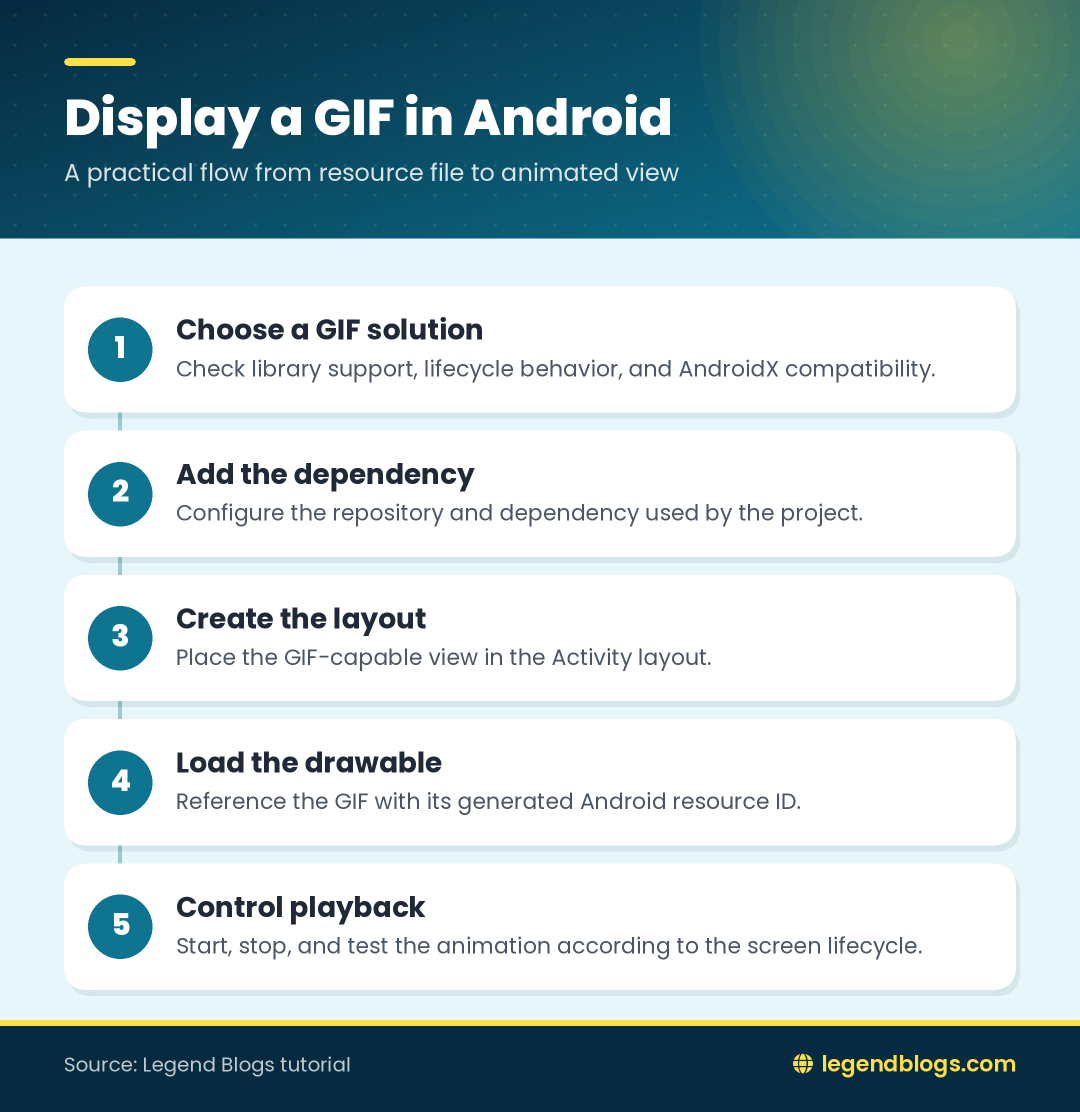
The original tutorial uses the GifView library from JitPack. It supplies a custom view and methods such as setGifResource() and play(). This approach is useful when maintaining the original sample, but verify that the library is compatible with the Android Gradle Plugin, Java version, and AndroidX configuration used by your project.
2.2 Use a maintained image solution when appropriate
For a new application, compare a maintained image-loading library or the animation support available in your minimum Android version with the older custom view. Look for documented GIF support, lifecycle handling, caching behavior, and AndroidX compatibility. Do not copy a dependency version blindly from an old tutorial.
The important decision is not just how to draw the first frame. The component should decode frames safely, avoid unnecessary work when the screen is hidden, and expose a predictable way to start or stop playback.
3. Add the repository and dependency
3.1 Add the JitPack repository
If you are following the original GifView sample, add the JitPack repository in the repository section required by your Gradle setup:
maven { url 'https://jitpack.io' }Repository placement depends on the Gradle structure of the project. Older projects commonly put repositories in the project-level build file. Newer projects may manage them through settings, so follow the structure already used by your project rather than adding duplicate declarations.
3.2 Add the library dependency
The original example declares:
implementation 'com.github.Cutta:GifView:1.1'Older projects may use the deprecated compile configuration instead of implementation. If you are modernizing the sample, use the configuration supported by your project and confirm that the dependency resolves before changing the layout code.
Keep the dependency version in one place and run a Gradle sync. If resolution fails, check the spelling and repository location first. A missing repository and an incompatible library often produce similar-looking build errors.
4. Create the animated image layout
4.1 Add the custom GIF view
Place the library view in the Activity layout. The class name must match the package supplied by the dependency:
<com.cunoraz.gifview.library.GifView
    android:id="@+id/sample_gif"
    android:layout_width="wrap_content"
    android:layout_height="wrap_content"
    android:layout_centerInParent="true" />
Use a parent layout that fits the rest of the screen. A centered view is convenient for a demonstration, but a production layout may need constraints, margins, a maximum size, and a text label explaining the animation.
4.2 Keep dimensions and accessibility in mind
A view with wrap_content uses the drawable's measured size. That can be unsuitable for a very large source file. Set sensible maximum dimensions or use a container so the animation does not dominate a small phone screen.
Give the view a meaningful content description when it communicates information. If it is purely decorative, avoid making a screen reader announce a meaningless animation. A static description or fallback image can help users who reduce motion or cannot see the animation.
5. Load a GIF from drawable resources
5.1 Put the file in the correct resource folder
Place the GIF in the appropriate res/drawable directory and use a lowercase resource name with underscores. For example, a file named legendblogs.gif can be referenced as R.drawable.legendblogs. Android resource names cannot contain spaces or most punctuation.
5.2 Initialize the view in the Activity
After calling setContentView(), find the view and assign the drawable:
GifView sampleGif = findViewById(R.id.sample_gif);
sampleGif.setGifResource(R.drawable.legendblogs);
sampleGif.play();
With older support-library projects, the cast may be required:
GifView sampleGif = (GifView) findViewById(R.id.sample_gif);The view must be initialized after its layout has been inflated. Calling findViewById() before setContentView(), or using an ID from another layout, causes a null result or a runtime failure.
6. Complete Java Activity example
6.1 Basic Activity setup
Here is the central part of the original Java example with clearer naming:
public class MainActivity extends AppCompatActivity {
    @Override
    protected void onCreate(Bundle savedInstanceState) {
        super.onCreate(savedInstanceState);
        setContentView(R.layout.activity_main);

        GifView sampleGif = findViewById(R.id.sample_gif);
        sampleGif.setGifResource(R.drawable.legendblogs);
        sampleGif.play();
    }
}
The application manifest still needs a launcher Activity, and the layout resource must contain the same view ID. If the Activity is not registered correctly, the GIF code will never run because Android cannot launch the screen.
6.2 Keep supporting resources consistent
Check the package name, application label, theme, and layout reference together. Copying the Java class without copying its resource IDs is a common reason a small tutorial project fails during its first run.
- Confirm that activity_main.xml exists.
- Confirm that sample_gif is present in that layout.
- Confirm that the GIF is inside a drawable resource directory.
- Confirm that the Activity package matches the source directory.
7. Control playback responsibly
7.1 Start and stop at the right time
The original example starts playback immediately. That is appropriate for a short demonstration, but a real screen may need to start the animation after a user action or stop it when the Activity is no longer visible. Use the control methods supported by the library you selected, and do not assume that every GIF view exposes the same API.
7.2 Avoid unnecessary animation work
Animation consumes CPU, memory, and battery. Avoid placing several large GIFs on one screen, and do not use a GIF where a vector drawable or a small transition would communicate the same idea more efficiently.
Test the screen on a lower-memory device or emulator. A file that looks harmless on a desktop can decode into many full-size frames on a phone.
8. Troubleshoot common GIF problems
8.1 The dependency cannot be resolved
Check the repository declaration, dependency spelling, network access, and Gradle compatibility. If the project has moved to AndroidX, check whether the chosen library still supports the rest of the application.
8.2 The GIF is blank or shows one frame
Confirm that the resource is a real animated GIF and that the drawable ID is correct. Check the view dimensions and inspect the device log for a decoding exception. A damaged or unusually large file may fail even when a smaller GIF works.
8.3 The app crashes while decoding
Reduce the source dimensions and frame count, then test again. Also check whether the Activity is trying to load the image repeatedly during configuration changes or list updates. Load it once at the appropriate lifecycle point rather than recreating the view unnecessarily.
9. Modernize the original tutorial carefully
9.1 Replace outdated Gradle terminology
The original sample uses old configurations such as compile, old support-library artifacts, and a fixed build-tools version. These lines describe the environment in which the tutorial was first written; they are not a guarantee that the same versions belong in a current project.
When updating the sample, change one part at a time: first make the project build, then migrate support libraries if needed, and finally replace the GIF implementation if it is no longer suitable. This makes it easier to identify which change introduced a problem.
9.2 Test more than the happy path
Rotate the device, navigate away and back, disable animation if your device provides that preference, and test a missing or invalid resource. These checks reveal lifecycle and accessibility problems that are not visible in a single launch.
FAQ
Can Android display GIF images directly?
Android can display animated GIFs when the selected image component or library supports GIF decoding. A basic static image component may show only one frame, so verify the behavior of the component used by your project.
Why is my GIF showing as a static image?
The loader may decode only the first frame, the file may not actually contain multiple frames, or animation may not have been started. Confirm the file and library behavior separately.
Which folder should contain the GIF file?
For the sample, place it in a drawable resource directory and reference it with its generated resource ID, such as R.drawable.legendblogs. Use a valid lowercase Android resource name.
How can I stop or restart GIF playback?
Use the pause, stop, or play methods documented by the GIF view library in your project. The exact method names vary, so check that library's API rather than copying controls from another component.
Are old GIF libraries compatible with AndroidX?
Compatibility depends on the library and its transitive dependencies. Test the dependency in the target project, and choose a maintained alternative when the old view prevents the rest of the app from being updated.
Conclusion
To display an animated image in Android, add a GIF-capable component, place the file in a drawable resource, initialize the view after inflating the layout, and start playback through the component's API. The original GifView example remains useful for understanding the basic flow.
For a production app, also consider file size, lifecycle behavior, accessibility, and library maintenance. Start with a small test GIF, verify the dependency, and then adapt the layout and playback rules to the screen that will use the animation.




Write a comment