If you want to show any message to the user then you need to show toast in android. This toast is just like a snack bar. You can also make a custom toast.
To display a message for a little information in your android application we use Toast class in android. An android toast displays a small message to the users.
What Is an Android Toast Message?
Use Toast for brief feedback
An Android Toast is a short message shown by the system to provide lightweight feedback. It is useful when the user does not need to make a decision or take an action. Examples include confirming that a setting was saved, explaining that a feature is unavailable, or acknowledging a small background event.
A Toast is not a replacement for a page heading, validation message, dialog, or persistent status. If the user must read the information later, place it in the interface instead of relying on a message that disappears.
Toast versus Snackbar
A Snackbar is usually attached to a visible app surface and can include an action such as Undo. A Toast is more transient and is not normally connected to a particular view. Choose the component based on whether the message needs context, an action, or persistence.
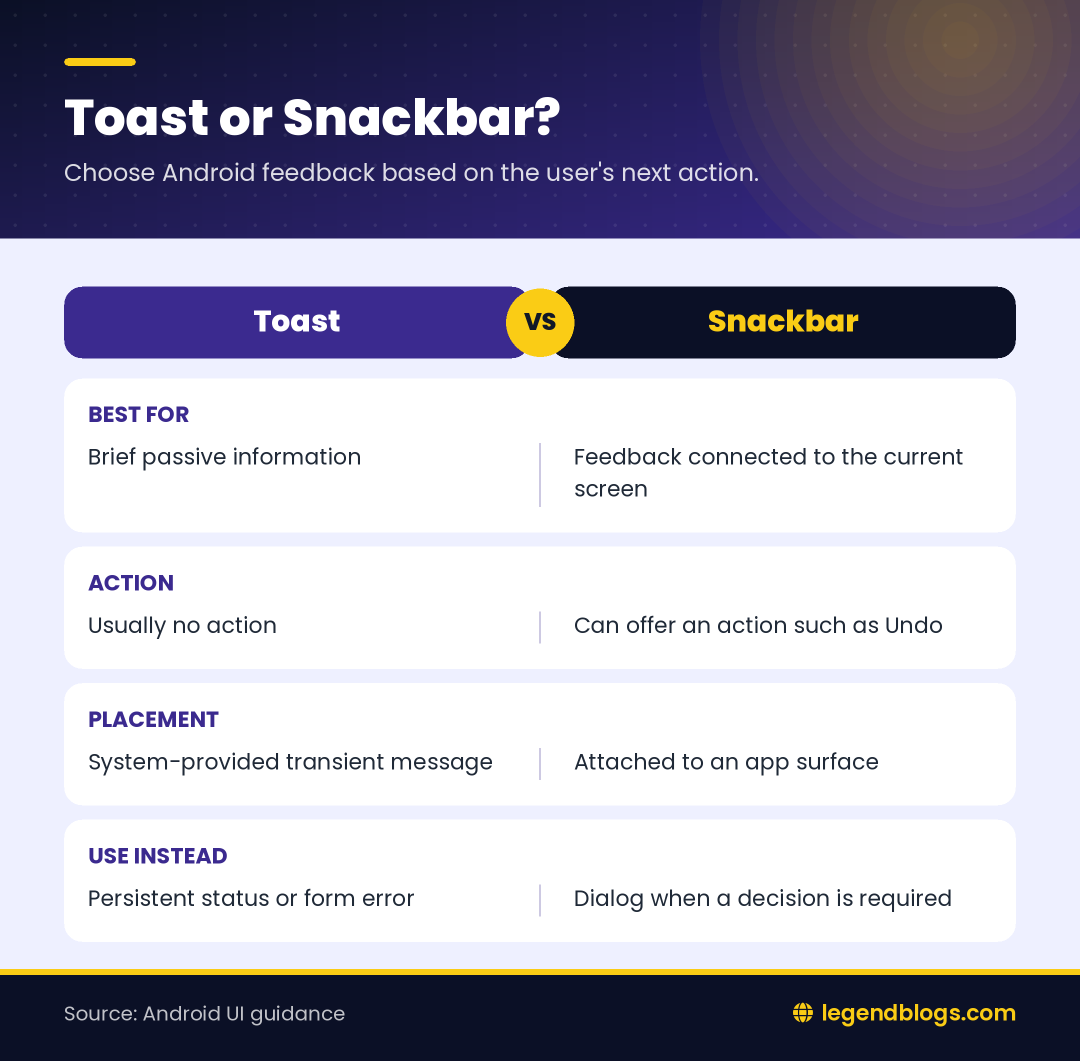
- Use Toast for brief, non-blocking feedback.
- Use Snackbar when the message belongs to the current screen and may offer an action.
- Use an inline error when a form field needs correction.
- Use a dialog only when the user must respond before continuing.
Show a Toast Message in Java
Basic Toast.makeText syntax
The common Java form calls Toast.makeText() with a context, a message, and a duration, then calls show(). An Activity can use this inside a suitable method, or use the Activity reference when the call is inside a listener.
import android.widget.Toast;

Toast.makeText(
    this,
    "Settings saved",
    Toast.LENGTH_SHORT
).show();
Show a message after a button click
Button saveButton = findViewById(R.id.save_button);
saveButton.setOnClickListener(view -> {
    Toast.makeText(
        MainActivity.this,
        "Saved successfully",
        Toast.LENGTH_SHORT
    ).show();
});
Using the Activity reference in the listener makes the context clear. If the listener is declared inside a Fragment, use the Fragment's current context carefully and avoid holding a reference to a destroyed Activity.
Show a Toast Message in Kotlin
Kotlin example
Kotlin makes the same operation compact without changing the Toast concept. Inside an Activity, this refers to the Activity when it is used directly in the Activity body. Inside a lambda, use the Activity reference if the receiver would otherwise be ambiguous.
Toast.makeText(
    this,
    "Settings saved",
    Toast.LENGTH_SHORT
).show()
Kotlin button listener
val saveButton: Button = findViewById(R.id.save_button)
saveButton.setOnClickListener {
    Toast.makeText(
        this@MainActivity,
        "Saved successfully",
        Toast.LENGTH_SHORT
    ).show()
}
For a new Android project, Kotlin is commonly used in current examples, but Java remains supported. The important parts are the valid context, the message, the selected duration, and the call to show().
Choose Toast Duration
LENGTH_SHORT
Toast.LENGTH_SHORT requests the shorter display option. It is a good default for a small confirmation that does not need much reading time.
LENGTH_LONG
Toast.LENGTH_LONG requests the longer available option. Do not use it to compensate for a paragraph of text. If the message needs extended reading time, redesign the interface so the content remains available.
The exact time a user perceives can vary with the Android version and system behavior. Treat these constants as choices between the platform's short and long options, not as a promise of a precise number of seconds.
Use Toast with Fragments and Other Contexts
Fragment context
A Fragment may not always be attached to an Activity. Use a valid context only after checking that the Fragment is attached, or use a view's context when the message is triggered from that view. Avoid storing an Activity context in a long-lived object because it can keep the screen in memory after rotation or navigation.
context?.let { currentContext ->
    Toast.makeText(
        currentContext,
        "Message from Fragment",
        Toast.LENGTH_SHORT
    ).show()
}
Background work
If a background task completes after the user leaves the screen, a Toast may be confusing or may use the wrong lifecycle context. Consider updating a notification, repository state, or visible screen instead. UI feedback should be connected to the action that caused it.
Custom Toasts and Modern Android Behavior
Keep custom layouts limited
Older tutorials often create a custom XML layout and assign it to a Toast. Custom presentation can behave differently across Android versions and may be less accessible than the platform appearance. Use the standard Toast for ordinary feedback and reserve custom UI for a clearly tested requirement.
A custom design should not hide the message from accessibility services or use excessive decoration. Check contrast, text size, duration, and behavior on more than one device.
Avoid repeated Toast queues
Calling Toast repeatedly in a loop can create a queue of messages that remains visible after the user has moved on. Show one useful message, combine repeated events, or place a persistent status in the screen. A Toast should inform, not compete with the application.
Common Android Toast Problems
The import is missing
Add import android.widget.Toast to a Java or Kotlin source file when the IDE has not added it automatically. Also check that the file is part of an Android module rather than a plain JVM module.
The Toast does not appear
Confirm that show() is called, that the click listener runs, and that the message is not immediately hidden by a navigation change. Place a breakpoint or log inside the listener to confirm the event is reached.
The context is wrong
Use an Activity, Fragment, view, or application context appropriate to the call. Do not use a null context and do not retain a screen context longer than necessary.
The message is not suitable
Review whether a Toast is the right component. A message that contains an error, a required next step, or an Undo action generally belongs in the screen or a Snackbar.
FAQ
How do I show a Toast message in Android?
Call Toast.makeText(context, message, duration).show() from a valid Android UI context.
What is the difference between LENGTH_SHORT and LENGTH_LONG?
They select the platform's shorter or longer Toast display option. They should not be treated as exact timing guarantees.
Should I use Toast or Snackbar?
Use Toast for brief passive feedback. Use Snackbar when the message belongs to the current screen or needs an action.
Can I create a custom Toast in Android?
Some projects can create custom Toast content, but the result should be tested across Android versions and checked for accessibility. The standard Toast is safer for ordinary messages.
How do I show a Toast from a Fragment?
Use a valid attached context, such as the Fragment context or a view context, and avoid retaining an Activity reference beyond the screen lifecycle.
Conclusion
An Android Toast message is a simple way to provide short, passive feedback. Java and Kotlin use the same core API: provide a context, message, and duration, then call show().
Keep the text short, avoid sending a stream of messages, and choose Snackbar or inline UI when the user needs an action or more time to read. Test the result on the Android versions and screen states your app supports.
We can say it's just a little information for the user for a few seconds and disappears after some time. Normally, the android toast is displayed at the bottom of the screen but you can also change display position and layout.
Android toast vs snackbar
Sometimes we need to show a piece of information to the user as a popup, but I can't use the bootstrap modal for that. So that time we need to create a Snackbar or we can say that a Toast message.
How To Create a Snackbar / Toast Bootstrap
First of all you require to add Toast class in your activity:
import android.widget.Toast;Android toast duration
Generally, Toast is a popup for showing a piece of small information to the user, this is also using in the android application.
We can customize our Toast layout according to our requirements. It will be shown on the screen when you call it and It will disappear after a few seconds, whatever you have set.
There are two constants of Toast class which are given below for time duration.
Length Long
If you want to show any message to the user for a long duration, then you need to implement this on your toast setting.
Default duration for length long is 3.5 seconds.
LENGTH_LONG
you can use this just like:
Toast.LENGTH_LONG
Length Short
If you want to show any message to the user for a short duration, then you need to implement this on your toast setting.
Default duration for length long is 2 seconds.
LENGTH_SHORT
you can use this just like:
Toast.LENGTH_SHORT
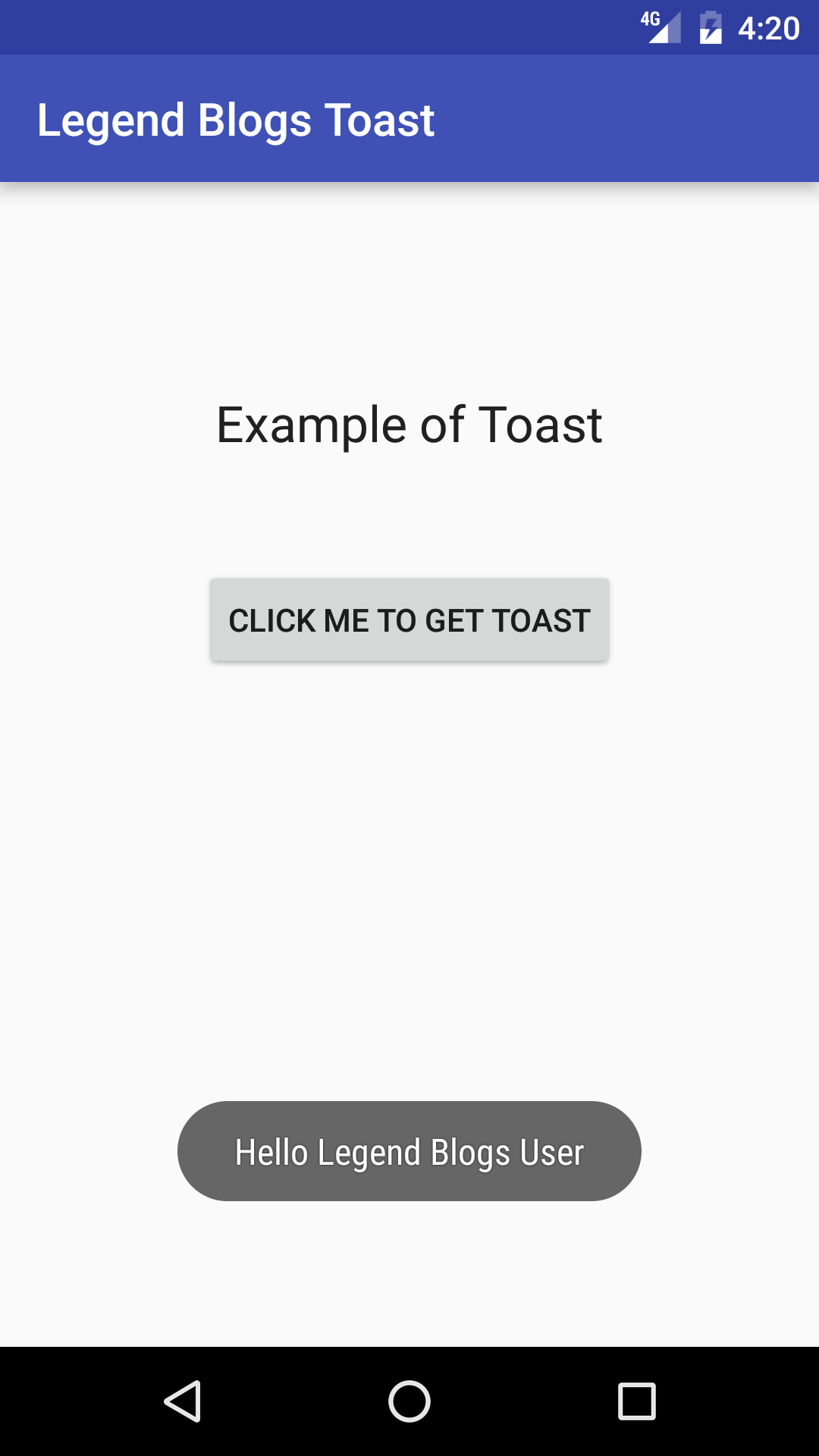
Android Toast Example
Example for simple toast message:
activity_main.xml
<?xml version="1.0" encoding="utf-8"?>
<RelativeLayout xmlns:android="http://schemas.android.com/apk/res/android"
    xmlns:tools="http://schemas.android.com/tools"
    android:layout_width="match_parent"
    android:layout_height="match_parent"
    tools:context="com.legendblogs.demo.MainActivity">
    <TextView
        android:layout_width="wrap_content"
        android:layout_height="wrap_content"
        android:textAppearance="?android:attr/textAppearanceLarge"
        android:text="Example of Toast"
        android:id="@+id/textView"
        android:layout_marginTop="91dp"
        android:layout_alignParentTop="true"
        android:layout_centerHorizontal="true" />
    <Button
        style="?android:attr/buttonStyleSmall"
        android:layout_width="wrap_content"
        android:layout_height="wrap_content"
        android:text="Click me to get Toast"
        android:id="@+id/button"
        android:layout_marginTop="48dp"
        android:layout_below="@+id/textView"
        android:layout_centerHorizontal="true" />
</RelativeLayout>
MainActivity.java:
package com.legendblogs.demo;
import android.content.Context;
import android.support.v7.app.AppCompatActivity;
import android.os.Bundle;
import android.view.View;
import android.widget.Button;
import android.widget.Toast;
public class MainActivity extends AppCompatActivity {
    private Context context;
    @Override
    protected void onCreate(Bundle savedInstanceState) {
        super.onCreate(savedInstanceState);
        setContentView(R.layout.activity_main);
        this.context = this;
        Button button_toast = (Button) findViewById(R.id.button);
        button_toast.setOnClickListener(new View.OnClickListener() {
            @Override
            public void onClick(View v) {
                Toast.makeText(context,"Hello Legend Blogs User",Toast.LENGTH_SHORT).show();
            }
        });
    }
}
You can create your custom toast in android. By using XML layouts. So, just create an XML layout and attach layout with your Toast class object.
cheers,



Write a comment