If you want to update your app from internal storage then In apps update android example for you. You can update your app automatically without updating from play store.
Android APK Update Without Google Play: What to Expect
An Android APK update outside Google Play is a user-approved installation flow, not a silent replacement. Use a release source you control, check that the downloaded package matches the intended app and release, and show Android’s installer so the person can review or cancel the request.
Update Your App Outside Google Play Safely
Before you update your app through a direct APK flow, decide who controls the release server, how you verify the package, and what explanation the user sees. An Android app update should never be triggered solely because a remote response contains a download URL; validate the release information, use a trusted HTTPS endpoint, and hand installation to Android’s system UI for user review.
Plan the release as a controlled update flow
An Android APK update outside Google Play still depends on the app’s package identity and release signing. Build a process that keeps the release key protected, publishes a version record alongside the package, and lets the user verify the source before starting installation. A matching application ID alone is not enough if the update package is signed with an incompatible key.
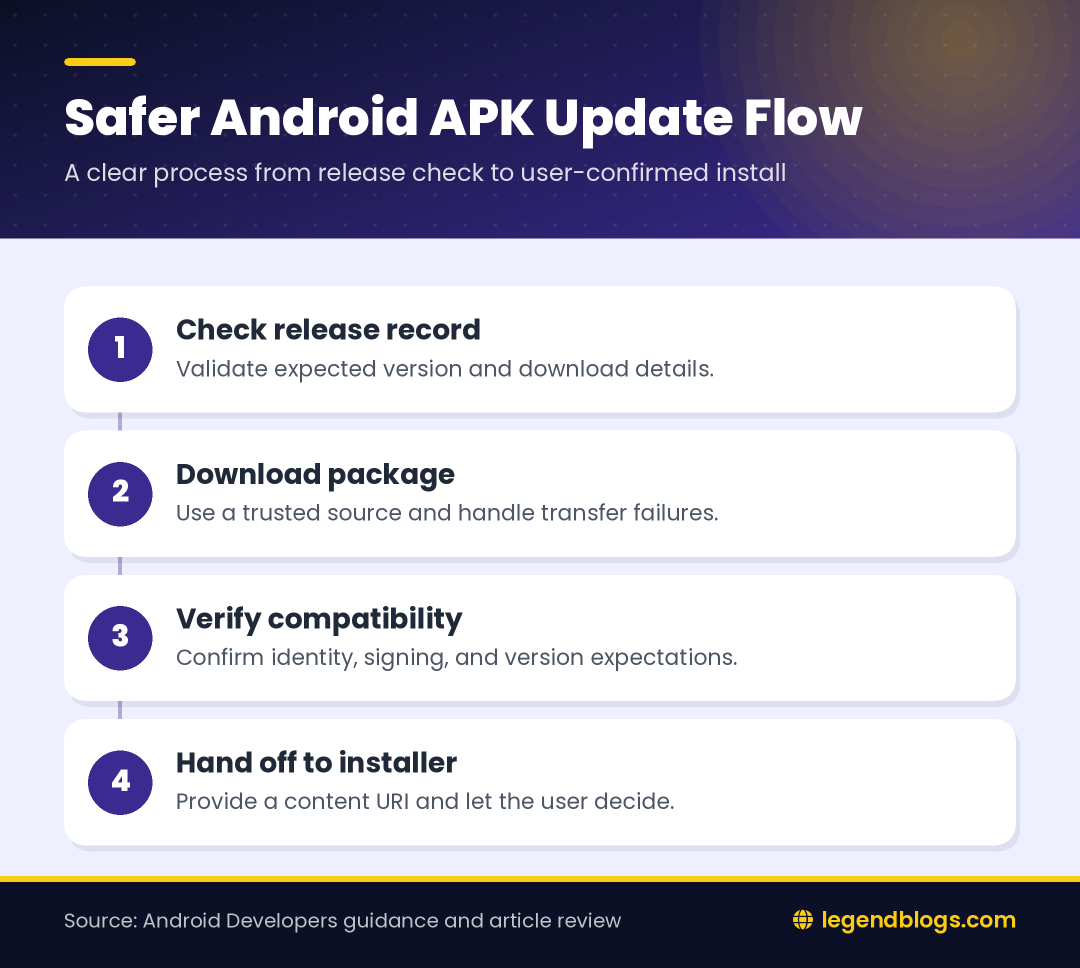
Separate the update check, file download, and installer handoff into distinct steps. That makes it easier to show useful status messages, retry a failed transfer without prompting for installation, and avoid treating a successful metadata request as proof that a valid APK was downloaded.
Android Support in-app updates to up-to-date your android application. But this is works with Play Store. But we want to update my android app without Play Store. Basically, is this senior we need some steps to do it.
First of all, we need to know about all thing which is required for the update android app. I am going to discuss two ways to update your android app.
Support in-app updates with Play Store
In-app updates work only with devices running Android 5.0 (API level 21) or higher and require you to use Play Core library 1.5.0 or higher. After meeting these requirements, your app can support the following UX for in-app updates.
Choose the Right Android Update Route First
Understand what Play in-app updates do
Google Play’s in-app update feature is tied to Google Play distribution; it is not a general mechanism for delivering an APK from any server. If the app is installed through Google Play and the account and release conditions are satisfied, the Play flow can offer a flexible update that lets the person keep using the app during download, or an immediate update that pauses use until the update completes. For distribution outside Play, you need a separate release and installation flow rather than assuming the Play API can update an arbitrary package.
Set expectations for direct APK installation
A direct APK update does not silently replace the running app. Android hands installation to the system, and the user may need to confirm the action or allow installs from the particular source app. The package must be compatible with the installed application and signed appropriately; a mismatched identity, signature, or version condition can cause the installer to reject it. Explain who publishes the APK, what version is offered, and why the user is being asked to install it.
Make the Update Check Trustworthy
Use a clear release record
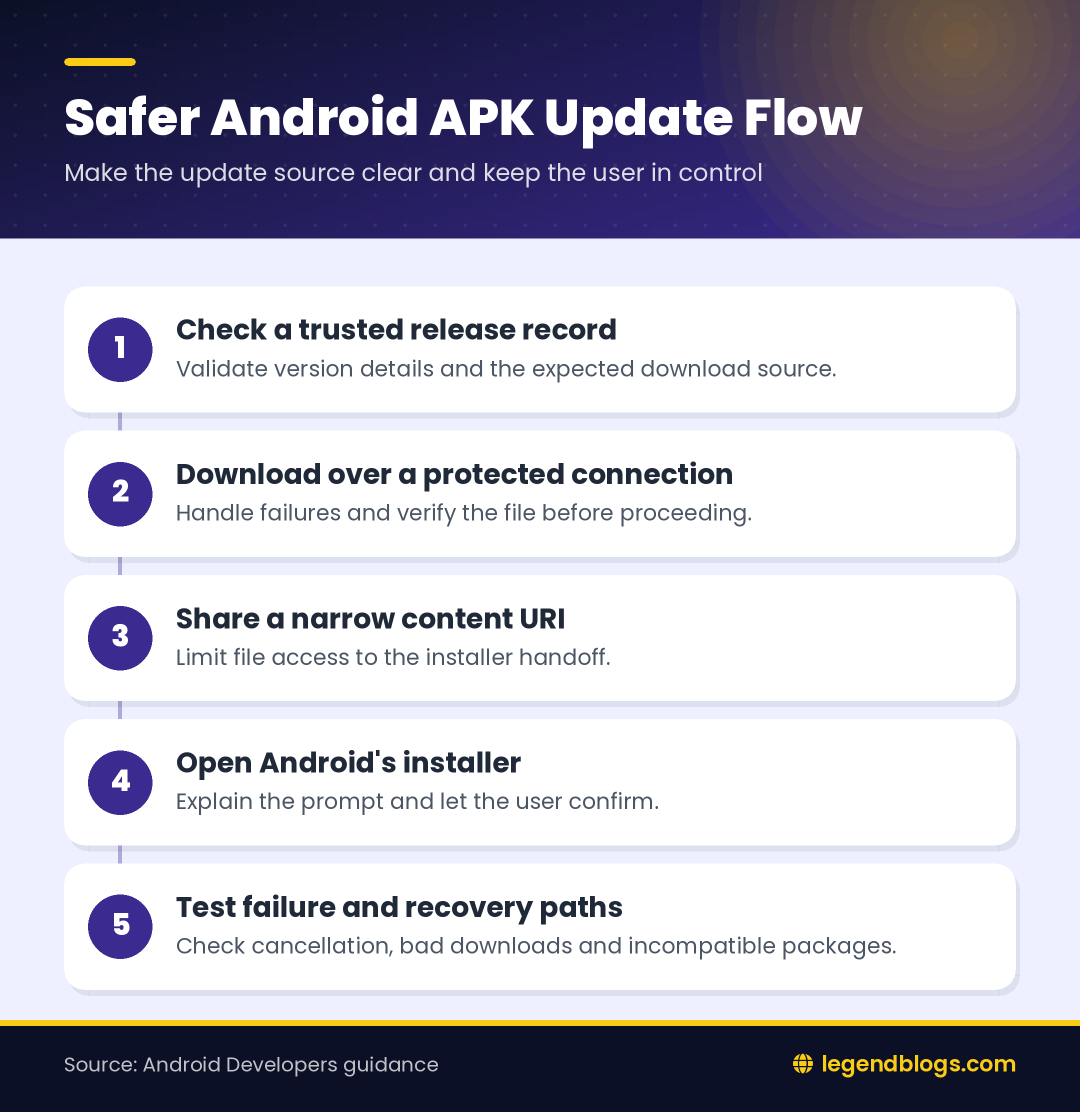
Have the app request a small release record from a server you control. It should describe the current supported app version and the download location, and the client should compare that information with its installed version before showing an update prompt. Treat the response as untrusted input: validate expected fields, handle missing or malformed values, and do not build a download address from arbitrary text supplied by an unexpected response.
Protect the download and explain its source
Use HTTPS for release metadata and APK transfer. Secure transport helps protect the connection, but it does not by itself prove that every file is the one you intended to publish. Restrict who can upload release files, use a predictable release process, and consider validating a cryptographic digest delivered through a trusted channel. Avoid a public file address that can be replaced without review.
Modernize Storage and File Sharing
Do not copy old broad-storage permission advice blindly
The sample below was written for an older Android setup. Its WRITE_EXTERNAL_STORAGE and READ_EXTERNAL_STORAGE requests are not a general requirement for every current download flow, and broad public-storage access should not be requested without a specific supported need. Prefer an app-appropriate download destination and follow the platform’s current storage model for the Android versions your app targets. Recheck permissions against the exact location and API levels in your project before shipping.
Choose the download location for the user and app
For a file that is only needed during an app-controlled installation flow, consider whether it can stay in an app-specific location instead of being written to a broad public directory. If the user should choose where to save or open a file, Android’s Storage Access Framework provides a system picker and grants access through the selected document URI. Choose the approach that matches the task, and avoid requesting storage access simply because an older code sample did so.
Whichever location you use, handle cleanup deliberately. Remove an incomplete or obsolete temporary download when it is safe to do so, but retain enough state to explain a failed or cancelled update and let the user retry.
Share an APK through a content URI
When another app, including the system installer, needs access to a file stored in your app’s area, expose it through a narrowly configured FileProvider. Use a content URI and grant only the read access required for the installation handoff. Keep the provider non-exported, give it a unique authority based on the app identity, and define only the directories needed for APK files. Avoid a broad path rule that exposes unrelated private files.
Handle Installation as a User-Controlled Step
Check status before opening the installer
A completed download notification is not proof that the file is usable. Check the download result, confirm that the file exists and has a plausible nonzero length, and respond to failed, paused, or cancelled transfers. Close query cursors in every path and stop progress polling when the operation ends. Avoid a tight loop that repeatedly queries the download manager without a delay; it can waste battery and keep a worker thread busy.
Start the system flow with the right access
Pass the content URI to the system installation flow with the appropriate temporary read permission. Handle the possibility that the system cannot resolve or launch the installer, and return the user to a clear state rather than leaving a progress indicator running forever. Explain how to resume or retry after cancellation. Do not claim that the update installed until the app can confirm the new version on a later launch.

Test Failures, Security, and Version Compatibility
Test the important edge cases
Test on supported Android versions and device types, including a successful download, a broken connection, a missing file, a user-cancelled install, and a package that is not compatible with the installed build. Verify that a legitimate update preserves application data as expected, and that an older or wrong-signature package is not presented as a valid update. Review the installer prompt and any permission screen so the user understands which app is requesting access.
Keep the release process maintainable
Use the sample code as a record of the general sequence—check for a release, download a package, then request installation—not as a drop-in current implementation. The older example uses dated storage patterns and assumptions about paths and platform behavior that need project-specific review. Separate network, download, and installer responsibilities so each failure can be logged and tested without exposing private data or treating a server response as executable authority.
Update your app from internal storage
The main motive of this example to update your app from internal storage. So now, Let's start with this in detail. Just follow these simple steps which are given below.
Check internet permission
You need to add internet permission in your android app for downloading the latest android app on your local storage.
Add this line in the manifest file.
<uses-permission android:name="android.permission.INTERNET" />Your java code function to check internet connection like this.
public static boolean isNetworkAvailable(Context context) {
		final ConnectivityManager connMgr = (ConnectivityManager) context.getSystemService(Context.CONNECTIVITY_SERVICE);
		NetworkInfo activeNetworkInfo = connMgr.getActiveNetworkInfo();
		if (activeNetworkInfo != null) { // connected to the internet
			if (activeNetworkInfo.getType() == ConnectivityManager.TYPE_WIFI) {
				// connected to wifi
				return true;
			} else if (activeNetworkInfo.getType() == ConnectivityManager.TYPE_MOBILE) {
				// connected to the mobile provider's data plan
				return true;
			}
		}
		Toast.makeText(context, R.string.no_Internet, Toast.LENGTH_SHORT).show();
		return false;
	}
Check Storage permission
You need to add storage permission in your android app for downloading the latest android app on your local storage.
Add this line in the manifest file.
<uses-permission android:name="android.permission.WRITE_EXTERNAL_STORAGE" />Your java code function to check internet connection like this.
private boolean isStoragePermissionGranted() {
        if (Build.VERSION.SDK_INT >= 23) {
            if (context.checkSelfPermission(android.Manifest.permission.WRITE_EXTERNAL_STORAGE)
                    == PackageManager.PERMISSION_GRANTED) {
                Log.v(TAG,"Storage permission is granted");
                return true;
            } else {
                Log.v(TAG,"Storage permission is revoked");
                requestPermissions(new String[]{android.Manifest.permission.WRITE_EXTERNAL_STORAGE}, 1);
                requestPermissions(new String[]{Manifest.permission.READ_EXTERNAL_STORAGE}, 1);
                return false;
            }
        }else {
            //permission is automatically granted on sdk<23 upon installation
            Log.v(TAG,"Storage permission is granted");
            return true;
        }
    }
Add FileProvider
You need to add file provider tag in you your manifest file with one XML value file.
<provider
            android:name="androidx.core.content.FileProvider"
            android:authorities="$applicationID.fileprovider"
            android:exported="false"
            android:grantUriPermissions="true">
            <meta-data
                android:name="android.support.FILE_PROVIDER_PATHS"
                android:resource="@xml/file_provider_paths" />
</provider>
Add file_provider_paths.xml in XML location.
<?xml version="1.0" encoding="utf-8"?>
<paths>
    <external-path
        name="external"
        path="." />
    <external-files-path
        name="external_files"
        path="." />
    <cache-path
        name="cache"
        path="." />
    <external-cache-path
        name="external_cache"
        path="." />
    <files-path
        name="files"
        path="." />
</paths>
Check for update
This is the fourth step to check your latest app update is available or not from your source URL. I have used volley for the checking of the updated app.

private void checkSoftwareUpdate(final Context context){
        try {
            if (isNetworkAvailable(context)) {
                StringRequest stringRequest = new StringRequest(Request.Method.POST,
                        AppController.WEBSERVICE_URL,
                        new Response.Listener<String>() {
                            @Override
                            public void onResponse(String response) {
                                Log.d(TAG, response);
                                JSONObject json = null;
                                try {
                                    json = new JSONObject(response.substring(response.indexOf("{"), response.lastIndexOf("}") + 1));
                                    String key = "app_version";
                                    if (!json.isNull(key)) {
                                        String version = json.getString(key);
                                        if (version != null)
                                            latest_versionCode = Integer.valueOf(version);
                                    }
                                } catch (JSONException e) {
                                    Log.e(TAG, "Error parsing data " + e.toString());
                                }
                            }
                        }, new Response.ErrorListener() {

                    @Override
                    public void onErrorResponse(VolleyError error) {
                        Log.d(TAG, "Error: " + error.getMessage());
                    }
                }) {
                    @Override
                    protected Map<String, String> getParams() {
                        Map<String, String> params = new HashMap<String, String>();
                        params.put("action", "checkSoftwareUpdate");
                        return params;
                    }
                };
                VolleyController.getInstance().addToRequestQueue(stringRequest);
            }
        }catch (RuntimeException e) {
            e.printStackTrace();
        }

    }
Download Update
The fifth step is for the download the APK file from your source URL if is it available.
final File apk_file_path = new File(Environment.getExternalStoragePublicDirectory(Environment.DIRECTORY_DOWNLOADS), apk_fileName);
if (apk_file_path.exists()) apk_file_path.delete();
Log.v(TAG,"Downloading request on url :"+upadte_url);
DownloadManager.Request request = new DownloadManager.Request(Uri.parse(upadte_url));
request.setDescription(context.getString(R.string.update_version));
request.setTitle(context.getString(R.string.app_name));

//set destination
final Uri uri = Uri.parse("file://" + apk_file_path);
request.setDestinationUri(uri);
Now, register the Broadcast Receiver for the callback of download complete.
context.registerReceiver(onComplete, new IntentFilter(DownloadManager.ACTION_DOWNLOAD_COMPLETE));
Broadcast Receiver will also conation the all code for update the APP. This receiver will start automatically when the APK file download complete.
//set BroadcastReceiver to install app when .apk is downloaded
            BroadcastReceiver onComplete = new BroadcastReceiver() {
                public void onReceive(Context ctxt, Intent intent) {
                    //BroadcastReceiver on Complete
                    if (apk_file_path.exists()) {
                        if (Build.VERSION.SDK_INT >= Build.VERSION_CODES.N) {
                            Uri apkUri = FileProvider.getUriForFile(context, getApplicationContext().getPackageName() + ".fileprovider", apk_file_path);
                            intent = new Intent(Intent.ACTION_INSTALL_PACKAGE);
                            intent.setData(apkUri);
                            intent.putExtra(Intent.EXTRA_NOT_UNKNOWN_SOURCE, true);
                            intent.setFlags(Intent.FLAG_GRANT_READ_URI_PERMISSION);
                        } else {
                            Uri apkUri = Uri.fromFile(apk_file_path);
                            intent = new Intent(Intent.ACTION_VIEW);
                            intent.setDataAndType(apkUri, manager.getMimeTypeForDownloadedFile(downloadId));
                            intent.putExtra(Intent.EXTRA_NOT_UNKNOWN_SOURCE, true);
                            intent.setFlags(Intent.FLAG_ACTIVITY_NEW_TASK);
                        }
                        context.startActivity(intent);
                    }else{
                        AppController.setAlert(context, "Something went wrong");
                        downloadAppProgess.setVisibility(View.GONE);
                        update_now.setVisibility(View.VISIBLE);
                    }
                    context.unregisterReceiver(this);
                }
            };
Set progress Bar for In apps update android
We need to show some information or progress bar for the user understanding. So that we can use this code for that.
new Thread(new Runnable() {
                @Override
                public void run() {
                    boolean downloading = true;
                    while(downloading) {
                        DownloadManager.Query q = new DownloadManager.Query();
                        q.setFilterById(downloadId);
                        Cursor cursor = manager.query(q);
                        cursor.moveToFirst();

                        final int bytes_downloaded = cursor.getInt(cursor.getColumnIndex(DownloadManager.COLUMN_BYTES_DOWNLOADED_SO_FAR));
                        if (cursor.getInt(cursor.getColumnIndex(DownloadManager.COLUMN_STATUS)) == DownloadManager.STATUS_SUCCESSFUL) {
                            downloading = false;
                        }
                        int bytes_total = cursor.getInt(cursor.getColumnIndex(DownloadManager.COLUMN_TOTAL_SIZE_BYTES));
                        if (bytes_total != 0) {
                            final int dl_progress = (int) ((bytes_downloaded * 100l) / bytes_total);
                            activity.runOnUiThread(new Runnable() {
                                @Override
                                public void run() {
                                    downloadAppProgess.setProgress((int) dl_progress);

                                }
                            });
                        }
                        cursor.close();

                    }
                }
            }).start();
After all, combine all these segments in the one function like this.
private void downloadUpdate(final Context context){
        try{
            final File apk_file_path = new File(Environment.getExternalStoragePublicDirectory(Environment.DIRECTORY_DOWNLOADS), apk_fileName);
            if (apk_file_path.exists()) apk_file_path.delete();

            Log.v(TAG,"Downloading request on url :"+upadte_url);
            DownloadManager.Request request = new DownloadManager.Request(Uri.parse(upadte_url));
            request.setDescription(context.getString(R.string.update_version));
            request.setTitle(context.getString(R.string.app_name));
            //set destination
            final Uri uri = Uri.parse("file://" + apk_file_path);
            request.setDestinationUri(uri);

            // get download service and enqueue file
            final DownloadManager manager = (DownloadManager) context.getSystemService(Context.DOWNLOAD_SERVICE);
            final long downloadId = manager.enqueue(request);

            downloadAppProgess.setVisibility(View.VISIBLE);
            update_now.setVisibility(View.GONE);
            new Thread(new Runnable() {
                @Override
                public void run() {
                    boolean downloading = true;
                    while(downloading) {
                        DownloadManager.Query q = new DownloadManager.Query();
                        q.setFilterById(downloadId);
                        Cursor cursor = manager.query(q);
                        cursor.moveToFirst();

                        final int bytes_downloaded = cursor.getInt(cursor.getColumnIndex(DownloadManager.COLUMN_BYTES_DOWNLOADED_SO_FAR));
                        if (cursor.getInt(cursor.getColumnIndex(DownloadManager.COLUMN_STATUS)) == DownloadManager.STATUS_SUCCESSFUL) {
                            downloading = false;
                        }
                        int bytes_total = cursor.getInt(cursor.getColumnIndex(DownloadManager.COLUMN_TOTAL_SIZE_BYTES));
                        if (bytes_total != 0) {
                            final int dl_progress = (int) ((bytes_downloaded * 100l) / bytes_total);
                            activity.runOnUiThread(new Runnable() {
                                @Override
                                public void run() {
                                    downloadAppProgess.setProgress((int) dl_progress);

                                }
                            });
                        }
                        cursor.close();

                    }
                }
            }).start();


            //set BroadcastReceiver to install app when .apk is downloaded
            BroadcastReceiver onComplete = new BroadcastReceiver() {
                public void onReceive(Context ctxt, Intent intent) {
                    //BroadcastReceiver on Complete
                    if (apk_file_path.exists()) {
                        if (Build.VERSION.SDK_INT >= Build.VERSION_CODES.N) {
                            Uri apkUri = FileProvider.getUriForFile(context, getApplicationContext().getPackageName() + ".fileprovider", apk_file_path);
                            intent = new Intent(Intent.ACTION_INSTALL_PACKAGE);
                            intent.setData(apkUri);
                            intent.putExtra(Intent.EXTRA_NOT_UNKNOWN_SOURCE, true);
                            intent.setFlags(Intent.FLAG_GRANT_READ_URI_PERMISSION);
                        } else {
                            Uri apkUri = Uri.fromFile(apk_file_path);
                            intent = new Intent(Intent.ACTION_VIEW);
                            intent.setDataAndType(apkUri, manager.getMimeTypeForDownloadedFile(downloadId));
                            intent.putExtra(Intent.EXTRA_NOT_UNKNOWN_SOURCE, true);
                            intent.setFlags(Intent.FLAG_ACTIVITY_NEW_TASK);
                        }
                        context.startActivity(intent);
                    }else{
                        AppController.setAlert(context, "Something went wrong");
                        downloadAppProgess.setVisibility(View.GONE);
                        update_now.setVisibility(View.VISIBLE);
                    }
                    context.unregisterReceiver(this);
                }
            };
            context.registerReceiver(onComplete, new IntentFilter(DownloadManager.ACTION_DOWNLOAD_COMPLETE));

        }catch (Exception e){
            e.printStackTrace();
            downloadAppProgess.setVisibility(View.GONE);
            update_now.setVisibility(View.VISIBLE);
        }

    }
Conclusion
In conclusion, I can say that this example contains all the information about the In apps update android example without play store. In the whole process, you need to check internet connection as well as you need to allow for the internal storage permission to download the APK application on the phone.
After doing all these activity you will able to download and update the latest APK application file on the android phone. Thank you for you are here. Happy coding.





(3) Comments
ScottFaF
Dia duit, theastaigh uaim do phraghas a fháil.
BlairAmoda
Thanks for helping me with my analysis it was a large help when I'm struggling with my time to finish it. Good job I am waiting to be graded however the project looks all right. I am assessing it as well as will get back to you soon. Many thanks. Paper was only revised as I requested with a ton of Computer Science Programmer added details. I'll absolutely utilize the solution once again.
naval malav
How can download this project full code.
https://www.legendblogs.com/update-app-from-internal-storage
Write a comment