Hello, I have seen that in the Android latest version 28.0 or I can say in Android Pie 9.0 when we are using Glide for image loading then nothing is loaded. Actually this thing accrued by Network security configuration. So, I have found some solution for that.
First Option:
Add a Network Security Configuration file in your project. The Network Security Configuration feature uses an XML file where you specify the settings for your app. You must include an entry in the manifest of your app to point to this file. The following code excerpt from a manifest demonstrates how to create this entry:
<?xml version="1.0" encoding="utf-8"?>
<manifest ... >
    <application android:networkSecurityConfig="@xml/network_security_config"
                    ... >
        ...
    </application>
</manifest>
Your network_security_config.xml:
<?xml version="1.0" encoding="utf-8"?>
<network-security-config>
    <domain-config>
        <domain includeSubdomains="true">example.com</domain>
        <trust-anchors>
            <certificates src="@raw/my_ca"/>
        </trust-anchors>
    </domain-config>
</network-security-config>
Second Option:
The second option is simple, simply add one line in your AndroidManifest.xml
android:usesCleartextTraffic="true"
This line should be placed in your AndroidManifest.xml within the application tag, Let's see the example:
<?xml version="1.0" encoding="utf-8"?>
<manifest xmlns:android="http://schemas.android.com/apk/res/android"
    package="com.legendblogs.glideTest">

    <uses-permission android:name="android.permission.INTERNET" />

    <application
        android:allowBackup="true"
        android:icon="@mipmap/ic_launcher"
        android:label="@string/app_name"
        android:usesCleartextTraffic="true"
        android:theme="@style/AppTheme">
        <activity android:name=".MainActivity">
            <intent-filter>
                <action android:name="android.intent.action.MAIN" />

                <category android:name="android.intent.category.LAUNCHER" />
            </intent-filter>
        </activity>
    </application>

</manifest>
About Glide
Glide is a fast and efficient image loading library for Android focused on smooth scrolling. Glide offers an easy to use API, a performant and extensible resource decoding pipeline and automatic resource pooling. Glide supports fetching, decoding, and displaying video stills, images, and animated GIFs. Glide includes a flexible API that allows developers to plug into almost any network stack. By default, Glide uses a custom HttpUrlConnection based stack, but also includes utility libraries plug into Google’s Volley project or Square’s OkHttp library instead.
Glide uses a simple fluent API that allows users to make most requests in a single line:
Glide.with(fragment)
    .load(url)
    .into(imageView);
You may like:
- Set background image randomly from gallery in android
- Disable screen capture in android
- How to display animated image in android
Why Glide Image Loading Fails on Android Pie
What Changed in Android 9
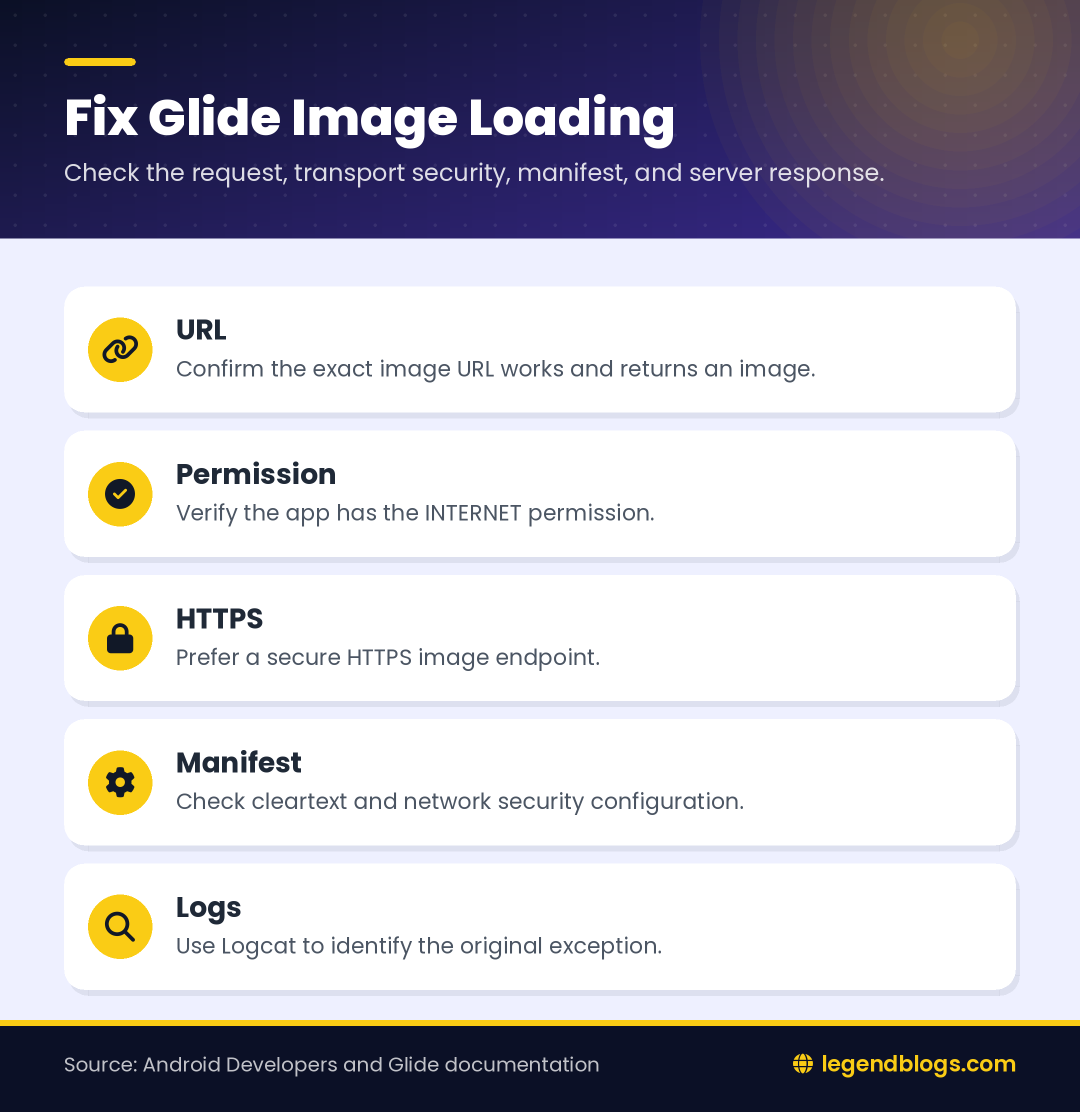
When an Android application requests an image, several parts of the request must work together: the URL must be reachable, the app must have network access, the server must return a usable image, and the platform must permit the connection. A failure in any one of these areas can look like a Glide problem even when Glide itself is working normally.
Android Pie introduced stricter defaults around unencrypted HTTP traffic for applications that target the relevant platform behavior. If an image URL begins with HTTP instead of HTTPS, the request may be refused unless the application explicitly allows that traffic. Moving the image host to HTTPS is the preferred long-term answer.
HTTP, HTTPS, and Cleartext Traffic
HTTPS encrypts traffic between the application and the server. Cleartext HTTP does not provide the same protection, so allowing it broadly can expose requests to interception or modification. Treat a cleartext setting as a compatibility measure for a controlled development case, not as a replacement for a properly configured production server.
- Check whether the image URL starts with http:// or https://.
- Open the exact URL outside the app and confirm that it returns an image.
- Check whether the server redirects HTTP to HTTPS.
- Verify that the certificate is valid for the hostname.
- Read Logcat for the original network exception.
Check the Image URL Before Changing the App
Test the URL in a Browser
Copy the exact URL passed to Glide and test it in a browser or a network inspection tool. A browser test is not a complete substitute for an Android test, but it can quickly reveal a missing file, a login requirement, a server error, or a redirect to an unexpected page.
Make sure the response is actually an image. A server may return an HTML error page with a successful HTTP status, and Glide cannot display that page as a bitmap. Also check for spaces, unescaped characters, expired query parameters, and URLs that are assembled incorrectly from a base address.
Look for Redirect and Server Problems
Some image servers redirect from an old address to a new one. Confirm that the final destination is also HTTPS and that it does not require browser-only cookies or headers. If the image is protected, design an authentication approach that is supported by your networking stack instead of exposing a private file through a temporary workaround.
Confirm the Internet Permission
Adding the INTERNET Permission
A remote image request needs the application to have network access. In the Android manifest, add the INTERNET permission outside the application element. The relevant declaration is written as uses-permission android:name="android.permission.INTERNET". Keep the declaration in the manifest used by the final application variant.
This permission does not make an invalid URL work and does not override cleartext restrictions. It only gives the application permission to use the network, so continue checking the URL and transport security after adding it.
Checking the Manifest Location
Build variants, product flavors, and manifest merging can make it easy to edit a file that is not used by the installed app. Inspect the merged manifest or verify the generated application package when the permission appears to have no effect.
Fix Glide with HTTPS Image URLs
Why HTTPS Is the Preferred Solution
The cleanest fix for Glide image loading is to serve the image over HTTPS and update the application to use the secure URL. This avoids a broad cleartext exception and protects the image request while it travels across the network.
Update the image host, API response, database value, or URL-building code that still produces HTTP links. If an API returns image addresses, fix the API or server configuration rather than converting every address inside the Android client without understanding why it is insecure.
Updating Image and API Endpoints
Test the complete path after changing the scheme. The certificate must match the hostname, the server must support the required TLS connection, and the response should have a suitable image content type. Test both a normal image and a missing image so the application has a useful placeholder for failure cases.
Allow Cleartext Traffic for Development
Using android:usesCleartextTraffic
If a legacy development server can only provide HTTP, the application manifest can include the application attribute android:usesCleartextTraffic="true". It must be placed on the application element, not on the manifest element. Rebuild and reinstall the app after changing the manifest so that the installed package uses the new setting.
This option can help confirm that cleartext policy is the reason for the failed request. It should not be copied into a production configuration without considering the security consequences. Prefer a domain-specific configuration or, better, migrate the server to HTTPS.
When This Setting Should Be Avoided
Do not use a global exception simply because it is quick. A broad allowance can permit accidental HTTP requests from other parts of the app, including endpoints added later by another developer. Keep temporary settings visible in version control and remove them before a release build.
Use a Network Security Configuration File
Creating network_security_config.xml
Android's Network Security Configuration provides a declarative XML file for app network rules. Create a file named network_security_config.xml in the app module's res/xml directory. The file can describe which domains may use cleartext traffic or which certificate authorities are trusted.
For a controlled test, a domain configuration can allow cleartext for a named development host. Replace the example domain with the host used by your own app and do not leave a sample domain in a release project. The configuration should be as narrow as the requirement allows.
Registering the File in AndroidManifest.xml
Point the application element to the file with android:networkSecurityConfig="@xml/network_security_config". The resource name must match the XML filename, and the file must be in the correct resource directory. A spelling error or incorrect directory prevents the expected policy from being loaded.
Network security configuration can also support debug-only certificate overrides. That approach is safer than distributing development trust settings to every installed copy, because release builds should not inherit local testing exceptions.
Limit Cleartext Access to Specific Domains
Using a Domain Configuration
If temporary HTTP access is unavoidable, restrict it to the smallest possible domain scope. A domain configuration can name one host and optionally include its subdomains. Do not allow all network traffic when only one development image server needs an exception.
Document why the exception exists and who owns the server migration. A temporary security setting that has no owner often survives long after the original test has finished.
Handling Subdomains Carefully
Including subdomains is convenient but expands the set of hosts covered by the rule. Use it only when the application genuinely needs those subdomains. Check CDN, API, upload, and image hosts separately because they may not share the same security requirements.
Use Glide Correctly in the Activity or Fragment
Basic Glide Request Structure
A normal Glide request follows the pattern Glide.with(context).load(url).into(imageView). The URL should be a valid string, the ImageView should be available, and the request should be started with a lifecycle-aware Activity or Fragment context where appropriate.

Add a placeholder while the request is pending and an error image when the request fails. These states make the interface clearer and help you distinguish a slow connection from a permanently invalid URL.
Context and Fragment Lifecycle Issues
Use the correct Fragment or Activity instance and avoid keeping a short-lived view or Activity context longer than necessary. Glide integrates request lifecycles so that work can be paused or cleared as screens change. If a list is reused, make sure each binding replaces the previous image request rather than leaving an old image visible.
Debugging Glide When the Image Still Does Not Load
Inspecting Logcat Errors
Read the complete exception instead of relying only on the placeholder. A cleartext policy message points to network security configuration, while a certificate exception points to HTTPS or trust problems. A timeout can indicate a server, DNS, firewall, or connectivity issue. A decoding error can indicate that the response is not a supported image.
Checking Certificates, MIME Types, and Redirects
Check the server response with a tool that shows headers and redirects. Confirm that the final response is successful, the content type describes an image, and the body is not an HTML login or error page. Test a small known-good image from the same host to separate server problems from application code problems.
- Use a known-good HTTPS image for comparison.
- Log the final URL passed to Glide without exposing private tokens.
- Check DNS and network access on the test device.
- Review certificate dates and hostname matching.
- Clear the app's old data when testing configuration changes.
Common Mistakes in Android Network Configuration
Putting XML in the Wrong Resource Directory
The network security file belongs in the app module's XML resources. Placing it in an unrelated folder, using an incorrect resource name, or forgetting the manifest reference means the application will not use the intended configuration.
Using an Incorrect Manifest Attribute
Keep the cleartext attribute and the network security reference on the application element. Also confirm that the manifest is valid XML and that the installed build is the variant you just changed. A clean rebuild can help remove confusion caused by an older installed package.
Recommended Production Configuration
Moving the Server to HTTPS
For production, update the image server and API to HTTPS, replace old links, and test every image source. Make sure third-party CDNs and upload services also provide secure addresses. If a provider cannot serve the required assets securely, evaluate a different provider rather than weakening the whole app's network policy.
Removing Temporary Development Exceptions
Before release, search the project for HTTP URLs, cleartext allowances, debug certificates, and test hostnames. Confirm that the release manifest has the intended security settings and test the release build on a clean device.
FAQ
Why does Glide fail on Android Pie?
A common cause is an HTTP image URL being blocked by the app's network security policy. Invalid URLs, redirects, certificates, permissions, and server responses can also cause the same visible symptom.
Should I use usesCleartextTraffic in a production app?
Use it only when you understand and accept the risk for the specific application. HTTPS is the preferred production solution, and a narrow domain rule is safer than a global exception when temporary HTTP access is unavoidable.
Where should the network security XML file be stored?
Place the file in the app module's res/xml directory and reference it from the application element with the networkSecurityConfig attribute.
Does Glide require the INTERNET permission?
Yes, an app fetching remote images needs network access. The permission does not fix an invalid URL or bypass Android's cleartext traffic rules.
Why does Glide still fail after enabling cleartext traffic?
Check the exact URL, server response, certificate, redirects, image format, lifecycle, and Logcat exception. The failure may be unrelated to cleartext traffic.
Conclusion
When Glide image loading stops working on Android Pie, first identify whether the request uses HTTP, whether the app has network permission, and whether the server returns a real image. HTTPS is the strongest general fix.
For a temporary development case, use a narrowly scoped network security configuration and remove it before production. Combining secure URLs, correct manifest settings, lifecycle-aware Glide usage, and Logcat-based debugging makes the problem much easier to isolate.





Write a comment