Device can have two types of network connections, either a Wi-Fi or a mobile network connection. If a network connection is unavailable, android application should not respond properly.
To check the network connection, you typically use the following classes:
Check a Device's Network Connection
Connectivity Manager
Network Info
ConnectivityManager class:
Use Current Network APIs Instead of NetworkInfo
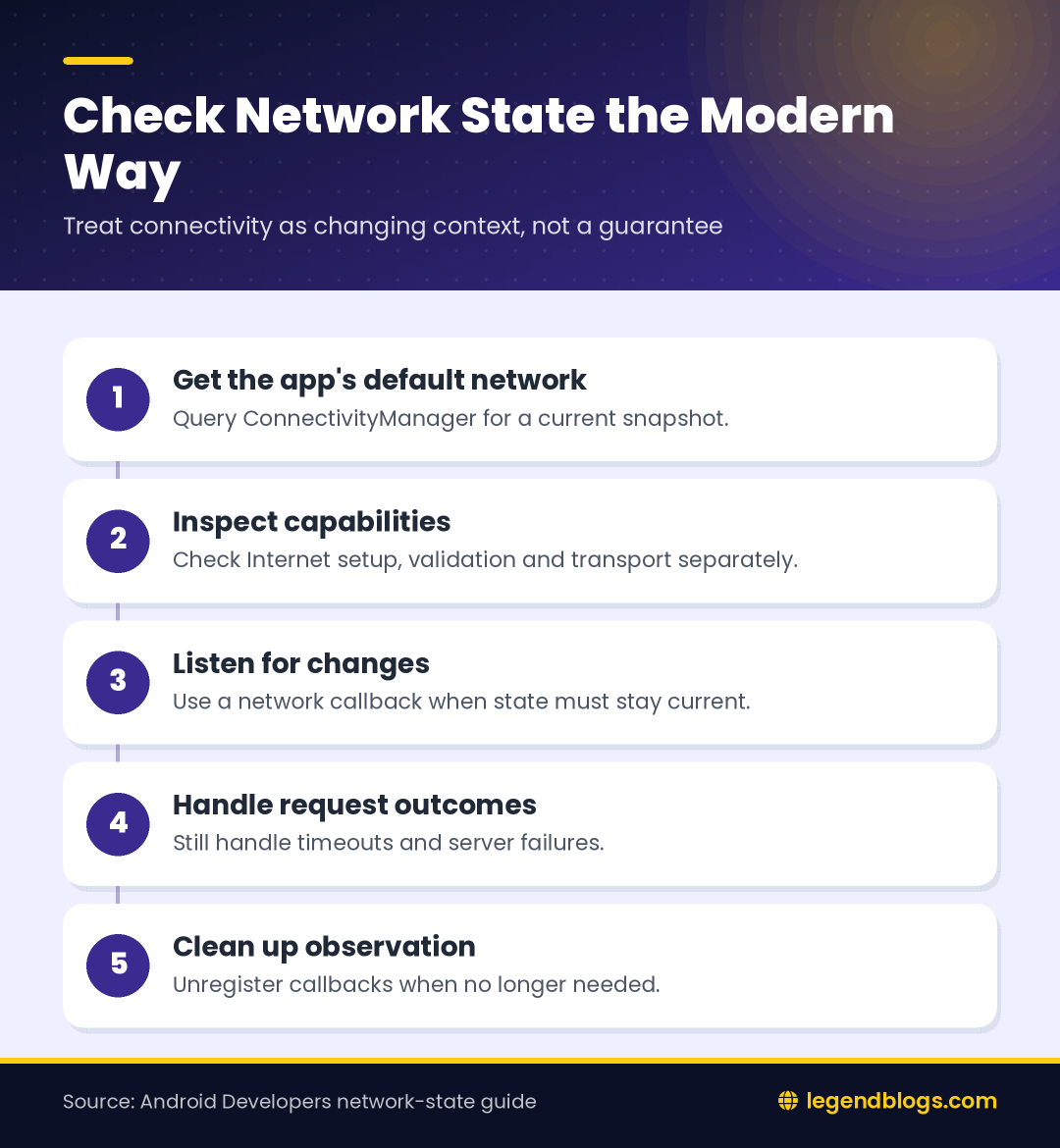
Get the app's active network and capabilities
The older NetworkInfo approach shown below is obsolete for modern Android connectivity checks. Use ConnectivityManager to obtain the current default Network for your app, then inspect its NetworkCapabilities. This reports properties of that network without relying on a Wi-Fi-versus-mobile-only model.
Check an Android Network Connection with Capabilities
For an Android network connection check, ask two separate questions: is a network available to the app, and does that network appear to have validated Internet access? Use the answer as context for the interface, then handle failures from the actual request because connectivity can change at any time.
Separate Internet setup from validated access
A capability indicating that a network is configured for Internet access is not proof that a public service can currently be reached. A captive portal, DNS problem, filtering rule, or sudden signal loss can interfere. When the platform reports validated Internet access, that is a stronger signal, but it is still a snapshot—not a promise that the next request will succeed.
Use the snapshot as a hint
A status check can help decide whether to show an offline hint or defer work, but it should not replace handling the result of the actual network request. Connectivity can disappear between the check and the request. Your app should still handle timeouts, server errors, and interrupted connections gracefully.
Read Wi-Fi, Mobile, VPN, and Other Transports
Check capabilities, not a single connection type
A device can have multiple networks or a VPN layered over another transport. NetworkCapabilities describes transports and other properties for a particular Network. If the app needs to know whether Wi-Fi or cellular transport is present, inspect the relevant transport capability, but avoid treating that label as a complete statement about Internet availability.
Avoid assuming Wi-Fi always means unmetered access
Transport type and data cost are different questions. A Wi-Fi connection may be metered, and a mobile connection may have usable access subject to the user’s plan. If the app is deciding whether to download a large resource, inspect the relevant metering capability and provide the user with control rather than basing the decision on Wi-Fi alone.
Test VPN and combined transport cases
Network configurations can include more than one transport characteristic, such as a VPN using an underlying Wi-Fi or cellular network. Do not write logic that assumes a network can have exactly one type. Test the behavior you actually need, such as whether the app has validated general access or whether a specific request can be made.
Monitor Network Changes with Callbacks
Register for events instead of polling
A single synchronous query tells you the state at the instant it runs. It does not notify the app when the network changes afterward. If the interface or a long-running task needs to react to changes, register a ConnectivityManager network callback for the relevant default network or request. Use the callback to update app state when networks become available, are lost, or change capabilities.
Keep callback work brief
Callbacks are for reacting to connectivity state, not for performing long network requests inline. Update a lightweight state holder or schedule appropriate work, then let the app’s networking layer handle the request. This prevents a connectivity callback from becoming a place where expensive work blocks other application behavior.
Unregister when the observer is no longer needed
Register and unregister callbacks according to the lifetime of the component that needs updates. A screen-only indicator may only need to observe while its screen is active; application-wide coordination may use a longer-lived owner. Avoid registering repeatedly without cleanup, and ensure the UI does not keep references to a destroyed Activity.
Declare and Review Permissions
Check the permission for the API you use
Network-state APIs can have permission requirements that depend on the specific call and Android library version. Review the current reference for the exact ConnectivityManager methods used by your app and declare the appropriate manifest permissions. Do not assume that permission to access the Internet and permission to inspect network state are interchangeable.
Keep the check focused
Ask only for the capabilities the feature needs. If all the app needs is to know whether it may attempt a request, a broad inventory of every network detail is unnecessary. Avoid collecting or logging network information such as local addresses unless the product feature genuinely requires it.
Design Useful Offline Behavior
Show the state without blocking the whole app
When a request cannot complete, explain what the user can do next: retry, continue with cached data, or return later. Do not make the entire application unusable merely because a preliminary connectivity check reports no validated network. Some screens may still work offline, and network access might return moments later.
Retry carefully and make operations safe
Retry transient failures with limits and a delay rather than looping continuously. For operations that create or modify server data, make sure retries do not duplicate the action; use the API’s idempotency support or an equivalent application-level safeguard where appropriate. Present the request’s real status rather than relying solely on a network badge.
Consider background work separately
A screen callback is not a substitute for a durable background-work plan. If a task should continue after the user leaves the screen, use a platform-supported work scheduling approach with the appropriate constraints. The app can still respond to current network state, but durable work must account for process death and later reconnection.
Troubleshoot Common Network Checks
A network exists but the request still fails
Check whether the network has validated access, whether a captive portal needs sign-in, and whether the server itself is reachable. Inspect request failures and timeout details in the networking layer. A network capability is a system-level signal, not an application-specific health check for your backend.
The result changes while the screen is open
A one-time snapshot becomes stale as soon as connectivity changes. If the screen should update live, use a callback and observe its state with the right lifecycle. Also make sure a lost-network event clears any “online” indicator and that reconnecting triggers a safe refresh rather than blindly repeating an unsafe operation.
The code reports the wrong transport
Verify that you are inspecting the capabilities for the Network relevant to your app, not a stale or unrelated Network object. Consider VPNs and multiple simultaneous networks, and use the capability that matches the actual product decision. A transport check should not be used as a synonym for “Internet works.”
Test the Network Logic Across Realistic Conditions
Cover connection changes and limited access
Test with Wi-Fi, cellular, airplane mode, an unavailable network, and a network that requires portal sign-in where practical. Switch transports while the app is running and observe whether callbacks update the UI correctly. Verify that requests handle a network disappearing halfway through a transfer.
Test request failures independently
Use a test environment to simulate a reachable network with an unavailable server, slow responses, and application errors. Confirm that the interface presents the outcome of the actual request, not simply the result of the connectivity check. Keep logs useful for debugging without recording sensitive data or complete user payloads.
You need to instantiate an object of getSystemService class by calling getSystemService() method. Its syntax is given below:
ConnectivityManager connectivitymanager = (ConnectivityManager) this.context.getSystemService(Context.CONNECTIVITY_SERVICE); ConnectivityManager method returns an array of NetworkInfo. So you have to receive it like this.
NetworkInfo[] info = connectivitymanager .getAllNetworkInfo();Label the NetworkInfo Snippet as Legacy
The NetworkInfo array and active-network example that follow are retained as historical context for older projects; do not copy them as the recommended approach for a current Android app. Modern connectivity code should use ConnectivityManager with Network and NetworkCapabilities, and monitor changes with a callback when the app needs an updated state. Always check the documentation for the Android API and library versions used by your project.
And you need to declear intrernet permission in your manifest file:
<uses-permission android:name="android.permission.INTERNET" />
<uses-permission android:name="android.permission.ACCESS_NETWORK_STATE" />
Your final code is:
public static boolean isNetworkAvailable(Context context) {
		final ConnectivityManager connectivitymanager = (ConnectivityManager) context.getSystemService(Context.CONNECTIVITY_SERVICE);
		NetworkInfo activeNetworkInfo = connectivitymanager.getActiveNetworkInfo();
		if (activeNetworkInfo != null) { // connected to the internet
			if (activeNetworkInfo.getType() == ConnectivityManager.TYPE_WIFI) {
				// connected to wifi
Toast.makeText(context, "Internet is connected", Toast.LENGTH_SHORT).show();
				return true;
			} else if (activeNetworkInfo.getType() == ConnectivityManager.TYPE_MOBILE) {
				// connected to the mobile provider's data plan
Toast.makeText(context, "Internet is connected", Toast.LENGTH_SHORT).show();
				return true;
			}
		}
		Toast.makeText(context, "Internet is not connected", Toast.LENGTH_SHORT).show();
		return false;
	}





Write a comment