Website speed is no longer a technical luxury. It directly affects user experience, search rankings, and conversion rates. A slow-loading website frustrates visitors, increases bounce rates, and hurts your SEO potential across search engines.
If your site runs on WordPress, the good news is that speed optimization is very achievable. With the right strategies, tools, and best practices, you can dramatically improve performance without rebuilding your site from scratch.
1. Introduction to WordPress Speed Optimization
WordPress speed optimization focuses on reducing load times, improving server response, and delivering content efficiently. Every second saved improves user satisfaction, mobile performance, and search visibility. Optimizing speed is a continuous process, not a one-time fix.
1.1 Why Website Speed Matters for SEO
Search engines prioritize fast websites because they deliver better user experiences. Faster pages lead to lower bounce rates, higher dwell time, and improved crawl efficiency. Speed is also a confirmed ranking factor, especially for mobile search results.
1.2 How Speed Affects User Experience and Conversions
Users expect pages to load quickly. Even a one-second delay can reduce conversions significantly. Faster sites build trust, feel more professional, and keep visitors engaged longer across all devices.
2. Choosing the Right Hosting for WordPress Performance
Your hosting environment forms the foundation of website speed. Poor hosting limits performance, no matter how well your site is optimized elsewhere.
2.1 Shared vs Managed WordPress Hosting
Shared hosting divides resources among many sites, often slowing performance. Managed WordPress hosting offers optimized servers, built-in caching, and better security, resulting in faster and more stable websites.
2.2 Server Location and Data Centers
Choose a hosting provider with data centers close to your primary audience. Shorter physical distances reduce latency, improving page load times for visitors across different regions.
3. Use a Lightweight and Optimized WordPress Theme
Themes heavily influence site speed. Bloated themes load unnecessary scripts, styles, and features that slow down your website.

3.1 Avoid Feature-Heavy Themes
Many themes include sliders, animations, and page builders you may never use. These features add extra code, increasing page size and load time. Choose themes built with performance in mind.
3.2 Importance of Clean Code and Minimal Design
Well-coded themes follow WordPress standards, load fewer requests, and reduce render-blocking resources. Minimal design improves speed while maintaining a clean, professional appearance.
4. Optimize Images for Faster Load Times
Images are often the largest files on a WordPress site. Optimizing them can dramatically improve speed without sacrificing quality.
4.1 Image Compression Without Losing Quality
Compress images before uploading or use plugins that automatically optimize them. Modern compression techniques reduce file size while maintaining visual clarity across devices.
4.2 Proper Image Formats and Lazy Loading
Use modern formats like WebP when supported. Enable lazy loading so images load only when they enter the viewport, reducing initial page load time.
5. Implement Caching for WordPress Speed
Caching stores static versions of your pages, reducing the need for repeated database queries and PHP execution.
5.1 Page Caching vs Browser Caching
Page caching serves pre-generated HTML pages to users. Browser caching stores files locally, allowing returning visitors to load pages faster without re-downloading assets.
5.2 Best Practices for Cache Configuration
Avoid stacking multiple caching plugins. Configure cache expiration times properly and clear cache after updates to ensure visitors always see fresh content.
6. Minify and Combine CSS, JavaScript, and HTML
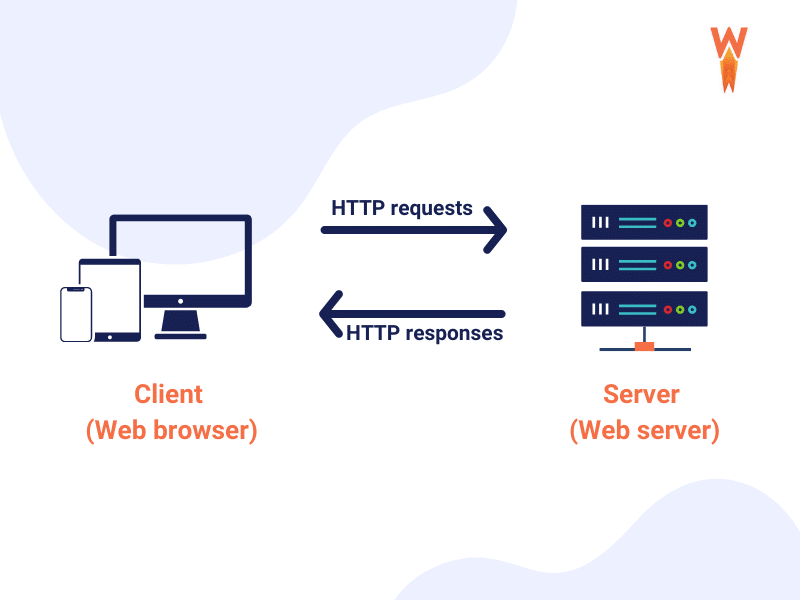
Minification removes unnecessary characters from code files, while combining reduces the number of HTTP requests.
6.1 Reducing HTTP Requests
Each file request adds load time. Combining scripts and styles where possible reduces requests and improves overall page speed.
6.2 Removing Render-Blocking Resources
Render-blocking scripts delay visible content. Load non-critical JavaScript asynchronously or defer it to ensure faster first contentful paint.
7. Optimize the WordPress Database
Over time, WordPress databases accumulate unused data that slows queries and increases load time.
7.1 Cleaning Post Revisions and Spam
Delete old post revisions, spam comments, and trashed items regularly. A cleaner database processes requests faster and improves backend performance.
7.2 Scheduling Database Optimization
Automate database optimization to remove overhead and optimize tables. Regular maintenance prevents performance degradation as your site grows.
8. Use a Content Delivery Network (CDN)
A CDN distributes your content across multiple servers worldwide, delivering it from the nearest location to each visitor.
8.1 How a CDN Improves Global Load Times
CDNs reduce latency by serving files from nearby servers. This is especially beneficial for images, scripts, and styles used across your site.
8.2 CDN Integration with WordPress
Most CDNs integrate easily with WordPress through plugins or hosting dashboards. Proper setup ensures seamless performance gains without complex configurations.
9. Reduce Plugins and Keep Everything Updated
Plugins add functionality but also increase resource usage if poorly coded or outdated.
Test WordPress Speed Before and After Changes
Use more than one type of measurement
A lab test can show how a page performs under a controlled connection, while real-user data can reveal problems affecting visitors in different locations, devices, and network conditions. Test the homepage, an article, a page with images, and any important form or checkout page.
Record the page size, server response, largest visible element, layout movement, script activity, and errors before changing the site. This gives you a baseline and prevents you from declaring success because one score improved while the real experience became worse.
Change one major variable at a time
Do not activate several optimization plugins and change the theme simultaneously. Make one significant change, clear the correct caches, test logged-in and logged-out views, and check mobile layouts. Keep a note of what changed so you can reverse a setting that causes a conflict.
Troubleshoot Caching and Optimization Conflicts
Clear every relevant cache
WordPress performance can involve browser, page, object, CDN, and server caches. If an update is not visible, clear the appropriate layers rather than repeatedly editing the page. Make sure cache exclusions exist for account pages, carts, forms, previews, and other personalized content.
Watch for broken scripts and styles
Minification, combining, and delayed JavaScript can improve one page while breaking menus, sliders, forms, or analytics on another. Inspect the browser console and test interactive features after enabling an optimization setting. Exclude only the script that causes the problem instead of disabling every performance feature.
Keep a Sustainable Performance Routine
Review performance after major theme, plugin, hosting, or content changes. Remove unused media and extensions through a safe workflow, optimize new images before upload, and monitor database growth and server resources.
Speed work should support the visitor rather than reduce the site's usefulness. Do not remove necessary navigation, accessibility features, security checks, or meaningful content simply to chase a perfect laboratory score.
9.1 Identifying Slow or Unnecessary Plugins
Deactivate plugins you no longer need. Replace multiple single-purpose plugins with one optimized solution when possible.
9.2 Why Updates Improve Speed and Security
Updates often include performance improvements, bug fixes, and security patches. Keeping WordPress core, themes, and plugins updated ensures optimal efficiency.
10. FAQ
10.1 What is a good page load time for WordPress websites?
A good WordPress page load time is under three seconds. For competitive niches and mobile users, aiming for under two seconds delivers better engagement and SEO performance.
10.2 Do plugins slow down WordPress websites?
Plugins themselves do not automatically slow down a site. Poorly coded, outdated, or excessive plugins increase load time by adding scripts, queries, and database requests.
10.3 Is caching necessary for small WordPress sites?
Yes, caching benefits both small and large sites. Even low-traffic websites experience faster load times and reduced server strain with proper caching enabled.
10.4 How often should I optimize my WordPress database?
Database optimization should be done monthly for most sites. High-content or high-comment websites may benefit from weekly cleanups to maintain peak performance.
10.5 Can website speed really affect SEO rankings?
Absolutely. Speed influences user experience metrics and is a confirmed ranking factor. Faster sites are crawled more efficiently and often rank higher in search results.
Conclusion
Speed optimization is essential for every WordPress website aiming to grow traffic, improve rankings, and increase conversions. By choosing the right hosting, optimizing themes, images, caching, and database performance, you create a faster and more reliable site.
Implement these essential WordPress tips consistently, monitor performance regularly, and treat speed as an ongoing priority. A faster website not only pleases search engines but also keeps visitors engaged, satisfied, and ready to convert.





Write a comment