The following are Jave code examples for showing how to use setVisibility() of the android.widget classes. Overriding the View.GONE assignment with the View.INVISIBLE setvisibility android. You can use the examples you like.
Read below to find out about the different options you have to identify the visibility status of a View. A View’s visibility status is of Integer type and can have one of three options.
View.VISIBLE
The View is visible to the user. The integer value for this is 0.
View.GONE
View.GONE makes the view invisible without the view taking up space in the layout. The integer value for this is 8.
View.INVISIBLE
View.INVISIBLE makes the view just invisible still taking up space. The integer value for this is 4.
@Override
public void onStart() {
    super.onStart();
    final Activity activity = getActivity();

    Button button2 = (Button) activity.findViewById(R.id.stranger_button2);
    button2.setVisibility(View.GONE);


    Button add = (Button) activity.findViewById(R.id.stranger_button1);
    if (!checkPending(user)) {
        add.setText("Add");
        add.setOnClickListener(new View.OnClickListener() {
            @Override
            public void onClick(View view) {
                addUser(user);
                getActivity().finish();
            }
        });
    } else {
        add.setText("Pending");
    }

    if (CurrentUserSingleton.getInstance().getUser().getFriends().contains(user)){
        Intent intent = new Intent(context, Profile.class);
        intent.putExtra("name", user);
        startActivity(intent);
        getActivity().finish();
    }

}
INVISIBLE Vs GONE
The major difference in between the invisible and gone:
INVISIBLE
This view is invisible, but it still takes up space for layout purposes.
GONE
This view is invisible, and it doesn't take any space for layout purposes.
The set visibility approach may also allow for easier implementation. For example, if a particular concrete class simply delegates the method to its composite classes, then set visibility means one less method to implement.
View.GONE vs View.INVISIBLE: The Core Difference
How layout space changes
View.GONE hides a view and removes its measured space. Other views can move into the area it occupied. View.INVISIBLE hides the view visually but keeps its measured width and height, so surrounding content remains aligned. This distinction is the reason the two values should not be treated as interchangeable.
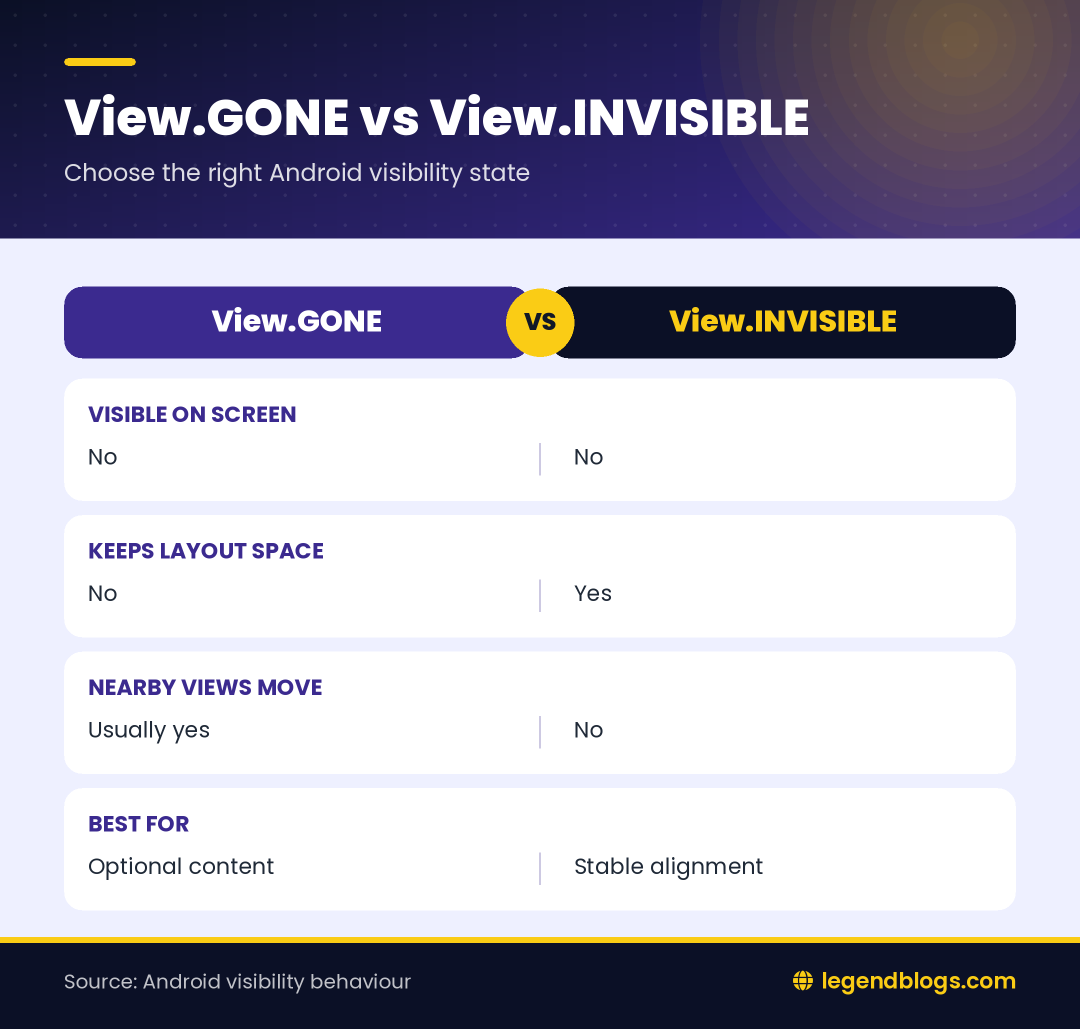
| Value | Drawn? | Keeps space? | Useful for |
|---|---|---|---|
VISIBLE | Yes | Yes | Normal content |
INVISIBLE | No | Yes | Temporary hiding and stable alignment |
GONE | No | No | Optional content and compact layouts |
Why the choice affects users
Use GONE when a control does not apply and leaving an empty gap would make the interface look broken. Use INVISIBLE when a control will return to the same position or when moving nearby content would make a screen feel unstable.
Using setVisibility in Java and Kotlin
Java example
Call setVisibility() on the view after the layout has been inflated. Use the named constants instead of their integer values because the code explains its intention.
Button action = findViewById(R.id.action_button);
action.setVisibility(View.GONE);
action.setVisibility(View.INVISIBLE);
action.setVisibility(View.VISIBLE);
Only the final state assigned before the next layout update will be visible. If several callbacks update the same view, the last callback may override the state you expected.
Kotlin example
val action = findViewById<Button>(R.id.action_button)
action.visibility = View.GONE
action.visibility = View.INVISIBLE
action.visibility = View.VISIBLE
View binding can make this clearer by giving you a generated reference after the correct layout has been inflated. Avoid changing a Fragment view after its view lifecycle has ended.
When to Use View.GONE
Optional actions
Use GONE for an action that does not apply to the current record. For example, an Add button can disappear after a relationship is already complete. Removing the button and its gap tells the user that the action is no longer part of the current flow.
Conditional forms
Address fields, advanced filters, and extra profile fields can start as gone and become visible after a selection. When you reveal fields, update validation as well. A hidden field should not remain required in the form's submission rules.
When to Use View.INVISIBLE
Stable alignment
Use INVISIBLE when a row, toolbar, or grid should keep its shape while one item is temporarily unavailable. It can be useful when a later state will show a control in exactly the same position.
Loading and transitions
For loading content, a progress indicator often communicates more than simply hiding the content. If you use invisibility during a short transition, make sure the user still receives feedback and that keyboard focus does not move to a hidden element.
Updating Visibility from State
Keep decisions together
Visibility bugs often result from several listeners assigning different values. Put the decision in one method that receives the current state and updates related controls together.
private void updateActionState(boolean pending, boolean completed) {
    if (completed) {
        actionButton.setVisibility(View.GONE);
    } else {
        actionButton.setVisibility(View.VISIBLE);
        actionButton.setText(pending ? "Pending" : "Add");
    }
}
Respect the lifecycle
In an Activity, call setContentView() before finding a view. In a Fragment, use the binding or inflated root only while the Fragment view exists. A correct visibility assignment can appear ineffective if it is made before the target view has been created.
Layout and Accessibility Considerations
LinearLayout and ConstraintLayout
In a LinearLayout, a gone child no longer contributes its width or height, while an invisible child does. In ConstraintLayout, a gone widget can affect chains, barriers, and constraints differently from an invisible widget. Test the screen on small and large devices rather than relying only on the design preview.
Do not hide important explanations
If an action is unavailable because of a rule, showing a disabled control with a short explanation may be more helpful than removing it. When a view appears or disappears, check TalkBack order, keyboard focus, and content descriptions so assistive technology does not announce an element the user cannot use.
Common Debugging Checks
- Confirm the resource ID belongs to the intended view.
- Check the visibility of the view and every parent container.
- Search for later
visibilityorsetVisibility()assignments. - Check alpha, dimensions, translation, constraints, and clipping.
- Confirm the correct layout file is being displayed.
- Test after asynchronous callbacks finish.
FAQ
What is the difference between View.GONE and View.INVISIBLE?
GONE removes the view's layout space, while INVISIBLE preserves that space but does not draw the view.
Does View.INVISIBLE remove a view from the layout?
No. It remains part of measurement and keeps its position. Use GONE when other elements should close the gap.
Can visibility be set in XML?
Yes. Use android:visibility="visible", invisible, or gone. Use code when the state depends on data or interaction.
Why does an Android view remain invisible?
Check parent visibility, lifecycle timing, later assignments, alpha, dimensions, constraints, and asynchronous state changes. A view can be visible but outside the screen or fully transparent.
Conclusion
The key difference between View.GONE and View.INVISIBLE is layout space. Choose gone for optional content that should be removed from the flow, and invisible when alignment should remain stable.
Keep state decisions in one place, test dynamic layouts on multiple devices, and include accessibility checks whenever controls appear or disappear.





Write a comment