Animated videos are becoming one of the most effective ways to tell stories, explain ideas, and engage audiences. Whether you're a content creator, educator, marketer, or simply someone who loves storytelling, animation can bring your message to life. The good news? You don’t need to be a professional animator anymore. Thanks to tools like Mootion AI, you can now create animated videos in just a few clicks using the power of artificial intelligence.
In this guide, we'll walk you through everything you need to know to get started with Mootion AI, an advanced AI animation tool that simplifies video creation for everyone.
Before relying on any plan, price, or feature list in an older review, check the current product information and terms. The workflow below focuses on planning and review steps that remain useful even if the interface or available options change.
Introduction to Mootion AI
Mootion AI is a cutting-edge AI animation platform that lets you generate 3D animated videos from simple text prompts. You can describe a scene or action, and the tool generates a 3D animated video based on your instructions.
Mootion combines AI-powered motion generation, character animation, and scene rendering—all in one easy-to-use interface. Whether you're making content for YouTube, educational platforms, or marketing campaigns, Mootion AI speeds up production and reduces the technical learning curve.
What You Need to Get Started
Before you dive into creating videos, here's what you’ll need:
- A web browser: Mootion is browser-based, so no downloads are required.
- Stable internet connection: Video rendering is done in the cloud.
- Mootion account: You can sign up for free on mootion.com.
- Creative idea or script: A short script or scene description will guide the AI in generating animations.
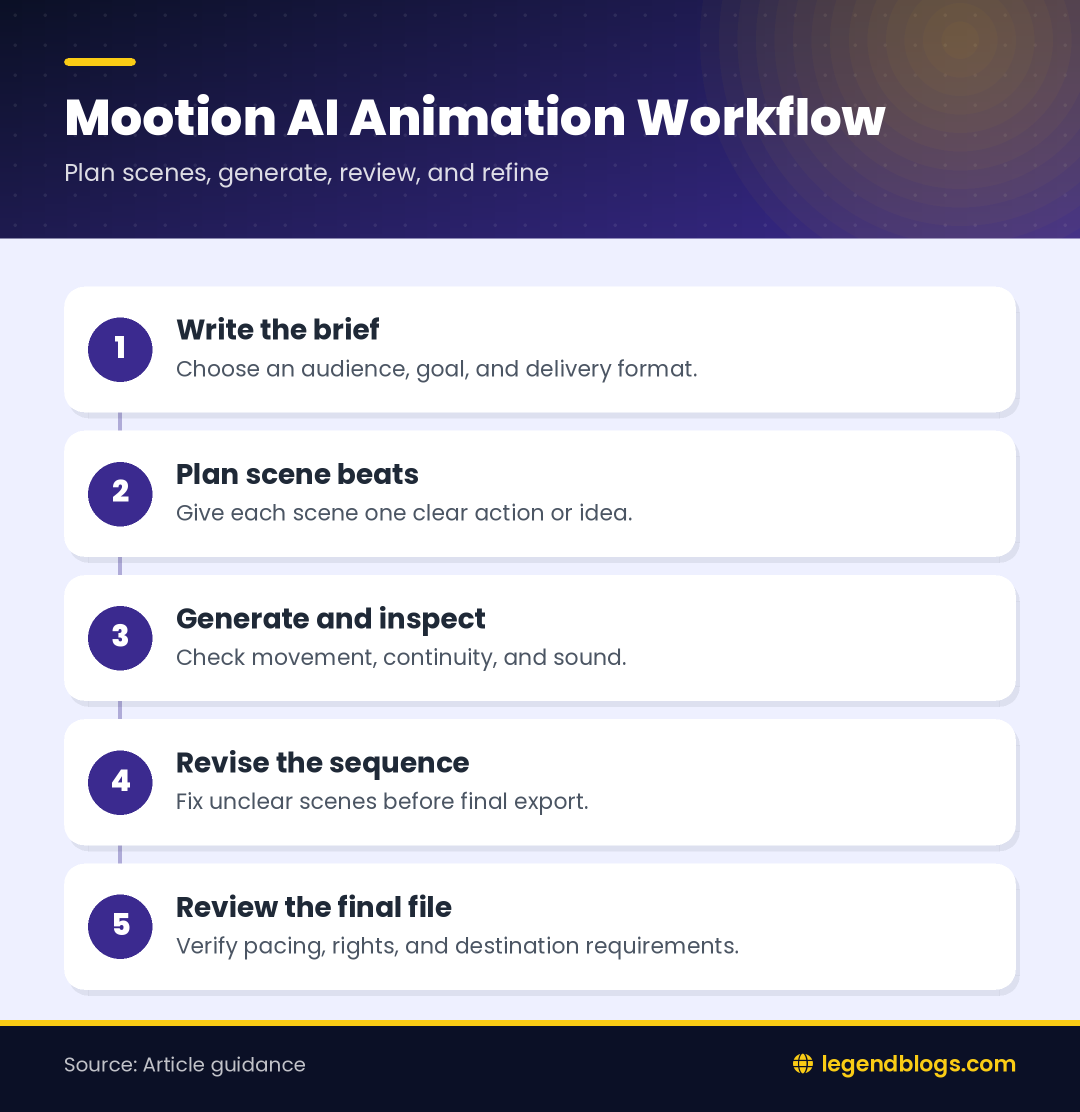
Prepare a short production brief
Decide who the video is for, what single idea it should communicate, and where viewers will watch it. Note the intended length, visual tone, and whether narration or on-screen text is essential. A concise brief helps prevent attractive scenes from drifting away from the message.
Gather only materials you are allowed to use, such as a script, logo, reference image, or character asset. Check file requirements and usage terms before uploading. Avoid putting confidential information or someone’s likeness into a prompt unless you have permission and understand how the service handles submitted data.
Once signed in, you'll be greeted with a clean dashboard where you can start creating with a few clicks.
Why Use Mootion AI to Create Animated Videos?
Here’s why creators are turning to Mootion AI:
- No animation skills needed: AI does the hard work of animating scenes for you.
- Faster production time: Create videos in minutes, not weeks. You can also check Autodraft AI to create 4K animations for YouTube.
- Affordable: Great for indie creators and small teams.
- Flexible uses: From educational content to social media storytelling.
If you’ve ever hesitated to try animation due to its complexity, Mootion AI eliminates those barriers.
Thanks for pointing that out! Here's a clean and properly formatted markdown table for the Mootion AI plans, pricing, and credits — no HTML, just pure markdown that looks great in most blog editors:
Mootion AI Plans, Pricing, and Credits
Below is a comparison of Mootion AI's pricing plans, including monthly cost, credits, and key features:
Pricing and feature note: The amounts and allowances in the table below come from an earlier version of this article and have not been independently checked for current accuracy. Confirm current plans, credits, export limits, and commercial-use terms with Mootion before relying on them.
| Plan | Price | Credits | Key Features |
|---|---|---|---|
| Free | $0/month | 200 credits/month | - 20,000 characters per prompt - 16 scenes/project - 6 visual styles - Limited voiceovers - No watermark - 1GB asset upload - 1080p resolution - Commercial license |
| Standard | $10/month ($8/month billed annually) | 1,000 credits/month (more credits purchasable) | - All Free features plus: - 10+ visual styles - Realistic voiceovers - 10GB asset upload - Bulk video clip generation |
| Pro | $40/month ($32/month billed annually) | 5,000 credits/month (more credits purchasable) | - All Standard features plus: - 50,000 characters per prompt - 32 scenes/project - All voiceovers included - 100GB asset upload - Faster, priority rendering |
Credit Usage Note:
1 credit = 1 second of animation. You can purchase more credits on Standard and Pro plans. Free plan does not allow buying additional credits.
👉 Start creating with Mootion AI and unlock extra benefits using this link:
Step-by-Step Guide to Create Animated Videos with Mootion AI
This section will show you exactly how to use Mootion AI from start to finish.
Write or Upload a Script
Everything starts with a good story. Think of a short scene you'd like to animate. For example:
“A robot dances on a neon-lit street during the night.”
You can type this prompt directly into Mootion AI’s scene generator, and it will automatically create an animation matching your description.
Break the script into clear scene beats
Give each scene one main action or idea. Describe the subject, action, setting, camera viewpoint, and mood without combining several unrelated events in one instruction. A numbered storyboard makes it easier to see whether the beginning, middle, and end form a coherent sequence before you spend time generating footage.
Plan narration and visual timing together. Leave time for viewers to understand each scene, and do not put essential information only in spoken audio if the video may be watched silently. Review the story structure before polishing effects or adding extra characters.
Choose or Customize Characters
Mootion comes with a library of pre-built characters. These include:
- Robots
- Humans
- Animals
- Stylized avatars
You can either select from the library or upload a custom 3D model (in compatible formats). While character customization is limited at the moment, the platform continues to expand its options.
Check continuity and asset rights
For a recurring character, write down a few visual traits such as clothing, accessories, and role in the story. Compare scenes for unexpected changes in appearance or movement. Use only assets and likenesses you have permission to use, and avoid implying that generated footage is genuine documentation of a real person or event.
Select Backgrounds and Scenes
You can set different environments such as:
- City streets
- Classrooms
- Forests
- Futuristic labs
Mootion’s AI uses your scene description to automatically generate the right environment. You can further tweak lighting, camera angles, and weather effects to match your vision.
Add Voiceovers and Sound
There are two ways to add sound:
- AI Voice Generator: Add dialogue using text and let Mootion produce voiceovers in various languages and tones.
- Manual Upload: Record and upload your own voice or background music.
Tip: Background music and sound effects enhance storytelling, especially for dramatic or educational content.
Animate Your Scene with AI
This is where the magic happens. Mootion AI uses its motion engine to generate lifelike animations. You can:
- Add multiple characters
- Set individual movements
- Include props or objects (e.g., flying drone, jumping ball)
The platform allows you to preview the animation frame-by-frame before rendering the final video.
Review the finished export end to end
Watch the entire render and check for abrupt transitions, unreadable text, audio problems, inconsistent characters, and scenes that do not match the narration. Review with sound on and off and, where possible, on the screen size your audience will use. A still preview cannot reveal pacing or sound issues.
Keep a copy of the script, scene plan, and permitted assets so revisions are manageable. Confirm current export options before building a production process around a specific format or resolution; those details may change by plan or product version.
Preview and Export Your Video
Once you’re happy with your video:
- Click Preview to check the timing and quality.
- Choose your export format: MP4 or WebM.
- Select resolution (720p, 1080p, 4K) depending on your needs.
- Download or share directly to social platforms.
Tips for Creating High-Quality Animated Videos with Mootion AI
Want to stand out? Here are some expert tips:
- Write clear prompts: Be specific when describing actions (e.g., “A girl walks slowly on the beach at sunset”).
- Keep videos short: 15–90 seconds works well for most platforms.
- Use close-up camera angles: They add drama and focus.
- Combine AI tools: Use tools like ElevenLabs for realistic voices.
- Edit externally if needed: Tools like CapCut or Premiere Pro can enhance the final video.
Comparing Mootion AI with Other AI Animation Tools
How does Mootion stack up against other AI video creators?
| Feature | Mootion AI | Animaker | Vyond | Kaiber AI |
|---|---|---|---|---|
| 3D Animation | ✅ Yes | ❌ No | ❌ No | ✅ Yes |
| AI Scene Generation | ✅ Yes | ✅ Limited | ❌ Manual | ✅ Yes |
| Script-to-Video | ✅ Yes | ✅ Yes | ✅ Yes | ✅ Yes |
| Ease of Use | ⭐⭐⭐⭐⭐ | ⭐⭐⭐⭐ | ⭐⭐⭐ | ⭐⭐⭐⭐ |
| Free Plan | ✅ Yes | ✅ Yes | ❌ No | ✅ Yes |
Mootion stands out for its real-time AI-driven motion generation, especially in the 3D space.
When comparing animation platforms, test the same short brief in each product and assess the finished clip rather than marketing descriptions. Compare how much editing is needed, how clearly you can control the scene, what rights apply to the output, and how well the export fits the intended destination. Re-check published plan and pricing claims directly with the providers before making a purchase decision.
Real-World Examples of Animated Videos Created with Mootion AI
Example 1: YouTube Shorts
A creator used Mootion to animate a motivational quote. The scene showed a superhero flying above the clouds, paired with a voiceover. The video gained over 15,000 views within a week.
Example 2: Educational Explainer
A teacher created a short animation showing how photosynthesis works. The AI-generated characters and motion kept students engaged far more than static slides.
You can explore more videos on Mootion’s community page.
Pros and Cons of Using Mootion AI
Using Mootion has several benefits but also a few limitations.
| Pros | Cons |
|---|---|
| No animation skills needed | Limited character customization |
| Fast video production | Requires stable internet |
| Free and accessible | Voice sync can be slightly robotic |
| Great for storytelling and marketing | Still improving scene transitions |
FAQs (Frequently Asked Questions)
Q1. Is Mootion AI free to use?
Yes, Mootion offers a free plan with basic features. Paid plans provide higher resolution exports and longer video durations.
Q2. Can I use Mootion AI for commercial content?
Yes, as long as you follow their licensing terms. Many creators use it for ads and promotional content.
Q3. Do I need any technical skills to use it?
No. The platform is user-friendly and requires no animation, coding, or design experience.
Q4. Can I upload my own 3D models?
Yes, Mootion supports standard 3D file types for custom characters or objects.
Q5. Does Mootion AI support multiple languages?
Yes. The AI voice generator supports several languages and accents.
Q6. How long does it take to render a video?
Most short videos take between 2–10 minutes to render, depending on complexity and resolution.
Q7. Is my data secure with Mootion AI?
According to their Privacy Policy, user data is encrypted and stored securely. Always review their terms for updated practices.
Conclusion
Mootion AI is changing how we think about animation. It removes the technical barriers and opens the door for creators, educators, and businesses to create animated videos with ease. Whether you’re telling a story, sharing a lesson, or creating entertainment, Mootion AI is a tool worth exploring.
Have you tried Mootion AI? Let us know your experience or questions in the comments below! We'd love to hear what you're creating.



Write a comment