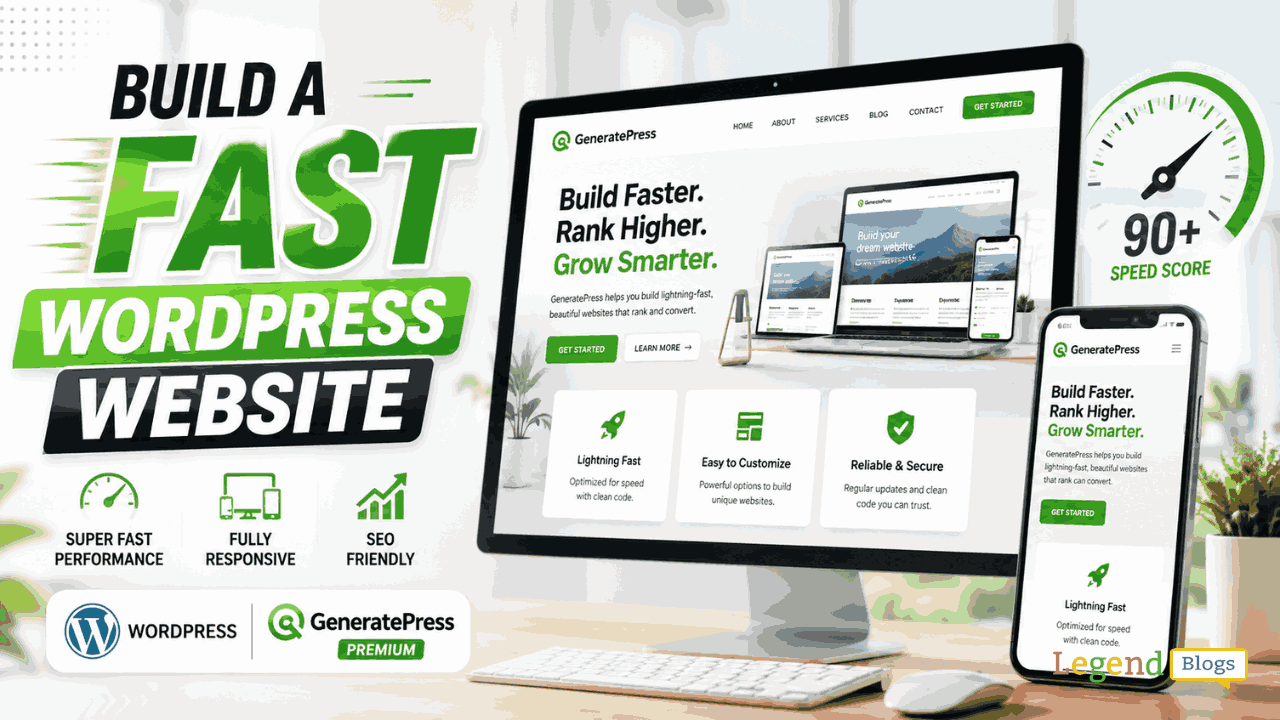
If you want to create a professional WordPress website without starting from a bloated theme, GeneratePress is worth considering. It is designed around speed, stability, accessibility, and flexible customization, making it suitable for blogs, business websites, portfolios, agencies, magazines, and online stores.
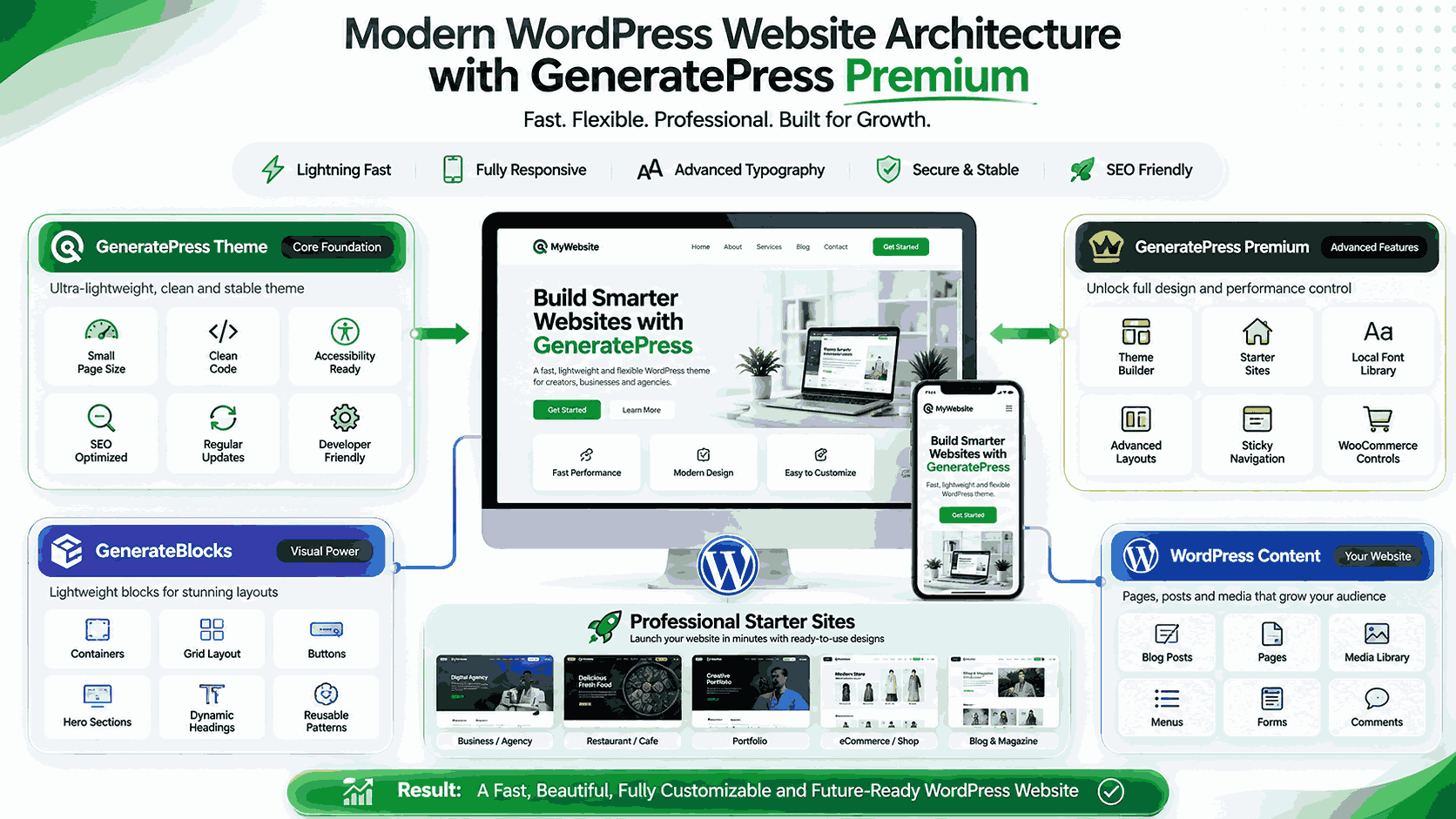
The premium version adds substantially more control through features such as the Theme Builder, starter sites, advanced layouts, local font management, WooCommerce controls, hooks, sticky navigation, and other customization tools. The official GeneratePress website is the best place to check the latest features, pricing, and product updates: GeneratePress Premium WordPress Theme
This guide explains how to create a website with GeneratePress Premium, what makes the theme different, how to customize it, and which decisions matter most if you want a fast and polished website.
Why GeneratePress Is a Strong WordPress Foundation
A WordPress theme affects far more than the appearance of your website. It influences how your pages are structured, how much code the browser has to process, how easily you can customize templates, and how maintainable the site becomes over time.
GeneratePress focuses heavily on keeping the theme lightweight. The company currently describes the theme as having a 7.5 KB page size, two HTTP requests, and zero dependencies in its stated baseline configuration. Those figures describe the theme itself, not necessarily the final performance of every website built with it. Plugins, images, hosting, fonts, scripts, and customizations can all affect real-world speed.
Performance Without Giving Up Design
A common WordPress dilemma is choosing between a visually flexible theme and a lightweight one. GeneratePress attempts to bridge that gap by separating the theme foundation from optional functionality.
Instead of forcing every feature on every website, premium functionality can be enabled according to your requirements. This approach is particularly useful if your goal is to build a content-focused site where page speed and usability matter.
Accessibility and Stability
Performance is only one part of a good website. A professional WordPress theme also needs sensible code, responsive layouts, accessibility considerations, and a development process that does not make future updates unnecessarily risky.
GeneratePress emphasizes accessibility, coding standards, stability, and long-term compatibility as core parts of its product philosophy. The company also says major updates go through extended public testing before release.
What You Need Before Building Your Website
Before installing GeneratePress Premium, prepare the basic components of your website. Doing this first can save considerable time later.
Choose a Domain and Hosting Provider
Your domain is your website's public address, while hosting provides the server environment where WordPress runs.
For a business website, choose a short and memorable domain that is easy to pronounce and type. Your hosting should provide reliable uptime, current PHP and WordPress compatibility, SSL support, backups, and enough server resources for your expected traffic.
A fast theme cannot compensate for extremely poor hosting. Website performance is a combination of the theme, hosting, plugins, media, database, caching, and front-end implementation.
Install WordPress
Once your hosting account is ready, install WordPress and complete the basic configuration.
Set your site title, tagline, permalink structure, administrator account, timezone, and basic reading settings. Remove unused themes and plugins before you begin building the final site.
It is also sensible to activate HTTPS from the beginning rather than migrating the site from HTTP later.
How to Install GeneratePress and Premium Features
GeneratePress is available as a free WordPress theme, while GP Premium provides additional functionality. The current GeneratePress documentation lists the free theme separately from GP Premium, which is provided as a premium plugin.
Install the Free GeneratePress Theme
From your WordPress dashboard, go to the theme installation area and search for GeneratePress. Install and activate the theme.
The free version provides the foundation. You can then add premium functionality when your website requires additional customization.
Add GP Premium
Purchase GP Premium or a GeneratePress One subscription through the official GeneratePress website. Current pricing information lists GP Premium at $59 per year and GeneratePress One at $149 per year, although prices and product offerings can change, so check the official pricing page before purchasing.
Check the latest GeneratePress pricing
GeneratePress One currently combines GP Premium, GenerateBlocks Pro, and GenerateCloud, along with access to future products and priority email support.
After installation, activate your license and enable only the premium modules you actually need.
Choose a GeneratePress Starter Site
One of the easiest ways to create a professional website with GeneratePress Premium is to begin with a starter site rather than designing every page from scratch.
GeneratePress currently offers a library of professionally designed starter sites. You can select a design, import the relevant site structure, and replace the sample content with your own text, images, branding, and links.
Pick a Design That Matches Your Goal
Do not choose a starter site simply because it looks attractive.
Think about your website's purpose first.
A personal blog may need a strong article layout, categories, author information, and related posts. A service business may need prominent calls to action, service pages, testimonials, and contact forms. An online store needs product presentation, navigation, cart functionality, and checkout-focused layouts.
The best starter site is the one whose structure already resembles your business.
Replace the Demo Content
After importing a starter site, replace every piece of placeholder content.
Change the logo, site title, navigation, homepage copy, images, contact details, social links, footer information, and calls to action. Review every page before publishing because imported websites can contain sections that are irrelevant to your business.
This is where many quick WordPress builds fail: the design looks professional, but the content still feels like a template.
Customize the GeneratePress Design
The advantage of GeneratePress Premium is that you can build a distinctive website without abandoning the lightweight foundation.
Typography and Fonts
Typography has a major effect on perceived quality.
Choose one font for headings and another complementary font for body text only when there is a clear design reason. Keep body text comfortable to read, use sufficient line height, and avoid extremely small text.
GeneratePress also provides a Local Font Library that can upload custom fonts or install Google Fonts locally. The company says locally hosted Google Fonts can reduce font file size through optimization and can improve performance compared with loading fonts remotely.
Colors and Branding
Your website should have a consistent visual system.
Choose a primary brand color, a secondary color, a text color, a muted text color, and background colors. Use your strongest color for meaningful actions rather than applying it everywhere.
Consistency matters more than having a large number of colors.
Headers and Navigation
Your header should immediately communicate who you are and what visitors can do next.
Keep the main navigation simple. For most websites, the primary menu should focus on the pages visitors genuinely need, such as Home, About, Services, Blog, and Contact.
GeneratePress Premium also offers features such as mobile headers, sticky navigation, secondary navigation, and off-canvas panels.
Build Pages With GenerateBlocks
If you want more design flexibility while remaining close to the WordPress block editor, GenerateBlocks can be a useful companion to GeneratePress.
GenerateBlocks provides lightweight blocks for elements such as containers, grids, text, buttons, headlines, images, and queries. Its current feature set also includes patterns, global styles, responsive controls, and other design tools.
Create Reusable Sections
Instead of rebuilding the same layout repeatedly, create reusable design patterns.
For example, you could create a consistent call-to-action section containing a headline, short description, and button. Use the same visual language throughout the website.
This improves consistency and reduces the amount of repetitive design work.
Design for Mobile First
A website that looks excellent on desktop can still provide a poor experience on a smartphone.
Check every major section at mobile and tablet widths. Pay attention to:
- Navigation usability
- Heading sizes
- Button spacing
- Image dimensions
- Text line length
- Section padding
- Forms
- Tables
- Embedded content
Responsive design is not simply about shrinking desktop content. Mobile visitors often need a different visual hierarchy.
Create an SEO-Friendly WordPress Website
A fast theme can support SEO, but it does not automatically make a website rank.
Search visibility also depends on content quality, search intent, site structure, internal linking, technical SEO, authority, and how well your pages satisfy users.
Build a Logical Site Structure
Organize content into clear categories and subtopics.
For example, a technology website could have categories for WordPress, SEO, hosting, plugins, and website design. Individual articles should fit naturally within that structure.
Avoid creating dozens of thin categories simply because they contain keywords.
Optimize Individual Articles
Every important article should have a clear primary topic.
Use the topic naturally in the title, introduction, relevant headings, body copy, image alt text where appropriate, and metadata. Related long-tail phrases should appear naturally when they help explain the subject.
The goal is not to repeat a keyword as many times as possible. The goal is to make the page the most useful answer for the query.
Improve Internal Linking
When publishing new articles, link to relevant older content.
For example, an article about creating a WordPress website could link naturally to guides about website speed, image optimization, WordPress security, SEO plugins, and content strategy.
Internal links help readers discover useful information while giving search engines additional context about the relationship between your pages.
Use GeneratePress for WooCommerce Websites
GeneratePress Premium also includes WooCommerce-related controls for users building online stores.
A WooCommerce website needs more than an attractive homepage. Product pages, category archives, cart pages, checkout, account pages, search, filtering, and mobile usability all deserve attention.
Keep Product Pages Focused
A good product page should answer the buyer's main questions quickly.
Include a clear product title, strong product imagery, pricing, important specifications, availability information, shipping details, and a prominent purchase action.
Do not overwhelm shoppers with unnecessary design elements.
Optimize Store Performance
Online stores can become heavy because of large images, third-party scripts, analytics, tracking tools, page builders, product filters, and unnecessary plugins.
GeneratePress provides a lightweight foundation, but store owners still need to control the rest of the stack.
Compress images, remove unused plugins, use caching where appropriate, and monitor performance after adding major functionality.
GeneratePress Premium vs Starting From Scratch
There are two practical approaches to building a WordPress website.
| Approach | Best For | Main Advantage | Potential Drawback |
|---|---|---|---|
| Starter Site | Beginners and fast launches | Saves design time | Requires customization to feel unique |
| Blank GeneratePress Site | Developers and experienced users | Maximum control | Takes longer to design |
| GeneratePress + GenerateBlocks | Custom professional sites | Flexible block-based workflow | Requires learning the design system |
A starter site is usually the fastest route to a polished website.
Starting from a blank installation makes more sense when you already have a strong brand system or need a highly customized layout.
For many users, the middle ground is ideal: start with a professional structure and then customize the important parts.
Common Mistakes to Avoid
Installing Too Many Plugins
A lightweight theme does not guarantee a lightweight website if dozens of unnecessary plugins are installed.
Before adding a plugin, ask whether the functionality is genuinely necessary.
Importing a Starter Site and Leaving It Untouched
A starter site should be a foundation, not the finished product.
Replace generic text, stock imagery, colors, navigation labels, and irrelevant sections. Your website should communicate your own expertise and value proposition.
Ignoring Image Optimization
Large images are among the most common causes of slow pages.
Resize images to the dimensions actually required by your design, compress them appropriately, and use modern formats when compatible with your workflow.
Designing Only for Desktop
Always test important pages on mobile devices or responsive browser views.
A website can have excellent desktop aesthetics and still lose visitors if mobile navigation, forms, or buttons are difficult to use.
Updating Without Backups
WordPress themes and plugins receive updates for new features, compatibility, bug fixes, and security improvements.
GeneratePress has also published security-related updates, including a May 2026 patch for a GP Premium vulnerability. The company recommended affected users update promptly.
Keep reliable backups and update your WordPress environment regularly.
Is GeneratePress Premium Worth It?
GeneratePress Premium makes the most sense when you want more control than the free theme provides but still value a performance-focused WordPress foundation.
The current premium offering includes features such as the Theme Builder, starter sites, local font management, advanced layout controls, WooCommerce functionality, and additional customization tools.
It is particularly attractive for bloggers, agencies, freelancers, business owners, developers, and anyone who expects a WordPress site to remain maintainable as it grows.
However, Premium is not automatically the best choice for every project. If your website needs a very specific visual system, a different theme or custom development approach may be more appropriate.
The important question is not whether a theme has the most features. It is whether its features solve your actual website requirements without adding unnecessary complexity.
FAQ
Is GeneratePress good for beginners?
Yes. Beginners can start with a GeneratePress starter site and replace the demo content instead of designing every component from scratch. More advanced users can build highly customized layouts using the theme's deeper controls and block-based tools.
Is GeneratePress Premium faster than other WordPress themes?
There is no universal speed ranking because website performance depends on hosting, plugins, images, scripts, caching, and configuration. GeneratePress is specifically designed as a lightweight foundation, which can make it easier to build a performance-focused site.
Can I use GeneratePress for a business website?
Yes. GeneratePress can be used for business websites, portfolios, blogs, agencies, and other website types. Its starter sites and customization features make it possible to create different visual structures without changing the underlying theme.
Can GeneratePress be used with WooCommerce?
Yes. GeneratePress Premium includes additional WooCommerce controls designed to give store owners more flexibility over their online shop.
Do I need GenerateBlocks with GeneratePress?
No. GeneratePress can be used without GenerateBlocks. However, GenerateBlocks adds lightweight block-based design capabilities and can be particularly useful when you want to create custom layouts using the WordPress editor.
How many websites can GeneratePress Premium support?
Current GeneratePress pricing information states that a GeneratePress One license can be used on up to 500 sites, including eligible client sites where you manage and develop the websites. Licensing terms can change, so verify the current terms before purchase.
Does GeneratePress include hosting?
No. GeneratePress is a WordPress theme and product suite; hosting is a separate service. You need WordPress hosting to run your website.
Should I use a GeneratePress starter site or build from scratch?
Use a starter site if you want to launch quickly or need a proven design structure. Build from scratch if you already have a detailed brand system or require a highly customized website architecture.
Conclusion
Creating a website with GeneratePress Premium is less about adding every available feature and more about building a clean foundation and enabling only what your project needs.
Start with reliable hosting and WordPress, install GeneratePress, choose either a starter site or a blank canvas, establish your typography and colors, build responsive layouts, optimize your images, and create content around real search intent.
For a quick professional launch, starter sites can dramatically reduce design time. For developers and experienced WordPress users, GeneratePress provides deeper customization through its Theme Builder, hooks, layouts, and block-based ecosystem.
The result can be a website that looks premium without relying on unnecessary complexity. If speed, maintainability, accessibility, and design flexibility are priorities, GeneratePress Premium is a strong WordPress option to evaluate.
For the latest product information, features, and pricing, visit GeneratePress.




Write a comment