
For a better web designing every web designer as well as every programmer either beginners or experienced programmer want to create a unique webpage for the website.
But few mistakes can generate a big issue for the end user as looking perspective or reading perspective.
So that when we talk about the Fonts then designer and programmers think how to use an external font into a website or how to use a google font on your website.
Google Fonts are very clear, neet & clean and also better for the SEO (Search Engine Optimization) font. Google fonts help to improve your website rank as SEO point of view.
So everyone tries to use the better font on their website when they develop their website and google provide us tremendous font which can be applied to the site.
Now, we discuss about the Google Fonts, and learn how to use a google font on your website. Importing Google Font in your website is very easy process, simply follow these few steps:
Step 1:
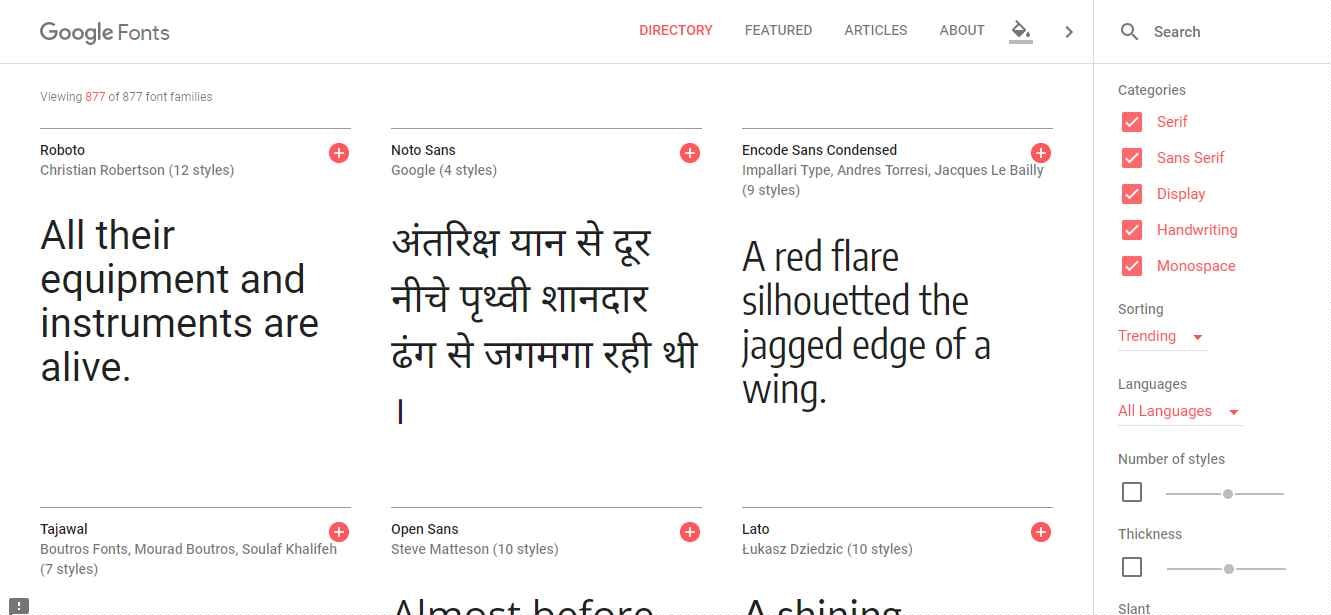
First, of all, you have to choose the appropriate, good looking and a suitable font for your webpage on the Google Fonts website. So visit this link https://fonts.google.com/. You'll see this page on your screen:
Step 2:
There are two ways to use your selected font in your website first STANDARD and second @IMPORT method. Both are easy to use.
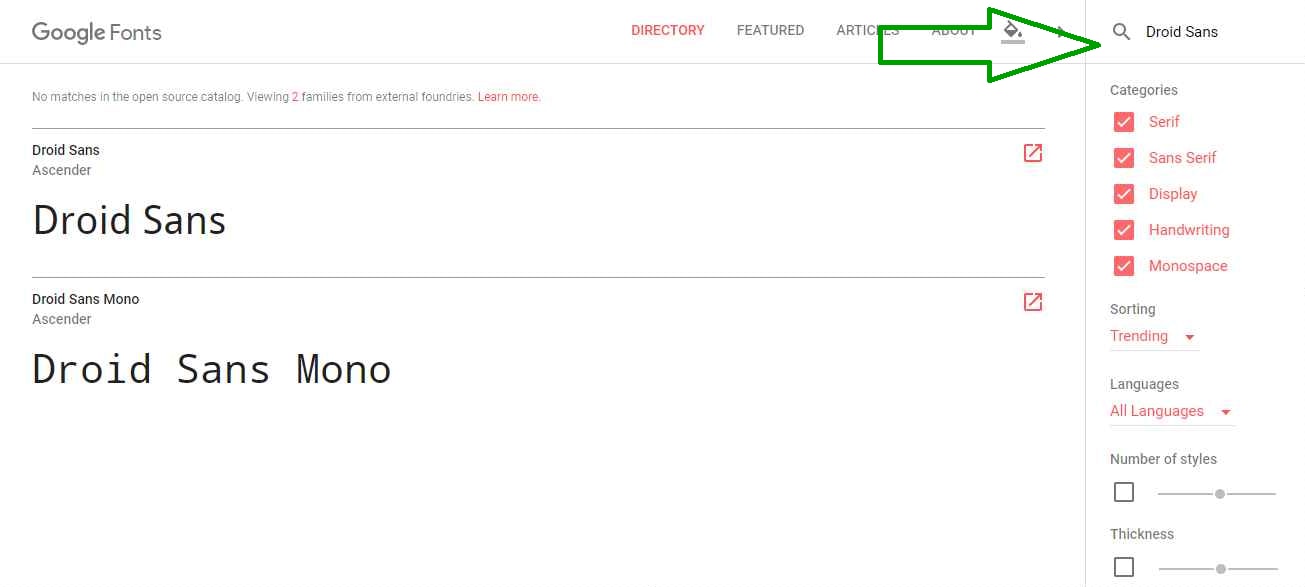
Suppose, I have chosen the font name Droid Sans then STANDARD code will be like this:
In your Head tag:
<html>
  <head>
    <link href="https://fonts.googleapis.com/css?family=Droid+SANS" rel="stylesheet">
  </head>
  <body>
  </body>
</html>
In your CSS, Use the following CSS rules to specify these families:
font-family: 'Droid Sans', monospace;Suppose, I have chosen the font name Droid Sans then @IMPORT code will be like this:
<style>
@import url('https://fonts.googleapis.com/css?family=Droid+Sans');
</style>
In your CSS, Use the following CSS rules to specify these families:
font-family: 'Droid Sans', monospace;And DONE!.
Read this also:
How to Choose Fonts for Your Website
Select a readable family
A heading font should give the page character, but the body font should remain comfortable for long reading. Avoid pairing a decorative heading with a body family that is not intended for paragraph text without testing the result.
Check the number of weights before you start. Every weight you request can affect rendering speed, so request only the weights your design actually uses.
<link href="https://fonts.googleapis.com/css2?family=Open+Sans:wght@400;600;700&display=swap" rel="stylesheet" />Set up fallback stacks
Fonts can fail to load or be blocked by ad blockers. A strong fallback stack keeps the page readable while the primary font arrives.
font-family: 'Open Sans', -apple-system, BlinkMacSystemFont, 'Segoe UI', Roboto, sans-serif;After the primary family, the browser chooses the first available fallback. This protects users on slow connections and environments where Google Fonts cannot be fetched.
Load Font Weights Correctly
Avoid synthetic bold
If you request regular and bold, but use font-weight: 600 without requesting it, the browser may synthesise the weight. The result can look distorted and less consistent across devices.
Request the weights you actually reference in CSS. If your design uses 400, 600 and 700, list all three in the request.
Use the CSS @import Method
Import syntax
You can load a font directly from a stylesheet using @import inside a CSS block.
@import url('https://fonts.googleapis.com/css2?family=Open+Sans:wght@400;600;700&display=swap');This works, but it can delay the font request because the browser must first read the stylesheet that contains the import.
Why link is usually preferable
A <link> in the head allows the browser to start fetching the font in parallel with the rest of the page. For most sites this gives a faster and more predictable result.
Google Fonts and Website Performance
Limit families and weights
Every additional family and weight increases the amount of font data the browser must download. Two families with a few weights each is usually enough for a blog or landing page.
If you need performance, also consider the display=swap parameter, which shows text with the fallback font immediately and swaps in the web font when it arrives.
Consider self-hosting
For high-traffic sites or regions where Google Fonts are slow, self-hosting the font files on your own server can reduce latency and privacy concerns. It adds complexity, but it gives full control.
Accessibility and Readability
Font size and line height
A font that looks good at 16 pixels on a desktop may be too small on a phone. Use relative units such as rem or em so that browser zoom and user settings are respected.
Body text generally benefits from a line height between 1.4 and 1.7, depending on the font and column width.
Contrast and readability
A light-weight font at a small size with low contrast is hard to read for many people. Check contrast ratios with a tool and avoid using extra-light weights for long-form content.
Testing Fonts on Different Devices
Mobile and desktop checks
Load the page on a phone, a tablet and a desktop. Check that the font appears, that fallback text is visible during loading, and that headings do not wrap into unexpected positions.
Long text and multilingual content
Some fonts do not cover every language. If your site is translated, verify that each language has a usable fallback and that the font does not clip accents or special characters.
Common Google Fonts Problems
Font not applying
Check the family name in the request matches the name in the CSS rule exactly, including spaces and capitalisation. A mismatched name is the most common reason a Google Font appears not to load.
Incorrect family names
Google Fonts uses specific family identifiers. If you type a name from memory, you may use the wrong spelling or a name that no longer exists in the catalogue.
Cached or blocked requests
If the font works on one machine but not another, check ad blockers, network restrictions or a stale cache. These can block the request before the font ever arrives.
FAQ
How do I add Google Fonts to HTML?
Add a <link> element in the <head> section of your HTML, then reference the family in your CSS with font-family.
Should I use link or @import?
<link> is usually preferred because the browser can start the request earlier. @import can delay loading because the browser must read the stylesheet first.
Can Google Fonts improve SEO?
Web fonts do not directly improve rankings. However, good readability, fast loading and accessible typography support the user experience that search engines reward.
Why is my Google Font not working?
The family name may be misspelled, the request may be blocked, or the CSS rule may not match. Check the browser console for failed requests and verify the exact family name.
How many font weights should I load?
Request only the weights your design uses. Loading extra weights increases download size and slows the page without improving the visual result.
Conclusion
Google Fonts gives you a wide selection of free typefaces, but a good implementation depends on choosing the right weights, adding fallback stacks, and loading only what the page needs.
Test the result on mobile and desktop, check contrast and size, and review performance. A well-configured font improves readability without making the page slower.






(1) Comments
Vipul
Awesome font for web on the google fonts.....
Write a comment