Playing a YouTube Video in HTML
To play a youtube video on a web page, do the following steps:
Before You Add the YouTube iframe
Choose the correct video address
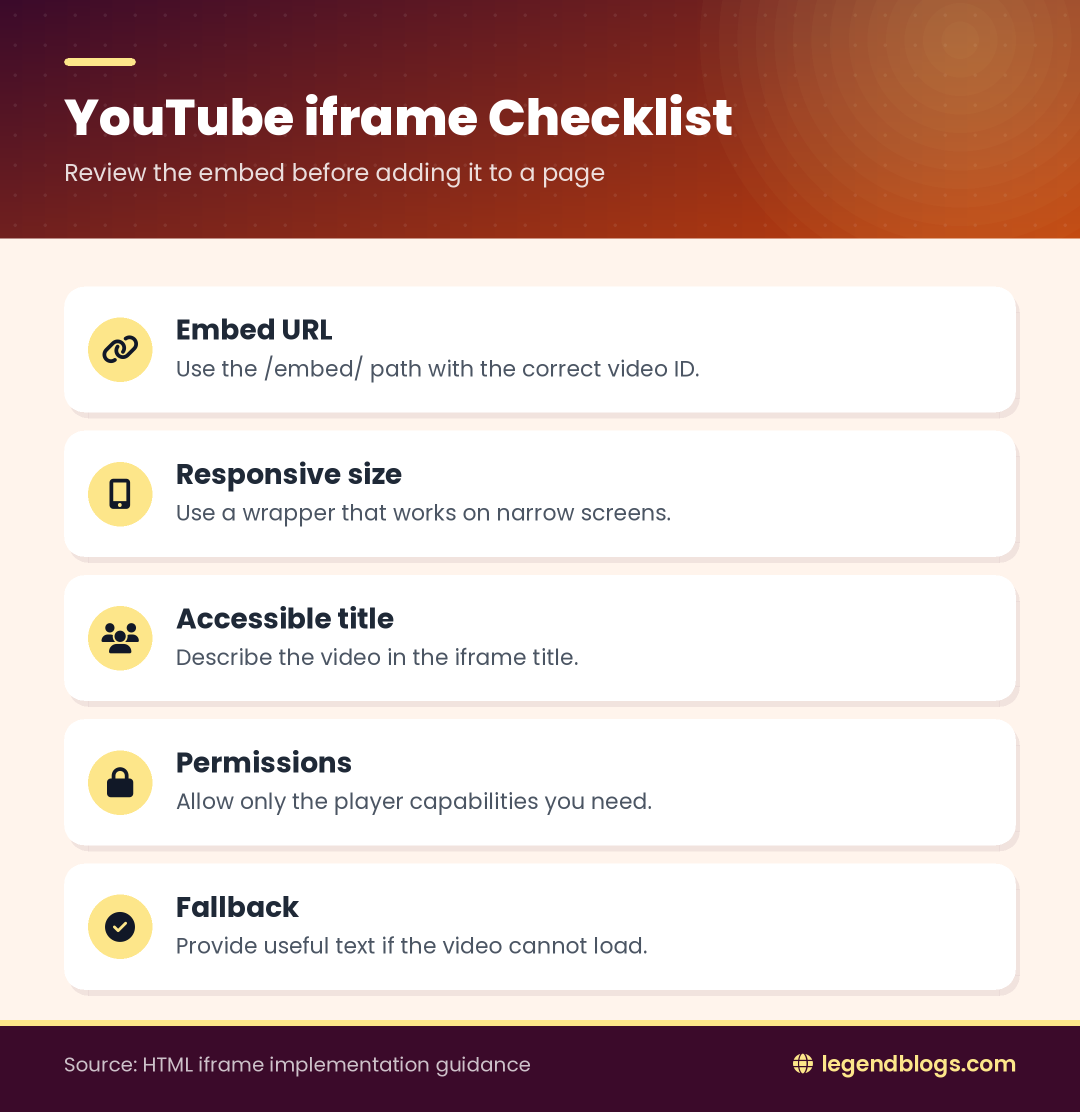
A YouTube watch page and an embed page use different URL formats. Copy the video identifier from the watch address, then place that identifier after /embed/. Do not paste a full watch URL into the iframe when you want the embedded player format.
Keep the embed code maintainable
Use a clear placeholder while building the page, then replace it with the real video identifier before publishing. Keep the iframe on its own lines so reviewers can check the title, source, permissions, and responsive behavior without searching through a long HTML line.
If a content management system sanitizes iframe markup, confirm that the editor allows the required element and attributes. Never work around a security filter by adding unrelated scripts to the page.
Also confirm that the video owner allows embedding. A valid iframe can still show an error when the video is private, removed, age-restricted, region-limited, or configured to reject external players.
Plan the surrounding content
An embedded video should support the page rather than replace its explanation. Add a heading, a short description, and written steps when the visitor needs the information for a task. This makes the page useful for people who cannot load or watch the player.
- Upload the video to your YouTube channel
- Take a note of the video id embedded tab
- Define an <iframe> element in your web page with height and width
- Let the src attribute point to the video URL
- Use the width and height attributes to specify the dimension of the player
- Add any other parameters to the URL (see below)
Tubebuddy extension for chrome android with Complete Guide
<!DOCTYPE html>
<html>
<body>
<iframe width="500" height="300" src="https://www.youtube.com/embed/videoid">
</iframe>
</body>
</html>
YouTube - Autoplay
<!DOCTYPE html>
<html>
<body>
<iframe width="500" height="300" src="https://www.youtube.com/embed/videoId?autoplay=1">
</iframe>
</body>
</html>
Free Youtube Thumbnail Generator
YouTube Loop
<!DOCTYPE html>
<html>
<body>
<iframe width="500" height="300" src="https://www.youtube.com/embed/videoId?playlist=playlistId&loop=1">
</iframe>
</body>
</html>
How an HTML YouTube iframe Works
Find the video ID
A standard YouTube watch address contains a video identifier after v=. The embedded player uses the same identifier in an address such as https://www.youtube.com/embed/VIDEO_ID. Replace the placeholder with the actual identifier and keep the URL inside the iframe src attribute.
<iframe
  width="560"
  height="315"
  src="https://www.youtube.com/embed/VIDEO_ID"
  title="YouTube video player"
  allow="accelerometer; autoplay; clipboard-write; encrypted-media; gyroscope; picture-in-picture; web-share"
  allowfullscreen>
</iframe>
Use a meaningful title
The iframe title helps people using assistive technology understand what the embedded frame contains. Do not leave it as a generic value when the video has a specific subject.
Responsive YouTube Video Layout
Use a wrapper instead of fixed dimensions
Fixed width and height values can overflow a narrow screen. A wrapper can preserve the video shape while allowing it to fill the available width.
.video-wrapper {
  width: 100%;
  max-width: 900px;
  aspect-ratio: 16 / 9;
  margin-inline: auto;
}

.video-wrapper iframe {
  width: 100%;
  height: 100%;
  border: 0;
}
<div class="video-wrapper">
<iframe
src="https://www.youtube.com/embed/VIDEO_ID"
title="How to use the example"
allowfullscreen>
</iframe>
</div>Support older layout techniques when needed
Projects that cannot use aspect-ratio can use a positioned wrapper with a percentage padding technique. Keep the iframe absolutely positioned inside the wrapper and set its width and height to 100 percent.
YouTube Player Parameters
Autoplay
An embed can request autoplay with a query parameter, but browsers commonly restrict autoplay when sound is enabled. Do not design an important experience around autoplay. A user-initiated play action is more predictable and less disruptive.
<iframe src="https://www.youtube.com/embed/VIDEO_ID?autoplay=1&mute=1" title="Video" allow="autoplay; encrypted-media" allowfullscreen></iframe>Looping a video
To loop one video, the player may require both a loop parameter and a playlist containing the same video identifier.
<iframe src="https://www.youtube.com/embed/VIDEO_ID?playlist=VIDEO_ID&loop=1" title="Looping video" allowfullscreen></iframe>Start and end positions
Some player parameters can request a starting point or an ending point. Treat these as playback preferences rather than security controls because users may still interact with the player and the platform behavior can change.
Privacy and Security Choices
Use the privacy-enhanced host when appropriate
For a less personalized embed experience, many sites use the privacy-enhanced YouTube host. Review the current platform documentation and your privacy policy before choosing a host, consent flow, or cookie behavior.
Allow only required capabilities
The allow attribute grants browser capabilities to the frame. Keep the list limited to features the video actually needs. Fullscreen is useful for a video player, while autoplay should be included only when the experience requires it.
Accessibility for Embedded Videos
Provide context outside the frame
Introduce the video with a heading or short paragraph explaining what it demonstrates. If the video contains important information, provide equivalent text or a transcript so visitors are not required to watch it.
Keep keyboard access available
Do not cover the player with an invisible overlay that prevents keyboard interaction. Check focus order, fullscreen behavior, captions, and contrast around the embedded player.
Common iframe Problems
The video does not appear
Confirm that the URL uses /embed/ rather than a normal watch URL, and check that the video owner permits embedding. Also inspect the browser console for a content security policy or frame restriction.
The player is too large on mobile
Use a responsive wrapper, set the iframe width to 100 percent, and avoid a fixed minimum width. Test both portrait and landscape orientations.
Autoplay is blocked
Autoplay restrictions are controlled by the browser and user settings. Provide a normal play button and do not treat autoplay as guaranteed. Muted playback may be allowed in some contexts, but it can still be unsuitable for the page.
The video is unavailable
A deleted, private, age-restricted, or region-limited video may not play for every visitor. Keep the surrounding page useful even when the external video cannot load.
Performance and Consent
Delay loading when appropriate
An iframe can load additional resources before a visitor presses play. For pages with several videos, consider a thumbnail and consent-controlled loading pattern. The replacement control should clearly identify what will load and remain keyboard accessible.
Use lazy loading carefully
The iframe loading attribute can request lazy loading, which may reduce initial work for videos below the fold. Keep the main video visible without making the page confusing or inaccessible.
<iframe
  loading="lazy"
  src="https://www.youtube.com/embed/VIDEO_ID"
  title="Product demonstration"
  allowfullscreen>
</iframe>
FAQ
How do I add a YouTube video to an HTML page?
Use an iframe with a YouTube embed URL, a meaningful title, suitable dimensions, and allowfullscreen when visitors need full-screen playback.
What is the YouTube embed URL format?
Use https://www.youtube.com/embed/VIDEO_ID, replacing VIDEO_ID with the identifier of the video.
How do I make a YouTube iframe responsive?
Put it inside a wrapper with a width of 100 percent and an aspect ratio, then set the iframe width and height to 100 percent.
Why is YouTube autoplay not working?
Browsers restrict autoplay, especially when audio is enabled. Provide user-initiated playback and treat autoplay as an optional enhancement.
Should I add a transcript?
Yes, when the video contains information that visitors need. A transcript or equivalent written explanation improves accessibility and keeps the page useful if the video cannot load.
Conclusion
Adding a YouTube video in HTML requires an embed URL and an iframe, but a production-ready implementation needs more than a fixed-width snippet. Add a title, responsive sizing, suitable permissions, accessible context, and a fallback plan.
Test the embed on mobile, with keyboard navigation, with autoplay disabled, and when the video is unavailable. These checks make the video useful without allowing it to dominate the page experience.





Write a comment