
Method for add some dynamic value to any string either value can string or integer. First of all, create a resource in your string.xml.
Dynamic strings in Android are useful when a label combines fixed text with a value known only at runtime. Instead of joining pieces with the plus operator, keep the sentence in a resource and pass the changing value to getString(). This keeps user-visible text in one place and makes translation easier.
Dynamic Strings in Android: Choose the Right Resource
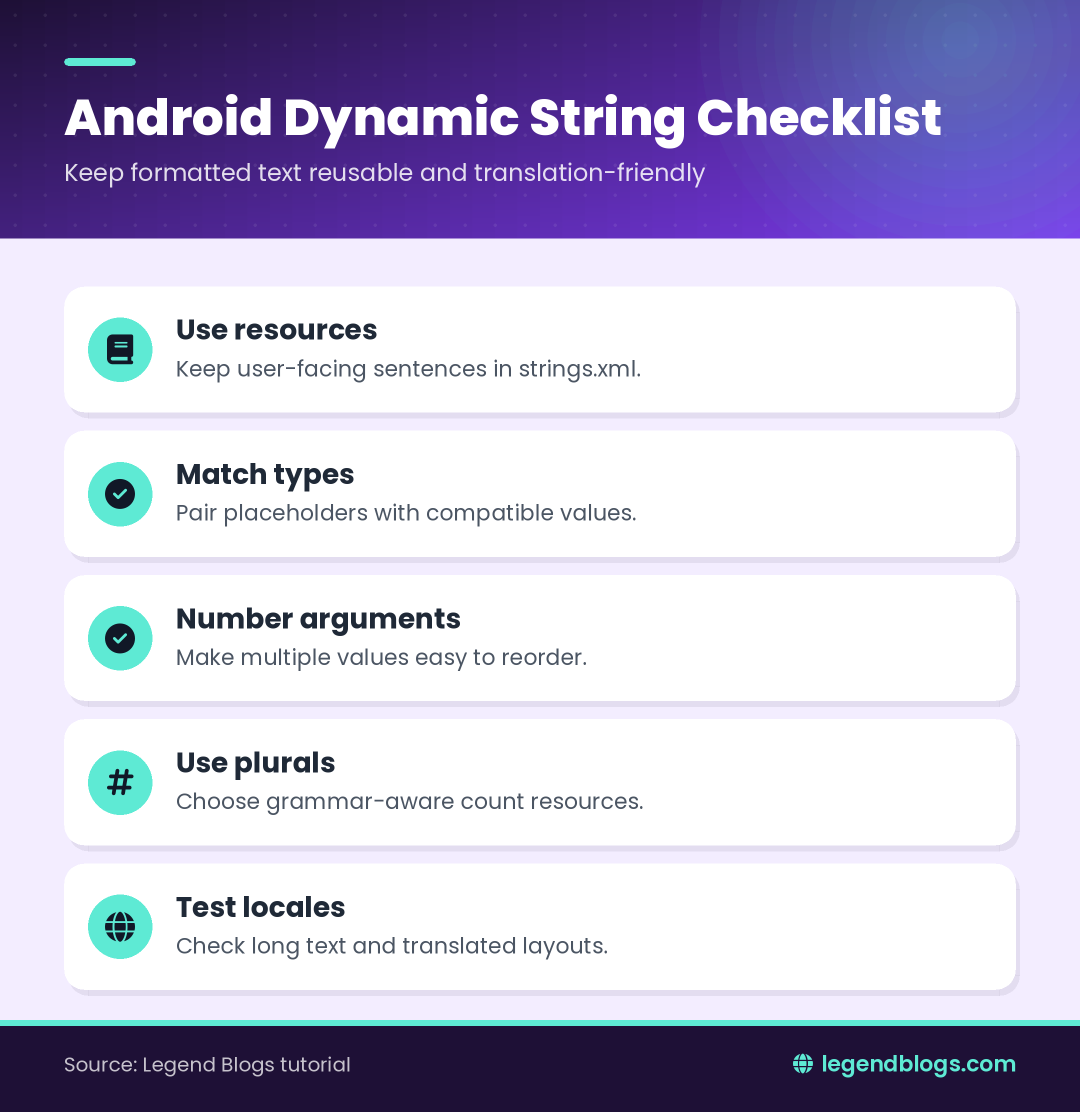
Why use strings.xml?
Android string resources separate presentation text from Java or Kotlin code. A resource can be translated, reviewed, and reused by several screens. It also avoids scattering spelling and punctuation across event handlers, adapters, and activities.
Use a descriptive resource name and keep the sentence natural. For example, a welcome message should be stored as a complete sentence rather than as separate fragments that are joined in code.
String values and placeholders
A formatted resource uses placeholders such as %s for text and %d for an integer. The placeholder must match the type passed to the method. A decimal value may need a floating-point placeholder, while a long number should use a compatible numeric format.
<string name="welcome_user">Welcome, %1$s!</string>
<string name="photo_count">Photos: %1$d</string>
Using getString() with Java and Kotlin
Java example
In an Activity, Fragment, or other context-aware component, call the resource overload of getString() and pass the value after the resource ID.
String userName = "Asha";
String message = getString(R.string.welcome_user, userName);
textView.setText(message);
The method returns the completed sentence. Do not call setText() with a numeric resource ID when you intend to show a number; Android may interpret that number as a resource identifier. Convert values through a formatted resource instead.
Kotlin example
val userName = "Asha"
val message = getString(R.string.welcome_user, userName)
textView.text = message
In a Fragment, use the Fragment context only after the view and context are available. In a RecyclerView adapter, pass a context or resources reference deliberately rather than storing an Activity that could leak.
Formatting Multiple Dynamic Values
Use numbered arguments
Numbered placeholders make the intended order clear and help translators rearrange values for another language.
<string name="account_summary">%1$s has %2$d unread messages.</string>

String summary = getString(R.string.account_summary, userName, unreadCount);
Match values to their types
Keep the argument order consistent with the resource. If a value can be missing, choose a fallback before formatting. Do not pass raw nullable data and hope the final sentence will remain meaningful.
- Use
%sfor text. - Use
%dfor whole numbers. - Use a suitable floating-point format for decimal values.
- Use numbered placeholders when a sentence contains more than one value.
Dynamic Text in TextView and Adapters
Updating a TextView
Set the completed string on the view after the data is available. A loading label can use a separate resource, and an empty-state label should be shown when there is no result instead of displaying a sentence with a blank value.
Using strings in list rows
For a list, format the row text inside the binding method using the row’s current data. Avoid keeping old formatted strings in a view holder because recycled rows can display a previous item when a value is missing.
Plural Resources for Counts
When to use plurals.xml
A count often changes grammar, not only a number. Android plural resources allow a language-specific resource to choose the correct form. Use them for messages such as one file and several files.
<plurals name="file_count">
  <item quantity="one">%d file</item>
  <item quantity="other">%d files</item>
</plurals>
Reading a plural resource
String label = getResources().getQuantityString(
    R.plurals.file_count, fileCount, fileCount);
The quantity is supplied both for selecting the form and for filling the placeholder. Test zero, one, and larger values because languages do not all use the same plural rules.
Localization and Translation Considerations

Avoid string concatenation
Concatenating a greeting, name, and punctuation may work in one language but produce an unnatural sentence in another. Store the whole sentence in the resource and let the translator position the placeholder.
Format dates and currency carefully
Dates, numbers, and prices depend on locale. Format them with locale-aware APIs before placing them in a resource, and do not hard-code a currency symbol when the application supports multiple regions.
Common Errors with Formatted Strings
Placeholder mismatch
A resource can fail when the placeholder expects an integer but code passes text, or when the number of arguments is wrong. Check the resource declaration and the call together.
Text does not update
Confirm that the code runs after the data arrives, that the correct view is being updated, and that the resource ID is not shadowed by a local variable. Log the final formatted value while debugging, but remove sensitive information before release.
Best Practices
Keep resources organized
- Use names that describe the meaning rather than the screen position.
- Keep punctuation in the resource sentence.
- Use comments for translator context when a phrase is ambiguous.
- Use separate resources for accessibility labels and visible headings when their wording differs.
Test configuration changes
Rotate the device, switch language, test long names, and try zero or very large counts. These cases expose layout and grammar problems that a single hard-coded example will not reveal.
Handle missing and user-generated values
Dynamic formatting does not remove the need for input handling. A name from a profile or an item title may be empty, unusually long, or contain characters that affect the layout. Decide on a fallback before calling getString(), and let the TextView render the value as text rather than treating it as markup.
If the value must contain styled content, use a deliberate styling approach and review how it behaves with translations and accessibility services. Avoid building HTML from untrusted values without an appropriate sanitizer. For ordinary labels, a normal formatted string is simpler and safer.
Keep formatting close to the data boundary
Format a value at the point where the UI needs it, but keep business rules outside the view when possible. A ViewModel or presenter can prepare the data while the resource remains responsible for the sentence. This separation makes the same message easier to reuse in a detail screen, list row, notification, or accessibility description.
Connect formatted text with accessible UI
A dynamic label should remain understandable when the user changes font size, enables a larger display, or uses a screen reader. Keep the important meaning in the sentence itself instead of relying only on color or position. When a formatted value is shown in a TextView, verify that the complete result is visible and that an accessibility service receives the same useful wording.
For reusable screens, define the resource once and let each view request the final text with its own current data. This avoids stale values after rotation or list updates. It also makes it easier to review every user-facing sentence during translation and accessibility testing.
- Check the completed sentence, not only the placeholder.
- Test text at large font scales and narrow widths.
- Keep labels meaningful when values are empty or unavailable.
- Prefer resource-driven text over duplicated literals in code.
- Decide how null, empty, and unknown values should appear.
- Test long translated values inside the actual layout.
- Use content descriptions that explain images without repeating visible text unnecessarily.
- Review plural and date formatting with more than one locale.
Lest take a example of version code of your application:
<string name="app_version">App Name (v%s)</string>%s used for String, but you can use otrher identifiers like:
%s used for String.
%d used for Integer
 TextView app_version = (TextView) view.findViewById(R.id.app_version);
 app_version.setText(getString(R.string.app_version, BuildConfig.VERSION_NAME));
Output:
App Name (v2.0.1)







Write a comment