Generally, when you take a screenshot, you will see a Screen Capture notification in the notification bar and you can see that screenshot in the Gallery app if you click that notification. And some of the android application you can't take a screenshot of the visible screen because of screen secured by the developer.
In this situation you'll see the message in the notification bar or in the Toast over the screen. Older version of android phone shows this message in the notification bar, but now android new version this message appears as Toast message over the screen.
Disable screen capture in android
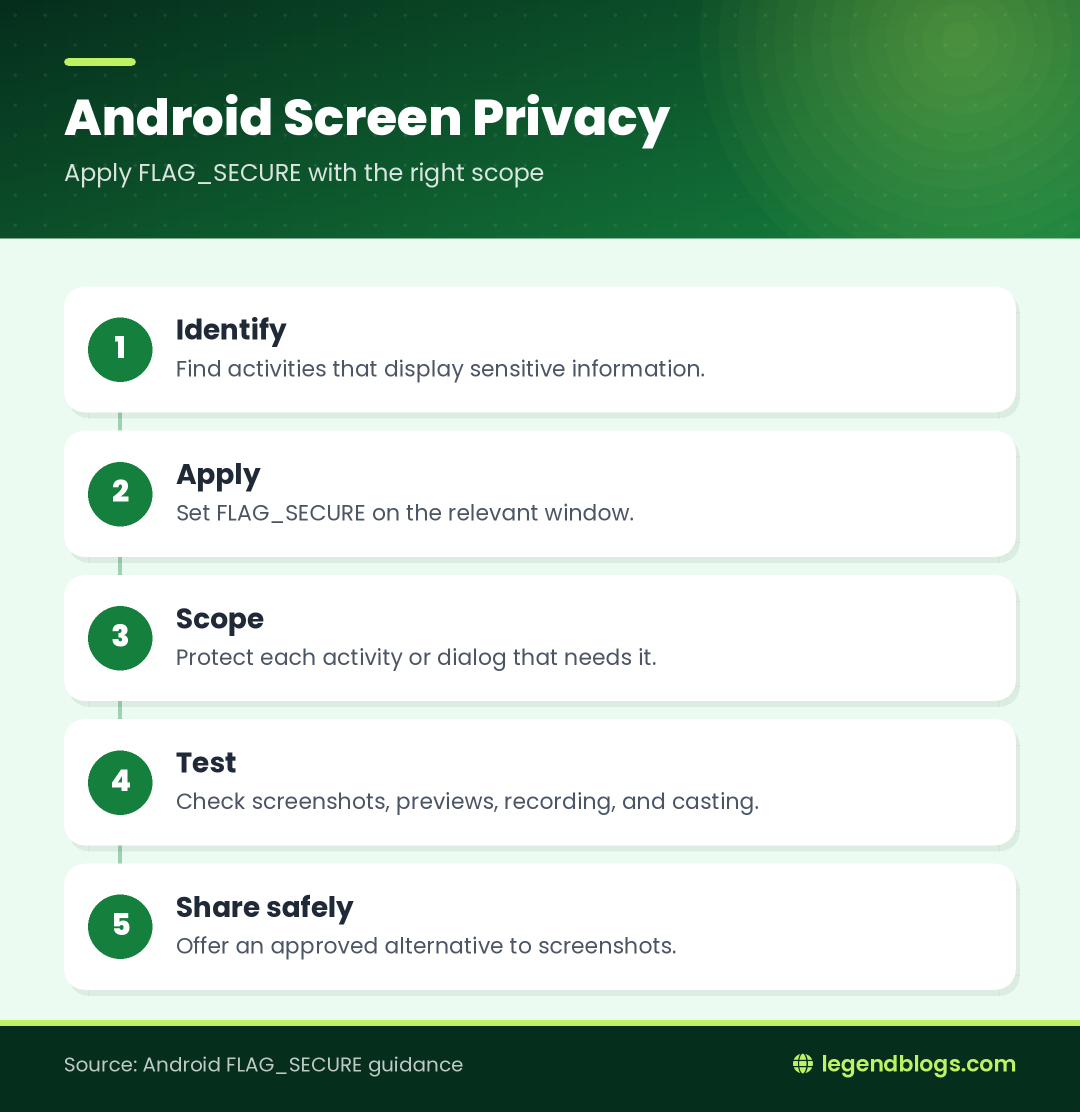
Now, if you want to prevent this action for your application or any activity, then you just need a few lines of code in your activity. You can use FLAG_SECURE, and then the Notification will be "Can’t take screenshot…….". There is no application level protection. You have to add this code in all the activities that you want to protect.
You just need to add this line in the activity:
getWindow().setFlags(WindowManager.LayoutParams.FLAG_SECURE,
				WindowManager.LayoutParams.FLAG_SECURE);
FLAG_SECURE Indicates that the display has a secure video output and supports compositing secure surfaces. Secure surfaces are used to prevent content rendered into those surfaces by applications from appearing in screenshots or from being viewed on non-secure displays. Protected buffers are used by secure video decoders for a similar purpose.
This method required to import WindowManager class. After adding this class in your code for the prevents screen capture will be finished, you can see this example:
package com.legendblogs.demo;
import android.content.Context;
import android.support.v7.app.AppCompatActivity;
import android.os.Bundle;
import android.view.WindowManager;
public class MainActivity extends AppCompatActivity {
    @Override
    protected void onCreate(Bundle savedInstanceState) {
        super.onCreate(savedInstanceState);
        setContentView(R.layout.activity_main);
        getWindow().setFlags(WindowManager.LayoutParams.FLAG_SECURE,
				WindowManager.LayoutParams.FLAG_SECURE);
    }
}
Disable screen capture message:

See this also:
- AsyncTask in Android
- Determine if device have an Internet Connection
- How to add Firebase in android app
How FLAG_SECURE Works in Android
Protecting a window
FLAG_SECURE marks a window as secure so the system should prevent its content from appearing in screenshots or on non-secure displays. The flag applies to the window where it is set, so adding it to one activity does not automatically protect every activity in the application.
import android.view.WindowManager;

@Override
protected void onCreate(Bundle savedInstanceState) {
    super.onCreate(savedInstanceState);
    setContentView(R.layout.activity_main);

    getWindow().setFlags(
        WindowManager.LayoutParams.FLAG_SECURE,
        WindowManager.LayoutParams.FLAG_SECURE
    );
}
Set it before sensitive content appears
Apply the flag as early as practical in the activity lifecycle, before displaying confidential content. If your app navigates between several sensitive screens, apply the policy to each relevant activity or use a shared base activity carefully.
Applying Screen Capture Protection to Selected Screens
Protect one activity
If only one screen contains private information, set the flag on that activity instead of making every screen secure. This keeps ordinary pages shareable while protecting account, payment, medical, or administrative content.
Remove the flag only deliberately
Removing the flag can expose the next frame to capture. If a screen changes between public and private modes, test the transition and make the privacy state clear in the application code.
getWindow().clearFlags(
    WindowManager.LayoutParams.FLAG_SECURE
);
Kotlin Example
Using window flags in Kotlin
The same window flag can be set from Kotlin. The important part is still the scope: the flag protects the current activity window, not arbitrary screens or content outside the application.
import android.os.Bundle
import android.view.WindowManager
import androidx.appcompat.app.AppCompatActivity

class PrivateActivity : AppCompatActivity() {
    override fun onCreate(savedInstanceState: Bundle?) {
        super.onCreate(savedInstanceState)
        window.setFlags(
            WindowManager.LayoutParams.FLAG_SECURE,
            WindowManager.LayoutParams.FLAG_SECURE
        )
        setContentView(R.layout.activity_private)
    }
}
Use a shared base activity carefully
A base activity can apply a common security rule to a group of screens. Verify that every subclass should be protected before using that approach. A shared implementation is convenient, but an accidental inheritance change can expand or reduce the protected area.
What FLAG_SECURE Does Not Guarantee
It is not a complete data protection system
FLAG_SECURE is a platform window-protection mechanism, not a replacement for authentication, authorization, encryption, or careful logging. It does not stop a person from photographing the screen with another device, and it does not protect data that your application sends to an insecure service.
Different devices can behave differently
System behavior can vary across Android versions, device manufacturers, casting paths, accessibility tools, and remote display features. Test the specific devices and Android versions that matter to your users.
- Protect sensitive data in storage and transit.
- Clear private data when a user signs out.
- Avoid putting secrets in logs or view labels.
- Use secure authentication and authorization checks.
- Test screenshots, recent-apps previews, and supported casting flows.
Recent Apps and Sensitive Previews
Consider the task preview
A sensitive activity may appear in the recent-apps overview. The secure window flag is intended to help prevent protected content from appearing in screenshots and previews, but you should still verify the behavior on the devices you support.
Hide content at the right time
If your product requires a custom privacy treatment, listen for appropriate lifecycle changes and cover or clear sensitive views when the activity is no longer in the foreground. Do not rely on a visual overlay as a substitute for the platform flag.
Testing Android Screen Capture Protection
Test the full user journey
Open the protected activity, enter realistic sensitive data, attempt a hardware or software screenshot, open the recent-apps screen, and test any supported recording or casting path. Repeat after navigation and configuration changes.
Test public screens too
If only selected activities should be private, confirm that public screens remain usable and that the flag is not inherited unexpectedly. Automated tests can verify that the window flags are set for the relevant activity classes.
Common Implementation Problems
The flag is added to the wrong window
Call getWindow on the activity that displays the sensitive content. A dialog or separate window may need its own treatment. Confirm the actual window hierarchy rather than assuming that one call affects every surface.
The protected screen still leaks data
Inspect notifications, logs, analytics, clipboard operations, network responses, cached files, and recent-task behavior. Screenshot prevention addresses one exposure route; it does not automatically secure every copy of the data.
Legacy imports fail
Older examples may use support-library imports while current projects use AndroidX. Update imports to match the project’s dependencies, but keep the window flag API concept separate from unrelated migration work.
Privacy-Friendly User Experience
Tell users what to expect
If screenshots are disabled, explain the restriction at the point where it matters. A short message can prevent confusion, especially in an internal business application where a user may need to share a record through an approved workflow.
Offer a safe sharing alternative
Instead of allowing screenshots of private screens, provide an export or share action that removes sensitive fields, applies access rules, and records the intended operation. The alternative should be designed for the actual business need rather than simply copying the entire screen.
FAQ
How do I disable screen capture in Android?
Set FLAG_SECURE on the activity window with WindowManager.LayoutParams.FLAG_SECURE. Apply it to every relevant sensitive activity and test the supported devices.
Does FLAG_SECURE protect the entire application?
No. It applies to the window where it is set. Other activities, dialogs, or separate windows may require their own protection.
Can users photograph a protected Android screen?
No software flag can prevent someone from using another camera to photograph a display. FLAG_SECURE addresses platform-controlled capture paths, not physical photography.
Does FLAG_SECURE replace encryption?
No. It should be combined with secure storage, encrypted transport, authorization, safe logging, and appropriate lifecycle handling.
How should I test screen capture prevention?
Test screenshots, screen recording, recent-app previews, casting, navigation, rotation, backgrounding, and the supported Android device range. Also inspect other places where the sensitive data may be copied.
Conclusion
FLAG_SECURE is a useful Android control for reducing screenshot and non-secure display exposure. Apply it to the correct activity window, choose the protected scope deliberately, and verify behavior on the devices your application supports.
Remember that capture prevention is only one part of privacy engineering. Protect the data at rest and in transit, avoid accidental leaks through logs and notifications, and provide an approved way to share information when users need one.



Write a comment